Skip to content
OnMSFT.com
  • Home
  • About
  • Contact
  • Windows
  • Surface
  • Xbox
  • How-To
  • OnPodcast
  • Edge
  • Teams
  • Gaming
Menu
  • Home
  • About
  • Contact
  • Windows
  • Surface
  • Xbox
  • How-To
  • OnPodcast
  • Edge
  • Teams
  • Gaming
  1. Home
  2. How-to
  3. How to add Google Chrome activities to any version of Windows 10’s Timeline

How to add Google Chrome activities to any version of Windows 10’s Timeline

James Walker James Walker
February 21, 2019
2 min read

Microsoft, Timeline, Windows 10, Android, iPhone\n

\n

Display Google Chrome browsing history in Windows Timeline

\n

To display your Google Chrome browsing history in Windows Timeline:

\n

    \n

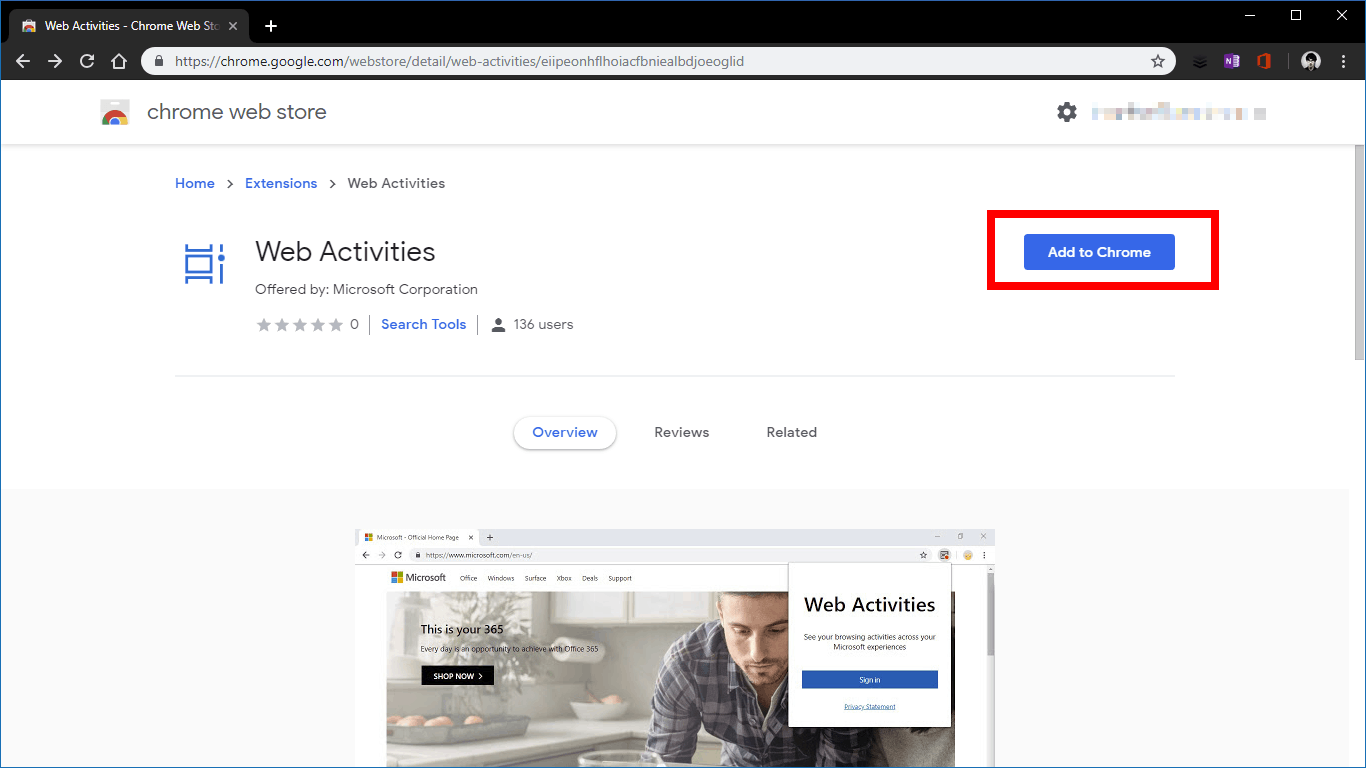
  1. Search for the “Web Activities” extension in the Chrome Web Store, published by Microsoft Corporation.
  2. \n

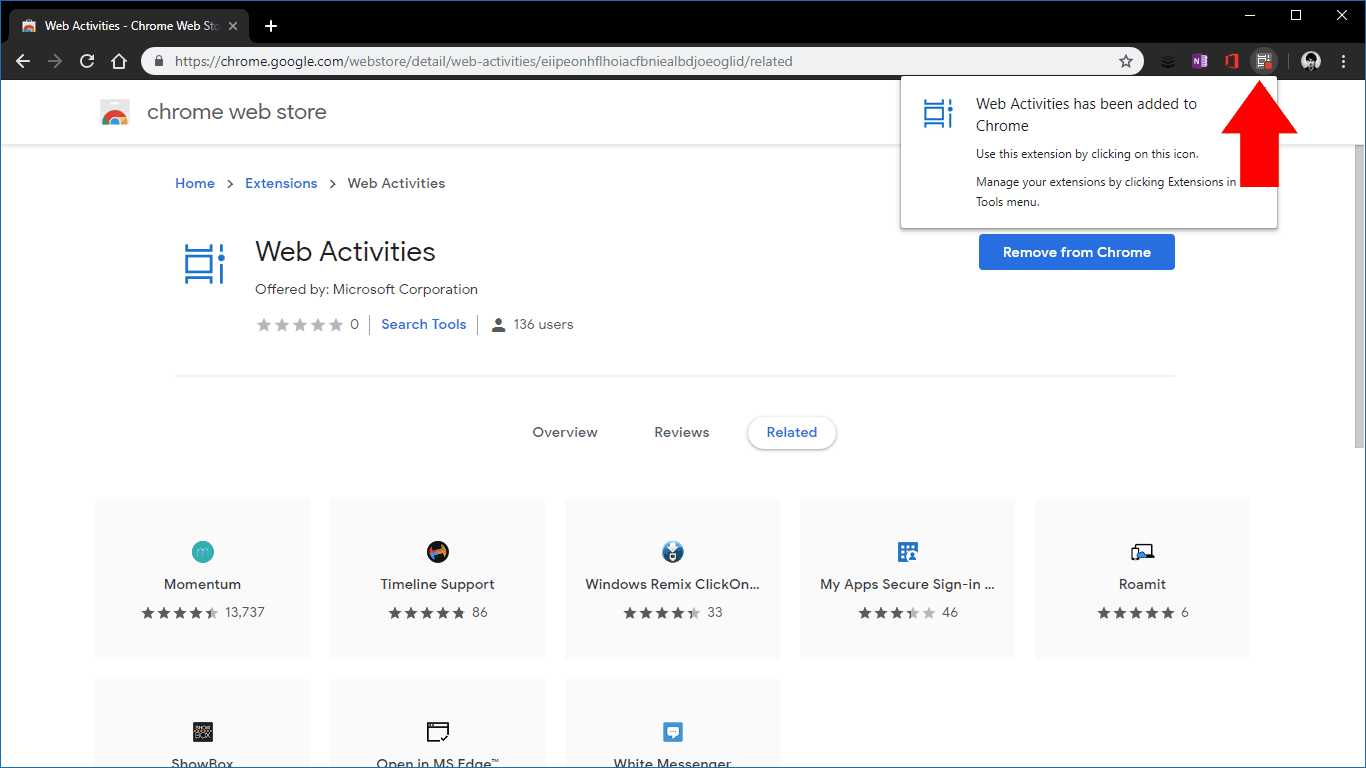
  3. Install the Web Activities extension – press the blue “Add to Chrome” button.
  4. \n

  5. Click the extension’s icon in the Chrome toolbar.
  6. \n

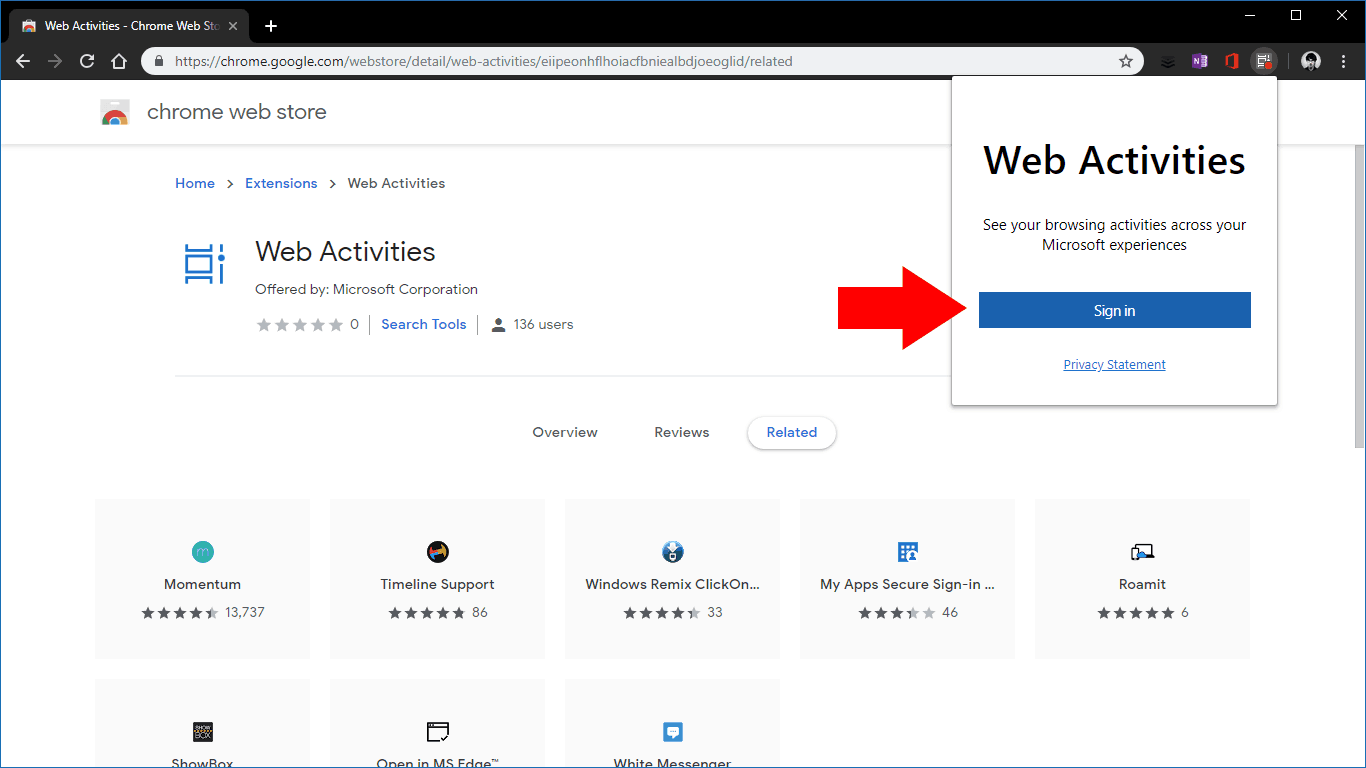
  7. Click “Sign in” and login with your Microsoft account. Your browsing history will now sync to Windows Timeline
  8. \n

\n

\n

Applies to Windows 10 1803 and up

\n

\n

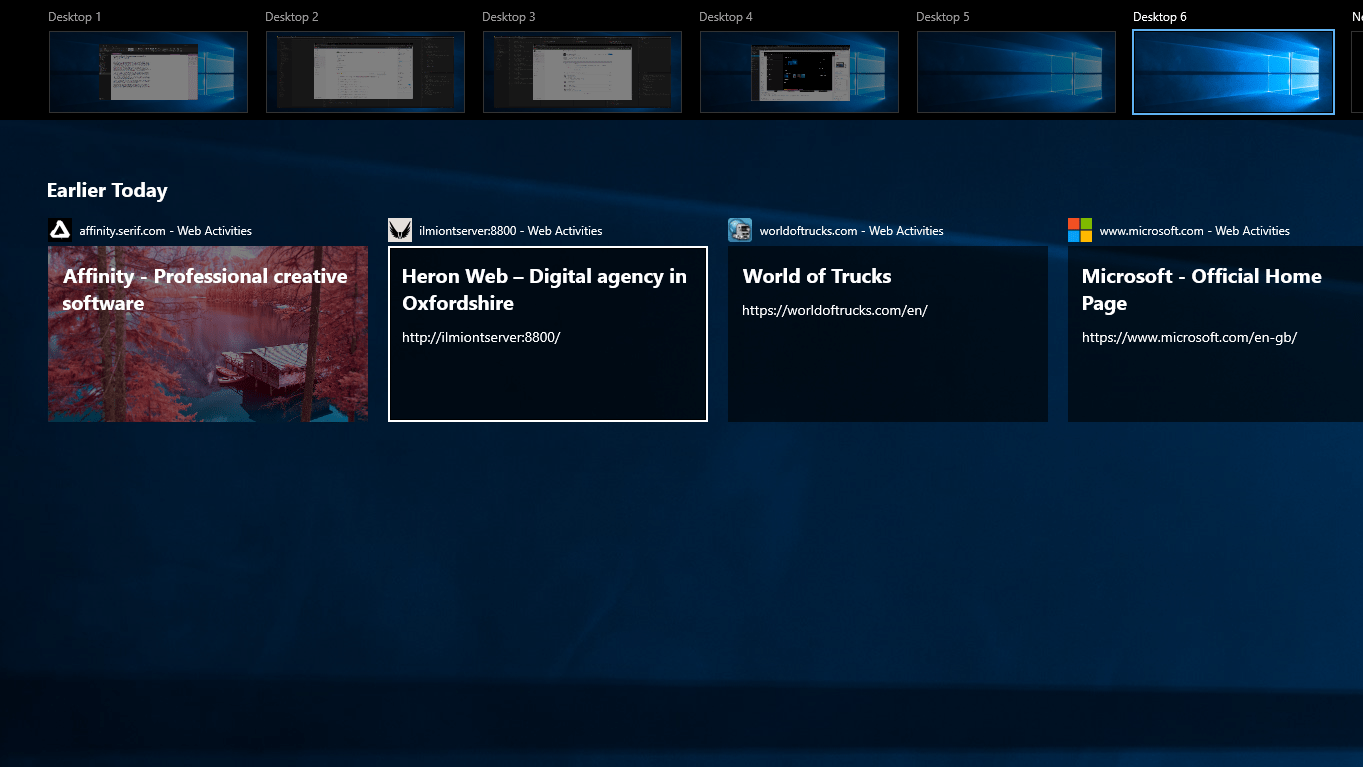
Windows Timeline is a handy feature introduced with the Windows 10 April 2018 Update that logs the activities you perform on your PC. Websites you visit, Office documents you edit and songs you play will all show up in chronological order within the Task View interface, accessed from the taskbar or the Win+Tab keyboard shortcut. Your Timeline is synced across your devices, including to Android phones via Microsoft Launcher.

\n
Web Activities Chrome extension

\n

This week, Microsoft announced a new Chrome extension which lets you bring your Chrome browsing history into Timeline. Published as “Web Activities” in the Chrome Web Store, it was announced alongside Windows 10 Insider Preview Build 18342 but is already available for download. We’ve found it’s compatible with every version of Windows 10 that supports Timeline.

\n
Web Activities Chrome extension

\n

To get started, make sure TimeLine is enabled on your PC, and then download the extension from the Chrome Web Store. Click the blue “Add to Chrome” button to install it in your browser. You’ll need to acknowledge the confirmation prompt, which warns the extension is able to access your entire browsing history. This is necessary so your visited websites can show up in Timeline.

\n
Web Activities Chrome extension

\n

After a few moments, you’ll be notified that the extension has been installed. Its icon will show up in the Chrome toolbar; click it to get started. Press the blue “Sign in” button” and follow the prompts in the popup window to login with your Microsoft account.

\n
Chrome tabs syncing to Timeline

\n

That’s all there is to it. Once you’re signed in, the extension will start recording your Chrome browsing history and feeding it through to Windows Timeline. We’ve found there’s usually a short delay but after a few seconds websites you visit should appear within Windows.

\n
Web Activities Chrome extension

\n

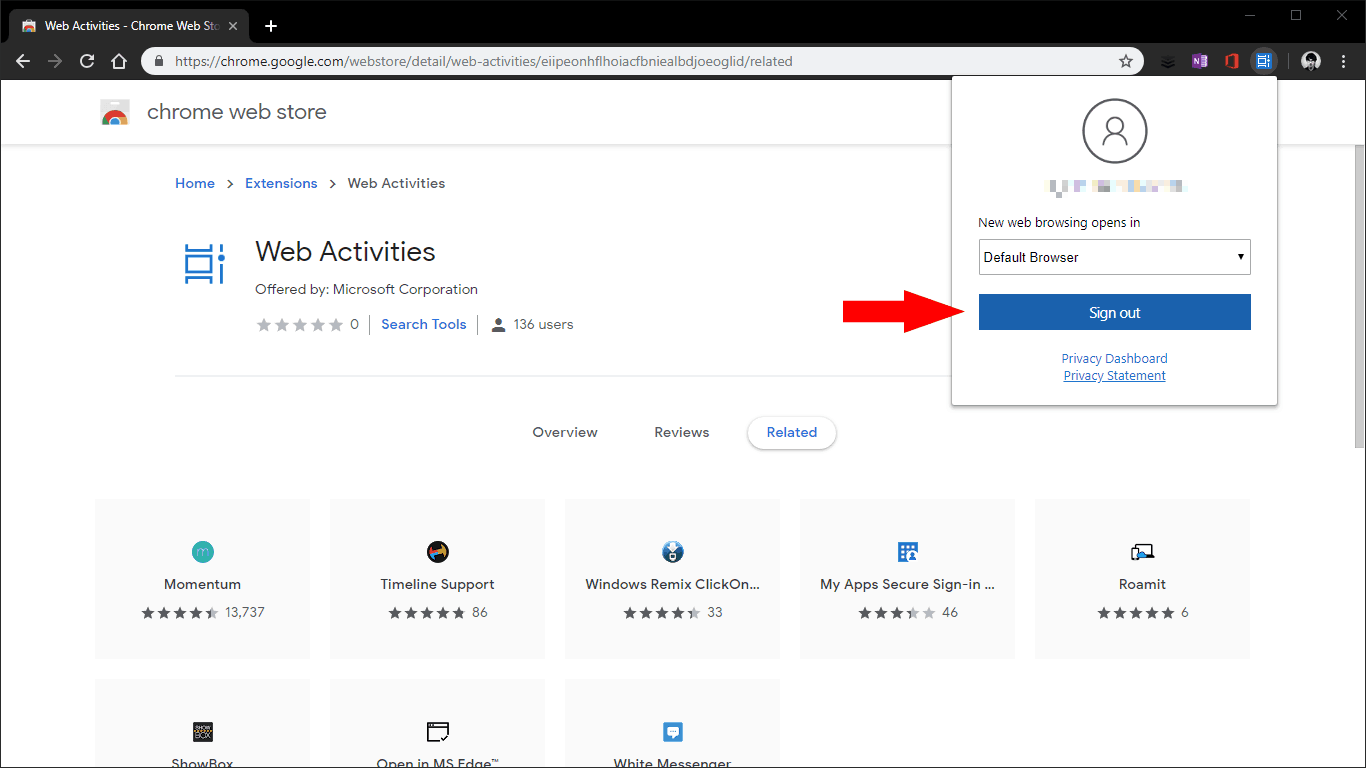
If you ever need to logout, just click the extension’s icon and press the blue “Sign out” button. The extension’s menu also includes the option of choosing whether to open Timeline web browsing activities in your default browser or Microsoft Edge. Thankfully, it’s “Default Browser” that’s selected by default. To remove the extension entirely, right-click its icon and choose “Remove from Chrome.”

\n\nFurther reading: Google Chrome, Timeline, Windows 10, Windows Timeline

Share this article:
Tags:
Google Chrome Timeline Windows 10 Windows Timeline
Previous Article Microsoft Edge runs flash on Facebook without your permission Next Article Save the Date: Microsoft’s MWC event will be this Sunday

Related Articles

How to Fix the Phone Link App Not Working on Windows 11 – OnMSFT.com

December 29, 2022

5 easy ways to make desktop shortcuts on Windows 11 – OnMSFT.com

December 29, 2022

How to customize precision touchpads on Windows – OnMSFT.com

December 22, 2022

Leave a Comment Cancel reply

Your email address will not be published. Required fields are marked *

Recent Posts

  • Bethesda’s Redfall may get pushed back to a May 2023 release – OnMSFT.com
  • Activision Blizzard deal approved in Chile, Japan may be next in line – OnMSFT.com
  • Xbox Games with Gold January 2023 lineup announced – OnMSFT.com
  • Activision Blizzard studio Proletariat becomes the latest game developer to unionize – OnMSFT.com
  • How to Fix the Phone Link App Not Working on Windows 11 – OnMSFT.com

Recent Comments

No comments to show.

Archives

  • December 2022
  • November 2022
  • October 2022
  • September 2022
  • August 2022
  • July 2022
  • June 2022
  • May 2022
  • April 2022
  • March 2022
  • February 2022
  • January 2022
  • December 2021
  • November 2021
  • October 2021
  • September 2021
  • August 2021
  • July 2021
  • June 2021
  • May 2021
  • April 2021
  • March 2021
  • February 2021
  • January 2021
  • December 2020
  • November 2020
  • October 2020
  • September 2020
  • August 2020
  • July 2020
  • June 2020
  • May 2020
  • April 2020
  • March 2020
  • February 2020
  • January 2020
  • December 2019
  • November 2019
  • October 2019
  • September 2019
  • August 2019
  • July 2019
  • June 2019
  • May 2019
  • April 2019
  • March 2019
  • February 2019
  • January 2019
  • December 2018
  • November 2018
  • October 2018
  • September 2018
  • August 2018
  • July 2018
  • June 2018
  • May 2018
  • April 2018
  • March 2018
  • February 2018
  • January 2018
  • December 2017
  • November 2017
  • October 2017
  • September 2017
  • August 2017
  • July 2017
  • June 2017
  • May 2017
  • April 2017
  • March 2017
  • February 2017
  • January 2017
  • December 2016
  • November 2016
  • October 2016
  • September 2016
  • August 2016
  • July 2016
  • June 2016
  • May 2016
  • April 2016
  • March 2016
  • February 2016
  • January 2016
  • December 2015
  • November 2015
  • October 2015
  • September 2015
  • August 2015
  • July 2015
  • June 2015
  • May 2015
  • April 2015
  • March 2015
  • February 2015
  • January 2015
  • December 2014
  • November 2014
  • October 2014
  • September 2014
  • August 2014
  • July 2014
  • June 2014
  • May 2014
  • April 2014
  • March 2014
  • February 2014
  • January 2014
  • December 2013
  • November 2013
  • October 2013
  • September 2013
  • August 2013
  • July 2013
  • June 2013
  • May 2013
  • April 2013
  • March 2013
  • February 2013
  • January 2013
  • December 2012
  • November 2012
  • October 2012
  • September 2012
  • August 2012
  • July 2012
  • June 2012
  • May 2012
  • April 2012
  • March 2012
  • February 2012
  • January 2012
  • December 2011
  • November 2011
  • October 2011
  • September 2011
  • August 2011
  • July 2011
  • June 2011
  • May 2011
  • April 2011
  • March 2011
  • February 2011
  • January 2011
  • December 2010
  • November 2010
  • October 2010
  • September 2010

Categories

  • Announcements
  • Deals
  • Developer
  • Editorial
  • Feature
  • Feature stories
  • Hero-post
  • Hotdeals
  • How-to
  • Latest news
  • Microsoft / office 365
  • News
  • Office 365
  • Onpodcast
  • Opinion
  • Our featured post
  • Polls
  • Review
  • Reviews
  • Videos
OnMSFT.com

OnMSFT.com covers Microsoft news, reviews, and how-to guides. Formerly known as WinBeta, we have been your source for Microsoft news since 1998.

Categories

  • Windows
  • Surface
  • Xbox
  • How-To
  • OnPodcast
  • Gaming
  • Edge
  • Teams

Recent Posts

  • Bethesda's Redfall may get pushed back to a May 2023 release - OnMSFT.com
  • Activision Blizzard deal approved in Chile, Japan may be next in line - OnMSFT.com
  • Xbox Games with Gold January 2023 lineup announced - OnMSFT.com
  • Activision Blizzard studio Proletariat becomes the latest game developer to unionize - OnMSFT.com
  • How to Fix the Phone Link App Not Working on Windows 11 - OnMSFT.com

Quick Links

  • About OnMSFT.com
  • Contact OnMSFT
  • Join Our Team
© 2010–2026 OnMSFT.com LLC. All rights reserved.
About OnMSFT.comContact OnMSFT

