Skip to content
OnMSFT.com
  • Home
  • About
  • Contact
  • Windows
  • Surface
  • Xbox
  • How-To
  • OnPodcast
  • Edge
  • Teams
  • Gaming
Menu
  • Home
  • About
  • Contact
  • Windows
  • Surface
  • Xbox
  • How-To
  • OnPodcast
  • Edge
  • Teams
  • Gaming
  1. Home
  2. News
  3. 3D print your own Surface Pro 4 adapter for the Surface Pro 3 Dock

3D print your own Surface Pro 4 adapter for the Surface Pro 3 Dock

Cameron Biggs Cameron Biggs
March 17, 2016
3 min read

As we change devices and chase the latest new hardware, many times we are left with a pile of accessories that are incompatible. This is usually due to a design change or complete overhaul of our device. Microsoft has announced a solution for those who have upgraded from a Surface Pro 3 to a Surface Pro 4 and have previously purchased a Surface Pro 3 Docking Station.

As we know, the Microsoft Surface lineup has endured many design changes and offers two distinct models that have different designs. This has resulted in accessories like docking stations previously being incompatible with the different Surface models and may have caused you a bit of re-thinking if you wanted to upgrade an entire Surface Pro 3 setup. However, Microsoft has announced a solution for those who weren’t excited about the idea of having to shell out for another Surface Docking Station.

COOL. Microsoft support will send you an adapter for your Surface Pro 4 to work w/ a 3 Dock…OR YOU CAN 3D PRINT IT https://t.co/UmcwefWxz5

— Scott Hanselman (@shanselman) March 17, 2016

You are now able to get a free adapter from Microsoft that allows you to use a Surface Pro 3 Dock with the newly released Surface Pro 4. If you’ve recently upgraded and have a Surface Pro 3 Dock, this offer is for you. The new adapter is available at local Microsoft Stores, you can order online at the Surface Online Service Center or if you happen to have a 3D printer, Microsoft has supplied the template to print one yourself.

To assist you in setting up the new adapter with the docking station, Microsoft has outlined the following steps:

Set up your docking station

Step 1: Plug the AC end of the docking station’s power cord into an electrical outlet or power strip and plug the other end into the charging port on the docking station.
Step 2: If you want to use a wired network connection, connect a network cable to the Ethernet port on the back of the docking station.
Step 3: Connect your computer peripherals to the USB ports on the docking station.
Step 4: Connect a cable from your monitor to the Mini DisplayPort on the docking station.

Note
If your monitor cable doesn’t have a Mini DisplayPort connector, you’ll need to buy another cable or an adapter. For more info on adapters, see Connect Surface to a TV, monitor, or projector.
Step 5: Connect any audio accessories such as speakers.

Place the adapter and Surface in the docking station

Your Surface Pro 4 sits on top of the adapter, allowing the sides of the docking station to connect properly.

Step 1: Make sure that both sides of your docking station are pulled out before inserting the adapter.
Step 2: Slide the adapter into your docking station.
Surface Pro 4 Adapter for Surface Pro 3 Docking Station
Step 3: Unplug the power supply from your Surface Pro 4 and remove any attached accessories. If you’re using a Typing Cover, open it so it lies flat.
You can leave a microSD card in the microSD card slot.
Step 4: Slide your Surface Pro 4 down into the docking station so that it sits on top of the adapter.
Step 5: Slide the sides of the docking station into the sides of your Surface.

Install Surface and Windows updates

To ensure that Surface Pro 4 can take full advantage of your Surface Pro 3 Docking Station, install the latest Surface and Windows updates.

Step 1: Go to Start Windows logo, and select Settings > Update & security > Windows Update.
Step 2: Select Check for updates. If updates are available, select Details.
Step 3: Select the updates you want to install, and select Install.
You may need to restart your Surface after the updates have installed.
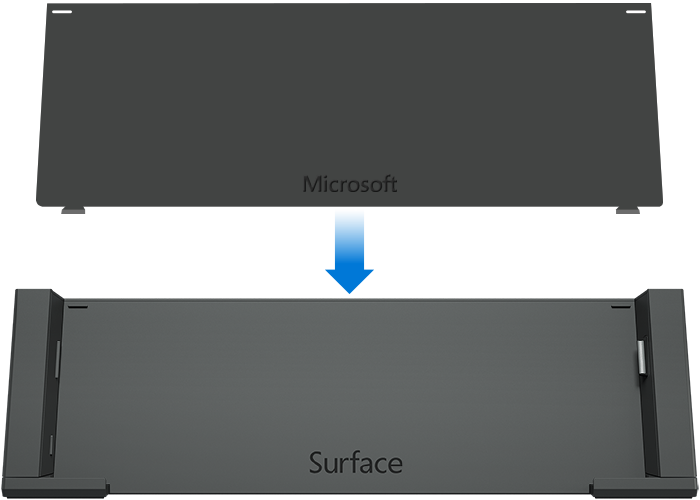
Available now, this new adapter will help you to continue to use your previously purchased Surface Pro 3 docking station with your new Surface Pro 4. Let us know in the comments if you are thinking of picking up this adapter for your Surface Pro 3 docking station.

Share This Post:

Tags: 3D printing | accessories | Docking Station | Microsoft | Surface | Surface 3 | Surface Pro 4
Share this article:
Tags:
3D printing accessories Docking Station Microsoft Surface Surface 3 Surface Pro 4
Previous Article Designed on Surface hits Munich with a magical wolf mural Next Article Microsoft publishes how-to video on upgrading to Windows 10 Mobile – OnMSFT.com

Related Articles

Microsoft is no longer manufacturing the Windows RT powered Surface 2

February 23, 2026

Microsoft treats Windows Phone owners with extra 20GB of free SkyDrive storage for one year

February 23, 2026

Bing now lets you explore free online courses and helps you find books to read

February 23, 2026

Leave a Comment Cancel reply

Your email address will not be published. Required fields are marked *

Recent Posts

  • Microsoft is no longer manufacturing the Windows RT powered Surface 2
  • Microsoft treats Windows Phone owners with extra 20GB of free SkyDrive storage for one year
  • Bing now showcases professional and celebrity Klout scores during search results
  • Bing now lets you search and browse for your friends’ Facebook photos
  • Bing now lets you explore free online courses and helps you find books to read

Recent Comments

No comments to show.

Archives

  • February 2026
  • December 2022
  • November 2022
  • October 2022
  • September 2022
  • August 2022
  • July 2022
  • June 2022
  • May 2022
  • April 2022
  • March 2022
  • February 2022
  • January 2022
  • December 2021
  • November 2021
  • October 2021
  • September 2021
  • August 2021
  • July 2021
  • June 2021
  • May 2021
  • April 2021
  • March 2021
  • February 2021
  • January 2021
  • December 2020
  • November 2020
  • October 2020
  • September 2020
  • August 2020
  • July 2020
  • June 2020
  • May 2020
  • April 2020
  • March 2020
  • February 2020
  • January 2020
  • December 2019
  • November 2019
  • October 2019
  • September 2019
  • August 2019
  • July 2019
  • June 2019
  • May 2019
  • April 2019
  • March 2019
  • February 2019
  • January 2019
  • December 2018
  • November 2018
  • October 2018
  • September 2018
  • August 2018
  • July 2018
  • June 2018
  • May 2018
  • April 2018
  • March 2018
  • February 2018
  • January 2018
  • December 2017
  • November 2017
  • October 2017
  • September 2017
  • August 2017
  • July 2017
  • June 2017
  • May 2017
  • April 2017
  • March 2017
  • February 2017
  • January 2017
  • December 2016
  • November 2016
  • October 2016
  • September 2016
  • August 2016
  • July 2016
  • June 2016
  • May 2016
  • April 2016
  • March 2016
  • February 2016
  • January 2016
  • December 2015
  • November 2015
  • October 2015
  • September 2015
  • August 2015
  • July 2015
  • June 2015
  • May 2015
  • April 2015
  • March 2015
  • February 2015
  • January 2015
  • December 2014
  • November 2014
  • October 2014
  • September 2014
  • August 2014
  • July 2014
  • June 2014
  • May 2014
  • April 2014
  • March 2014
  • February 2014
  • January 2014
  • December 2013
  • November 2013
  • October 2013
  • September 2013
  • August 2013
  • July 2013
  • June 2013
  • May 2013
  • April 2013
  • March 2013
  • February 2013
  • January 2013
  • December 2012
  • November 2012
  • October 2012
  • September 2012
  • August 2012
  • July 2012
  • June 2012
  • May 2012
  • April 2012
  • March 2012
  • February 2012
  • January 2012
  • December 2011
  • November 2011
  • October 2011
  • September 2011
  • August 2011
  • July 2011
  • June 2011
  • May 2011
  • April 2011
  • March 2011
  • February 2011
  • January 2011
  • December 2010
  • November 2010
  • October 2010
  • September 2010

Categories

  • Announcements
  • Deals
  • Developer
  • Editorial
  • Feature
  • Feature stories
  • Hero-post
  • Hotdeals
  • How-to
  • Latest news
  • Microsoft / office 365
  • News
  • Office 365
  • Onpodcast
  • Opinion
  • Our featured post
  • Polls
  • Review
  • Reviews
  • Videos
OnMSFT.com

OnMSFT.com covers Microsoft news, reviews, and how-to guides. Formerly known as WinBeta, we have been your source for Microsoft news since 1998.

Categories

  • Windows
  • Surface
  • Xbox
  • How-To
  • OnPodcast
  • Gaming
  • Edge
  • Teams

Recent Posts

  • Microsoft is no longer manufacturing the Windows RT powered Surface 2
  • Microsoft treats Windows Phone owners with extra 20GB of free SkyDrive storage for one year
  • Bing now showcases professional and celebrity Klout scores during search results
  • Bing now lets you search and browse for your friends’ Facebook photos
  • Bing now lets you explore free online courses and helps you find books to read

Quick Links

  • About OnMSFT.com
  • Contact OnMSFT
  • Join Our Team
© 2010–2026 OnMSFT.com LLC. All rights reserved.
About OnMSFT.comContact OnMSFT