Skip to content
OnMSFT.com
  • Home
  • About
  • Contact
  • Windows
  • Surface
  • Xbox
  • How-To
  • OnPodcast
  • Edge
  • Teams
  • Gaming
Menu
  • Home
  • About
  • Contact
  • Windows
  • Surface
  • Xbox
  • How-To
  • OnPodcast
  • Edge
  • Teams
  • Gaming
  1. Home
  2. How-to
  3. How to blur your background in Microsoft Teams during a call to help protect your privacy (or hide a mess!)

How to blur your background in Microsoft Teams during a call to help protect your privacy (or hide a mess!)

Arif Bacchus Arif Bacchus
March 9, 2020
3 min read
\n

How to blur the background in Microsoft Teams

\n

Microsoft Teams has a feature where you can blur your background, putting you in the focus, and concealing everything behind you. Here’s how to use it.

\n

    \n

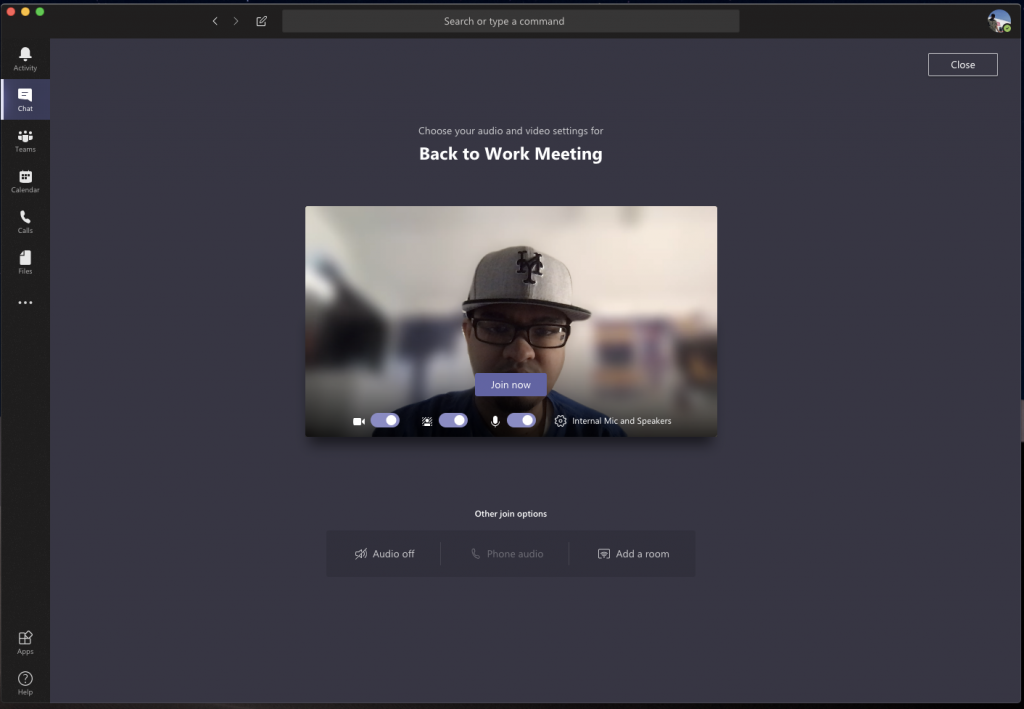
  • Before a call: You should notice a purple slider next to the video icon. It will be the second one from the left. Click this slider to turn on the background blur feature
  • \n

  • During a call: Hover your mouse over the bottom middle part of your screen and click the “…” icon. You’ll want to choose the blur my background option.
  • \n

\n

\n

Applies to All Windows 10 Versions

\n

\n

Sometimes when you’re on a call in Microsoft Teams the unexpected can happen, especially when working from home. Someone might barge into the room and interrupt your call, or you might just be in a weird setting where you might not want others to see what’s happening in the background. No need to worry, though, as Microsoft Teams has a feature where you can blur your background, putting you in the focus, and concealing everything behind you. Here’s how to use it.

\n

There are two ways you can set up background blur in Microsoft Teams: Before a call, and during a call. We’ll be starting first before a call. To do this, you’ll want to start a meeting or join a call. On the join now screen where you choose your audio and video settings, you should notice a purple slider next to the video icon, it will be the second one from the left. You’ll want to click this slider so it’s on. Keep in mind, that you’ll only see this option during scheduled meetings, it might not work otherwise.

\n
\n

\n

\n

\n

\n

\n\n

Now, for the option to turn on background blur during a meeting in Microsoft Teams. With this method, you’ll want to hover your mouse over the bottom middle part of your screen. You should then see a “…” icon. You’ll want to click that and choose blur my background.  You can always toggle this on and off as you see fit.

\n

It is worth noting that background blur is only supported on the web and MacOS for now. The feature also might not be available for your specific device yet either. If you don’t see the toggle switch for it, your device probably won’t support it. Microsoft also has a warning and mentions that background blurring might not always prevent sensitive information from being visible to other meeting members and participants.

\n

Blurring the background is just one cool trick in Microsoft Teams to help clean up or hide background messes during calls. As announced in March 2019, Microsoft is also working on a feature that lets you set a custom background during a call. The feature isn’t yet available for all Teams users, but recently, Microsoft employees who have been working from home have been spotted using the feature internally. The backgrounds are fairly goofy, ranging from an air-field to Star Wars and Star Trek.

\n

This all is included in our list of tricks and tips on how you can get the most out of your meetings in Teams. We’ve also got other guides and how-tos, and news articles relating to Microsoft Teams, so feel free to check it out and let us know if you’ve found the background blue feature useful by dropping us a comment below.

\n

Share This Post:

Tags: Microsoft Teams | Teams
Share this article:
Tags:
Microsoft Teams Teams
Previous Article Microsoft makes a $1 million donation for help with Coronavirus response in Puget Sound area Next Article As Coronavirus continues to spread, new features in Microsoft 365 are helping empower healthcare workers

Related Articles

How to Fix the Phone Link App Not Working on Windows 11 – OnMSFT.com

December 29, 2022

5 easy ways to make desktop shortcuts on Windows 11 – OnMSFT.com

December 29, 2022

How to customize precision touchpads on Windows – OnMSFT.com

December 22, 2022

Leave a Comment Cancel reply

Your email address will not be published. Required fields are marked *

Recent Posts

  • Microsoft is no longer manufacturing the Windows RT powered Surface 2
  • Microsoft treats Windows Phone owners with extra 20GB of free SkyDrive storage for one year
  • Bing now showcases professional and celebrity Klout scores during search results
  • Bing now lets you search and browse for your friends’ Facebook photos
  • Bing now lets you explore free online courses and helps you find books to read

Recent Comments

No comments to show.

Archives

  • February 2026
  • December 2022
  • November 2022
  • October 2022
  • September 2022
  • August 2022
  • July 2022
  • June 2022
  • May 2022
  • April 2022
  • March 2022
  • February 2022
  • January 2022
  • December 2021
  • November 2021
  • October 2021
  • September 2021
  • August 2021
  • July 2021
  • June 2021
  • May 2021
  • April 2021
  • March 2021
  • February 2021
  • January 2021
  • December 2020
  • November 2020
  • October 2020
  • September 2020
  • August 2020
  • July 2020
  • June 2020
  • May 2020
  • April 2020
  • March 2020
  • February 2020
  • January 2020
  • December 2019
  • November 2019
  • October 2019
  • September 2019
  • August 2019
  • July 2019
  • June 2019
  • May 2019
  • April 2019
  • March 2019
  • February 2019
  • January 2019
  • December 2018
  • November 2018
  • October 2018
  • September 2018
  • August 2018
  • July 2018
  • June 2018
  • May 2018
  • April 2018
  • March 2018
  • February 2018
  • January 2018
  • December 2017
  • November 2017
  • October 2017
  • September 2017
  • August 2017
  • July 2017
  • June 2017
  • May 2017
  • April 2017
  • March 2017
  • February 2017
  • January 2017
  • December 2016
  • November 2016
  • October 2016
  • September 2016
  • August 2016
  • July 2016
  • June 2016
  • May 2016
  • April 2016
  • March 2016
  • February 2016
  • January 2016
  • December 2015
  • November 2015
  • October 2015
  • September 2015
  • August 2015
  • July 2015
  • June 2015
  • May 2015
  • April 2015
  • March 2015
  • February 2015
  • January 2015
  • December 2014
  • November 2014
  • October 2014
  • September 2014
  • August 2014
  • July 2014
  • June 2014
  • May 2014
  • April 2014
  • March 2014
  • February 2014
  • January 2014
  • December 2013
  • November 2013
  • October 2013
  • September 2013
  • August 2013
  • July 2013
  • June 2013
  • May 2013
  • April 2013
  • March 2013
  • February 2013
  • January 2013
  • December 2012
  • November 2012
  • October 2012
  • September 2012
  • August 2012
  • July 2012
  • June 2012
  • May 2012
  • April 2012
  • March 2012
  • February 2012
  • January 2012
  • December 2011
  • November 2011
  • October 2011
  • September 2011
  • August 2011
  • July 2011
  • June 2011
  • May 2011
  • April 2011
  • March 2011
  • February 2011
  • January 2011
  • December 2010
  • November 2010
  • October 2010
  • September 2010

Categories

  • Announcements
  • Deals
  • Developer
  • Editorial
  • Feature
  • Feature stories
  • Hero-post
  • Hotdeals
  • How-to
  • Latest news
  • Microsoft / office 365
  • News
  • Office 365
  • Onpodcast
  • Opinion
  • Our featured post
  • Polls
  • Review
  • Reviews
  • Videos
OnMSFT.com

OnMSFT.com covers Microsoft news, reviews, and how-to guides. Formerly known as WinBeta, we have been your source for Microsoft news since 1998.

Categories

  • Windows
  • Surface
  • Xbox
  • How-To
  • OnPodcast
  • Gaming
  • Edge
  • Teams

Recent Posts

  • Microsoft is no longer manufacturing the Windows RT powered Surface 2
  • Microsoft treats Windows Phone owners with extra 20GB of free SkyDrive storage for one year
  • Bing now showcases professional and celebrity Klout scores during search results
  • Bing now lets you search and browse for your friends’ Facebook photos
  • Bing now lets you explore free online courses and helps you find books to read

Quick Links

  • About OnMSFT.com
  • Contact OnMSFT
  • Join Our Team
© 2010–2026 OnMSFT.com LLC. All rights reserved.
About OnMSFT.comContact OnMSFT

