
 \n
\n
How to use Microsoft Flow instead of IFTTT
\n
Here’s what you need to start using Microsoft Flow.
\n
- \n
- Sign up for an account on the Microsoft Flow website
- Browse the Microsoft Flow Templates
- Choose a template and modify it for your needs
\n
\n
\n
\n
\n
Applies to
\n
\n
Microsoft Flow is a workflow automation platform that connects different apps and services to automate tasks. Flow integrates with many existing Microsoft apps and services (Office 365), as well as other workplace apps to automate tasks to boost your productivity. Flow is Microsoft’s answer to IFTTT.
\n
In 2016, OnMSFT provided information on how to get started with Microsoft Flow and how to create a Microsoft Flow. Since that time, Microsoft Flow has changed significantly. More and more Flows have been added by Microsoft and everyday users that help increase productivity, automation, and efficiency.
\n
Microsoft created Flow to “Create automated workflows between your favorite apps and services to get notifications, synchronize files, collect data, and more.” If you have experience working with IFTTT (If This Then That), Microsoft Flow is similar to IFTTT, except Flows can be integrated with more services and handle the specific demands of an enterprise-level corporation.
\n
Microsoft Flow is different from IFTTT
\n
Microsoft Flow allows users to create workflows, also known as “flows.” Flows are based on trigger events. For instance, users can create a flow that downloads responses or replies to an email and then uploads those messages to OneDrive at set intervals. A flow can also download every tweet that’s sent from your business account to an Excel file and save it to OneDrive.
\n
How to use Microsoft Flow
\n
Microsoft Flow is already a part of Microsoft 365, Office 365, and Dynamics 365 application suites. If you don’t subscribe to any of those Microsoft services, you can still use Microsoft Flow for free; all you need is a web browser and a Microsoft account. Currently, Microsoft Flow supports all versions of Microsoft Edge, as well as other browsers, including Chrome and Safari. Here’s a quick video tutorial to give you a better understanding of how Microsoft Flow works.
\n
\n
Microsoft Flow Templates
\n
Many menial tasks are needed to be done daily. Flow templates help you to take care of those tasks by using Microsoft Flow do them automatically while saving you time in the process.
\n
For example, Flow can automatically notify you on Slack when your boss emails your Gmail account. Flow templates are predefined ‘flows’ for common processes. All of the flow templates are explained in the vast Microsoft Flow database, which is available to all users.
\n
So, if you think you have a great Flow in mind, be sure to check out the large library of existing flow templates, before you create one that may already exist. Even though there are plenty of flow templates available, Microsoft frequently adds the most used Flow templates created by other users to the list of general templates.
\n
How to Create a Flow from a Template
\n

\n
Creating a Microsoft Flow from a template is easy, provided you have a Microsoft Flow account. If you don’t, sign up for one here. Once you have a Microsoft Flow account, you can choose from any of the Flow templates currently available to get started. Browsing through the available Flow templates will give you a better idea of how Flows work and how Flows can help you automate your workflow.
\n
Once you decide on what Microsoft Flow template you want to use, you may need to modify three things for the Flow:
\n
- \n
- Frequency: specify how often you want the flow to run.
- Content: Type of the content of the Flow template.
- Connect: Link the account(s) where you want to connect the services.
\n
\n
\n
\n
When creating a flow for a recurring action, you can modify the template to work on your schedule and in your time zone. Email workflows can be changed to trigger during off-hours, holidays, or during a scheduled vacation.
\n
Here are the three main types of workflows you can create using Microsoft Flow:
\n
- \n
- Automated: A Flow designed to run automatically, based on the occurrence of an event—such as an email, edits made to a file, or a card added to Microsoft Teams.
- Button: A manual flow, which only runs when a button is clicked.
- Scheduled: A recurring flow, where you specify the frequency of the flow.
\n
\n
\n
\n
In addition to custom workflows, Microsoft supports integration with popular applications for enhanced interconnectivity. These include Microsoft’s services, including Office 365 and Dynamics 365. Microsoft Flow also supports integration with popular third-party apps such as Slack, Dropbox, Twitter, and more. Also, Microsoft Flow also enabled other connector protocols, including FTP and RSS, for even more customized integration.
\n
Pricing
\n
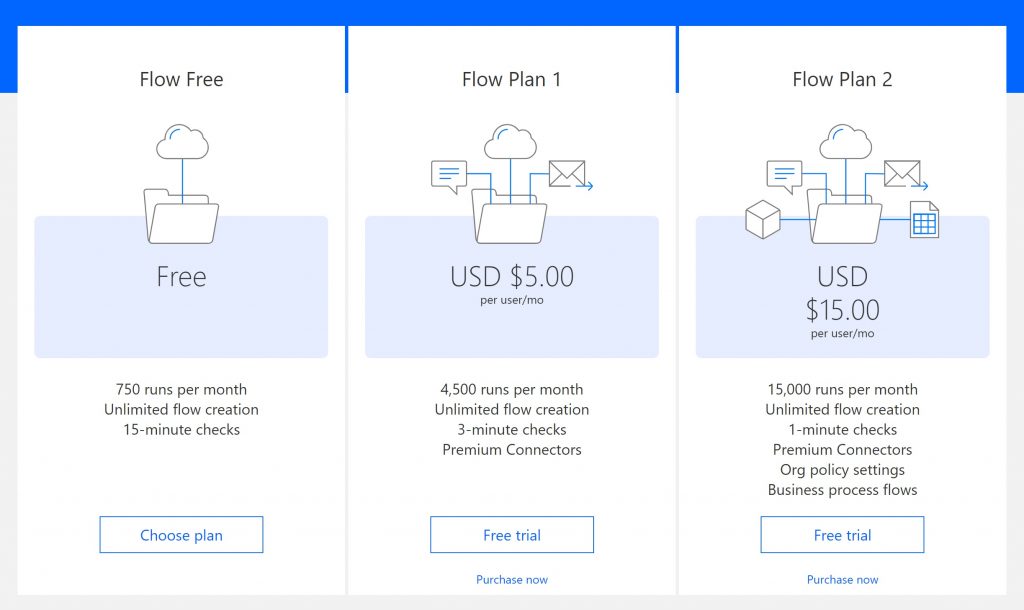
Currently, Microsoft Flow has three monthly plans. One free and two paid monthly plans. Here’s a breakdown of each plan and its cost.
\n
\n
Even though Flow Free is free and you can create unlimited flows, you are restricted to 750 runs per month and 15-minute checks. Flow Plan 1 offers 3-minute checks and 4,500 runs per month for $5 per user, per month. Flow Plan 2 offers the most services and features at $15 per user, per month.
\n
For Office 365 and Dynamics 365 users do not need an additional monthly fee to use Microsoft Flow, but they are limited in some features. Their Office 365 and/or Dynamics 365 subscription includes up to 2,000 runs per user per month and a maximum flow frequency of 5 minutes.
\n
Furthermore, the number of flow runs is aggregated across all users covered under your Office 365 or Dynamics 365 subscription. If any user exceeds more than the included runs per month per user, you can buy an additional 50,000 runs at an extra $40.00 a month. Microsoft Flow plan details on limits on runs and configurations can be found here.
\n
Enhanced Features
\n
Of course, more services and features are available to paid subscribers. In the latest Microsoft Flow update, 2019 release wave 2, Microsoft added AI Builder to monitor and automate Flows for paid users. Microsoft provides a YouTube video going over all the features and services available in the new update.
\n\nFurther reading: Dynamics 365, IFTTT, Microsoft, Microsoft Flow, Office 365, Productivity Tips, Windows 10


