Skip to content
OnMSFT.com
  • Home
  • About
  • Contact
  • Windows
  • Surface
  • Xbox
  • How-To
  • OnPodcast
  • Edge
  • Teams
  • Gaming
Menu
  • Home
  • About
  • Contact
  • Windows
  • Surface
  • Xbox
  • How-To
  • OnPodcast
  • Edge
  • Teams
  • Gaming
  1. Home
  2. How-to
  3. How to use Collections in Microsoft Edge Insider

How to use Collections in Microsoft Edge Insider

James Walker James Walker
September 5, 2019
3 min read

Collections in Microsoft Edge Insider\n

\n

How to use Collections in Microsoft Edge Insider

\n

To create a collection in Microsoft Edge Insider:

\n

    \n

  1. Enable collections by visting “edge://flags” and enabling the “Experimental Collections feature” flag.
  2. \n

  3. Click the Collections toolbar icon in Edge.
  4. \n

  5. Click the “Start new collection” button and name your collection.
  6. \n

  7. Drag and drop content from webpages into the collection.
  8. \n

\n

\n

Applies to All Windows 10 Versions

\n

\n

Collections is an upcoming feature in Microsoft’s new Chromium-powered Edge browser. Designed to make it simpler to collate information from webpages, Collections lets you copy text, images and links into a dedicated notes panel for later reference.

\n

Collections is now available in the Edge Insider Canary and Dev channels. You still need to enable it manually, using a feature flag.

\n

Enabling Collections

\n

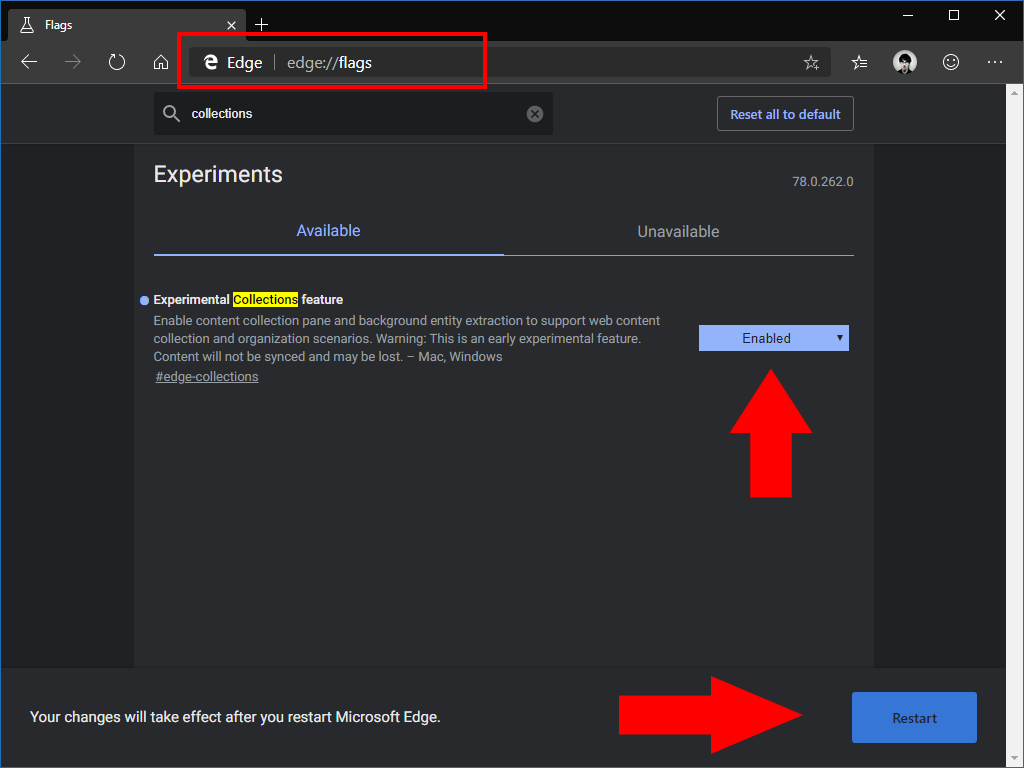
Launch Edge Insider and navigate to edge://flags using the address bar. Search for “collections” using the searchbar at the top of the page. Use the dropdown menu to change the “Experimental Collections feature” flag to the “Enabled” state.

\n
Collections in Microsoft Edge Insider

\n

You’ll be prompted to restart the browser to apply the changes. When Edge is relaunched, you’ll see a new icon next to the address bar. Clicking the stack of cards will open the Collections sidebar.

\n

Using Collections

\n

With Collections enabled, you’re ready to start collating snippets of information from the sites you visit. Click the Collections icon to reveal the Collections pane. To get started, click the “Start new collection” button to create your first collection.

\n

Collections in Microsoft Edge Insider

\n

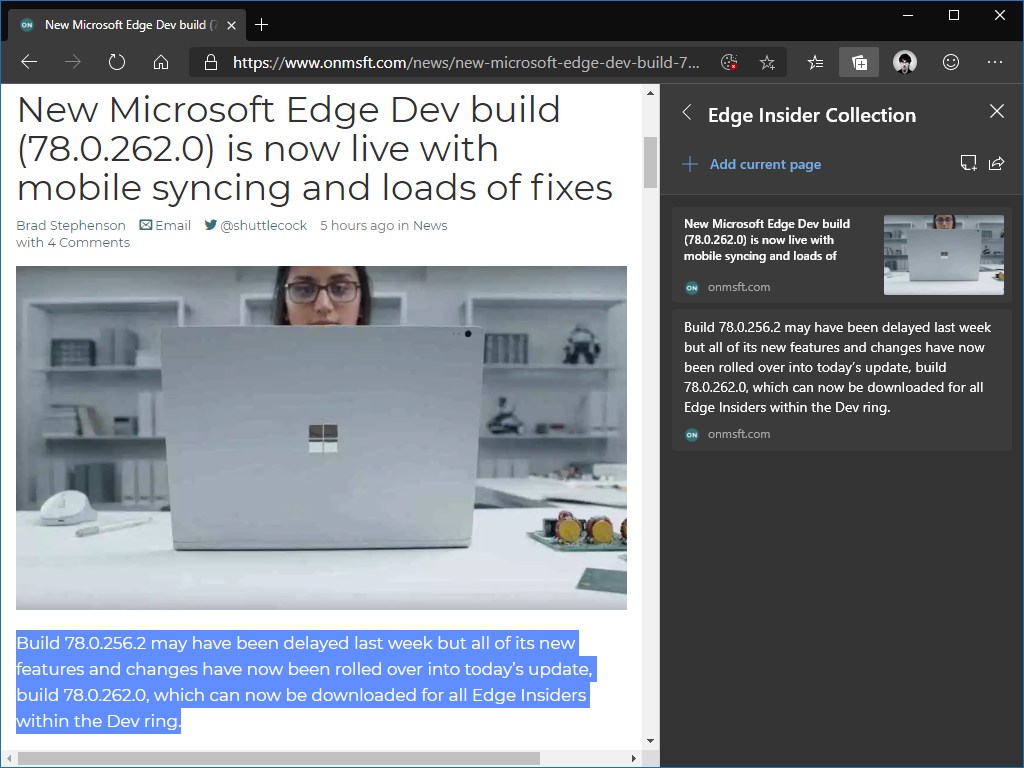
You can now drag and drop content from your webpage into the collections pane. Each item gets added into the collection for later reference. Clicking the “Add current page” button is a good way to begin – it will attach a link back to the webpage you’re viewing.

\n

Collections in Microsoft Edge Insider

\n

Collections simplifies several common tasks, such as highlighting important sections of an article for later reference. You can add text to the collection by highlighting it on the page and then dragging it into the collections pane. The same procedure works for images.

\n
Collections in Microsoft Edge Insider

\n

To refer to your collection in the future, open Edge’s Collections pane from the toolbar button. You can then select your collection and review the content it includes. Content is automatically linked to its origin webpage, so tapping a passage of text will open the page it was copied from.

\n

Exporting Collections

\n

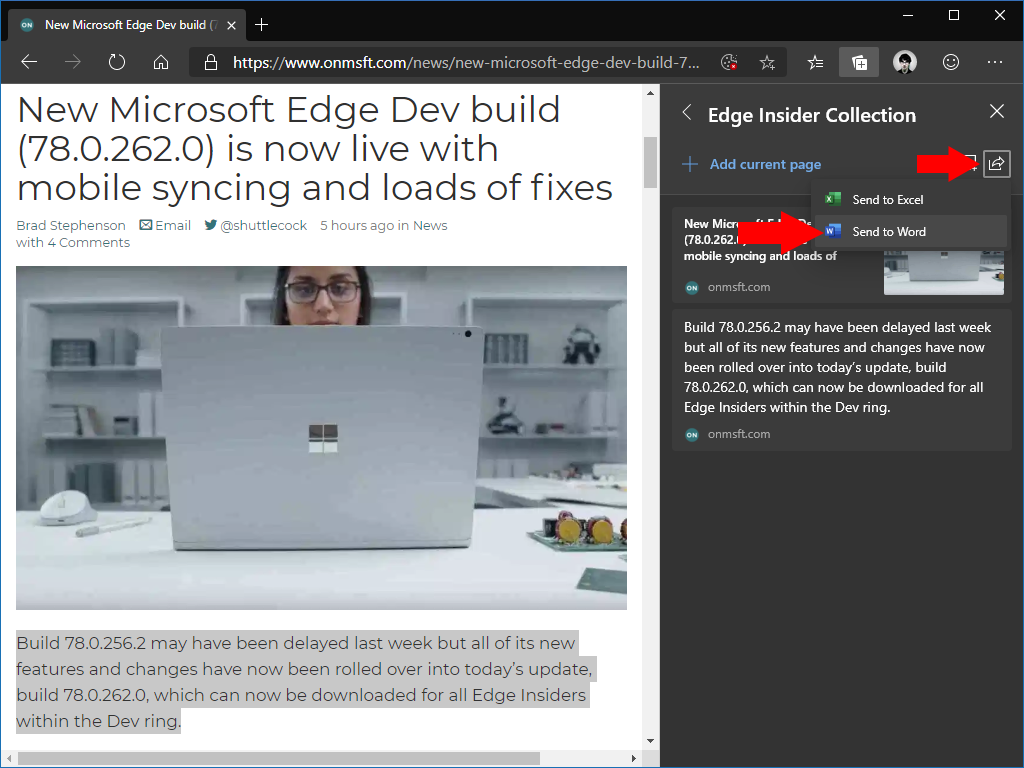
Collections can be exported to Excel or Word. This allows you to use the feature to jumpstart work on a research document, without having to copy, paste and alt-tab between Word and the browser.

\n
Collections in Microsoft Edge Insider

\n

To export a collection, open it in the Collections pane. Click the share icon in the top-right of the pane and then choose the app to send it to. Although only Excel and Word are currently offered, it seems likely that more formats will be added over time.

\n

Managing your Collections

\n

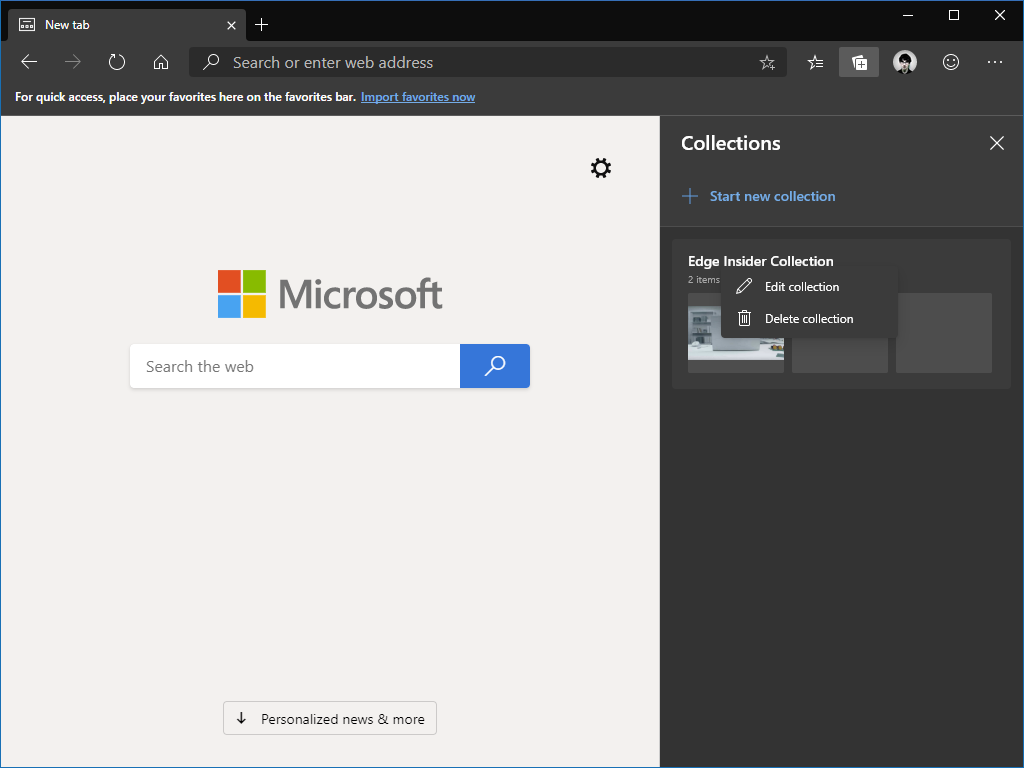
Collections are managed by clicking the collections toolbar icon to reveal the collections pane. Here, you’ll see a list of all the collections you’ve created. You can create a new collection with the “Start new collection” button.

\n
Collections in Microsoft Edge Insider

\n

Tapping a collection will open it and reveal its contents. Right-clicking a collection lets you rename or delete it. To bulk delete multiple collections, use the checkboxes which appear next to each item when hovering. Select the collections to delete and click the trashcan icon which is displayed at the top of the list.

\n

While still in development, Collections is an interesting feature which encourages users to store webpage content for later reference. No other browser offers a built-in experience quite like this, although it remains to be seen whether users will actually create collections. All things considered, curating a collection is a similar experience to copying-and-pasting into Word or OneNote. In fact, it has similarities with the old Internet Explorer-powered Linked Notes feature in the OneNote desktop apps, which also automatically linked passages of text to webpages open in the browser.

\n\nFurther reading: Edge Insider

Share this article:
Tags:
Edge Insider
James Walker
Written by

James Walker

I'm a web developer and technology journalist with a particular interest in Microsoft innovations. I'm the founder of Heron Web (heron-web.com), a UK digital agency for web design and development. When I'm not working, I'm a PC gamer and passionate transport enthusiast.

Previous Article Dark mode for Outlook on Android: first impressions Next Article Slack CEO says enterprises are still choosing Slack over Teams, despite the cost

Related Articles

How to Fix the Phone Link App Not Working on Windows 11 – OnMSFT.com

December 29, 2022

5 easy ways to make desktop shortcuts on Windows 11 – OnMSFT.com

December 29, 2022

How to customize precision touchpads on Windows – OnMSFT.com

December 22, 2022

Leave a Comment Cancel reply

Your email address will not be published. Required fields are marked *

Recent Posts

  • Bethesda’s Redfall may get pushed back to a May 2023 release – OnMSFT.com
  • Activision Blizzard deal approved in Chile, Japan may be next in line – OnMSFT.com
  • Xbox Games with Gold January 2023 lineup announced – OnMSFT.com
  • Activision Blizzard studio Proletariat becomes the latest game developer to unionize – OnMSFT.com
  • How to Fix the Phone Link App Not Working on Windows 11 – OnMSFT.com

Recent Comments

No comments to show.

Archives

  • December 2022
  • November 2022
  • October 2022
  • September 2022
  • August 2022
  • July 2022
  • June 2022
  • May 2022
  • April 2022
  • March 2022
  • February 2022
  • January 2022
  • December 2021
  • November 2021
  • October 2021
  • September 2021
  • August 2021
  • July 2021
  • June 2021
  • May 2021
  • April 2021
  • March 2021
  • February 2021
  • January 2021
  • December 2020
  • November 2020
  • October 2020
  • September 2020
  • August 2020
  • July 2020
  • June 2020
  • May 2020
  • April 2020
  • March 2020
  • February 2020
  • January 2020
  • December 2019
  • November 2019
  • October 2019
  • September 2019
  • August 2019
  • July 2019
  • June 2019
  • May 2019
  • April 2019
  • March 2019
  • February 2019
  • January 2019
  • December 2018
  • November 2018
  • October 2018
  • September 2018
  • August 2018
  • July 2018
  • June 2018
  • May 2018
  • April 2018
  • March 2018
  • February 2018
  • January 2018
  • December 2017
  • November 2017
  • October 2017
  • September 2017
  • August 2017
  • July 2017
  • June 2017
  • May 2017
  • April 2017
  • March 2017
  • February 2017
  • January 2017
  • December 2016
  • November 2016
  • October 2016
  • September 2016
  • August 2016
  • July 2016
  • June 2016
  • May 2016
  • April 2016
  • March 2016
  • February 2016
  • January 2016
  • December 2015
  • November 2015
  • October 2015
  • September 2015
  • August 2015
  • July 2015
  • June 2015
  • May 2015
  • April 2015
  • March 2015
  • February 2015
  • January 2015
  • December 2014
  • November 2014
  • October 2014
  • September 2014
  • August 2014
  • July 2014
  • June 2014
  • May 2014
  • April 2014
  • March 2014
  • February 2014
  • January 2014
  • December 2013
  • November 2013
  • October 2013
  • September 2013
  • August 2013
  • July 2013
  • June 2013
  • May 2013
  • April 2013
  • March 2013
  • February 2013
  • January 2013
  • December 2012
  • November 2012
  • October 2012
  • September 2012
  • August 2012
  • July 2012
  • June 2012
  • May 2012
  • April 2012
  • March 2012
  • February 2012
  • January 2012
  • December 2011
  • November 2011
  • October 2011
  • September 2011
  • August 2011
  • July 2011
  • June 2011
  • May 2011
  • April 2011
  • March 2011
  • February 2011
  • January 2011
  • December 2010
  • November 2010
  • October 2010
  • September 2010

Categories

  • Announcements
  • Deals
  • Developer
  • Editorial
  • Feature
  • Feature stories
  • Hero-post
  • Hotdeals
  • How-to
  • Latest news
  • Microsoft / office 365
  • News
  • Office 365
  • Onpodcast
  • Opinion
  • Our featured post
  • Polls
  • Review
  • Reviews
  • Videos
OnMSFT.com

OnMSFT.com covers Microsoft news, reviews, and how-to guides. Formerly known as WinBeta, we have been your source for Microsoft news since 1998.

Categories

  • Windows
  • Surface
  • Xbox
  • How-To
  • OnPodcast
  • Gaming
  • Edge
  • Teams

Recent Posts

  • Bethesda's Redfall may get pushed back to a May 2023 release - OnMSFT.com
  • Activision Blizzard deal approved in Chile, Japan may be next in line - OnMSFT.com
  • Xbox Games with Gold January 2023 lineup announced - OnMSFT.com
  • Activision Blizzard studio Proletariat becomes the latest game developer to unionize - OnMSFT.com
  • How to Fix the Phone Link App Not Working on Windows 11 - OnMSFT.com

Quick Links

  • About OnMSFT.com
  • Contact OnMSFT
  • Join Our Team
© 2010–2026 OnMSFT.com LLC. All rights reserved.
About OnMSFT.comContact OnMSFT


