Skip to content
OnMSFT.com
  • Home
  • About
  • Contact
  • Windows
  • Surface
  • Xbox
  • How-To
  • OnPodcast
  • Edge
  • Teams
  • Gaming
Menu
  • Home
  • About
  • Contact
  • Windows
  • Surface
  • Xbox
  • How-To
  • OnPodcast
  • Edge
  • Teams
  • Gaming
  1. Home
  2. How-to
  3. How to tether your Windows 10 PC to your phone

How to tether your Windows 10 PC to your phone

James Walker James Walker
January 29, 2020
3 min read

How to tether your Windows 10 PC to your phone

To tether your Windows 10 PC to your phone:

  1. Enable your Wi-Fi hotspot in your phone’s settings.
  2. Use Windows 10’s Wi-Fi settings menu in the system tray to connect to your hotspot.

Applies to All Windows 10 Versions

Stuck with patchy public internet, or no Wi-Fi at all? If your mobile plan supports tethering, there’s no reason why you can’t still work while on the go. In this guide, we’ll show you how to connect your PC to your phone, giving you 4G/5G internet on a Windows 10 device without its own SIM. If instead, you need to share your PC’s internet connection with other devices by using it as a mobile hotspot, check out this guide.

The steps you’ll need to follow depend on which phone platform you use. We’ll cover iOS in the section immediately below. If you use Android, skip down the page to find the relevant steps.

Enabling tethering on iOS

On iPhone, open the Settings app and tap “Personal Hotspot” to start configuring your Wi-Fi access point. Tap the “Personal Hotspot” toggle button to turn on your hotspot.

Enabling Wi-Fi hotspot in iOS

You can change your hotspot’s password by tapping the “Wi-Fi Password” field. iOS defaults to using a strong password so you won’t necessarily need to change this. Tap the blue “Save” button at the top of the password settings screen to save your changes.

Enabling tethering on Android

On an Android device, open the Settings app and head to the “Network & internet” category. The screens you see may look slightly different depending on your Android version and device manufacturer. If you don’t see the same screens at all, you should refer to your manufacturer’s documentation.

From the “Network & internet” page, tap the “Hotspot & tethering” button to view the mobile hotspot settings. Next, press the “Wi-Fi hotspot” button to customise the hotspot’s settings.

Enabling Wi-Fi hotspot in Android

Tap the toggle button at the top of the page to turn your hotspot on. Use the settings on the page to rename your Wi-Fi hotspot (its SSID) or change the password.

Connecting to your hotspot

Now you’re ready to switch back to your Windows 10 PC. Make sure your Wi-Fi is turned on (you can check by opening Action Centre with Win+A and looking for the “Wi-Fi” settings tile).
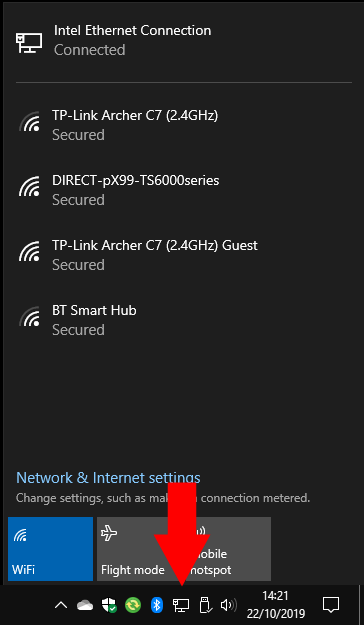
Screenshot of Windows 10's networking menu

Next, open the Wi-Fi networks list by clicking the Wi-Fi icon in the system tray. After a few moments, you should see your phone’s hotspot appear in the list. Android devices will appear as the name you set on the hotspot settings page; iOS devices show up as their device name.

Tap the Wi-Fi hotspot to connect to it like any other. You’ll need to supply the password you set on your phone. You should now be able to browse the web on your PC, using your phone’s 4G. Just remember to stay within your data plan and turn your hotspot off (on your phone) once you’re done browsing.


Share This Post:

Tags: howto | Windows 10
Share this article:
Tags:
howto Windows 10
Previous Article Google’s new business messaging app sounds a lot like Slack and Microsoft Teams Next Article What is Microsoft Search? And why is it so important?

Related Articles

How to Fix the Phone Link App Not Working on Windows 11 – OnMSFT.com

December 29, 2022

5 easy ways to make desktop shortcuts on Windows 11 – OnMSFT.com

December 29, 2022

How to customize precision touchpads on Windows – OnMSFT.com

December 22, 2022

Leave a Comment Cancel reply

Your email address will not be published. Required fields are marked *

Recent Posts

  • Microsoft is no longer manufacturing the Windows RT powered Surface 2
  • Microsoft treats Windows Phone owners with extra 20GB of free SkyDrive storage for one year
  • Bing now showcases professional and celebrity Klout scores during search results
  • Bing now lets you search and browse for your friends’ Facebook photos
  • Bing now lets you explore free online courses and helps you find books to read

Recent Comments

No comments to show.

Archives

  • February 2026
  • December 2022
  • November 2022
  • October 2022
  • September 2022
  • August 2022
  • July 2022
  • June 2022
  • May 2022
  • April 2022
  • March 2022
  • February 2022
  • January 2022
  • December 2021
  • November 2021
  • October 2021
  • September 2021
  • August 2021
  • July 2021
  • June 2021
  • May 2021
  • April 2021
  • March 2021
  • February 2021
  • January 2021
  • December 2020
  • November 2020
  • October 2020
  • September 2020
  • August 2020
  • July 2020
  • June 2020
  • May 2020
  • April 2020
  • March 2020
  • February 2020
  • January 2020
  • December 2019
  • November 2019
  • October 2019
  • September 2019
  • August 2019
  • July 2019
  • June 2019
  • May 2019
  • April 2019
  • March 2019
  • February 2019
  • January 2019
  • December 2018
  • November 2018
  • October 2018
  • September 2018
  • August 2018
  • July 2018
  • June 2018
  • May 2018
  • April 2018
  • March 2018
  • February 2018
  • January 2018
  • December 2017
  • November 2017
  • October 2017
  • September 2017
  • August 2017
  • July 2017
  • June 2017
  • May 2017
  • April 2017
  • March 2017
  • February 2017
  • January 2017
  • December 2016
  • November 2016
  • October 2016
  • September 2016
  • August 2016
  • July 2016
  • June 2016
  • May 2016
  • April 2016
  • March 2016
  • February 2016
  • January 2016
  • December 2015
  • November 2015
  • October 2015
  • September 2015
  • August 2015
  • July 2015
  • June 2015
  • May 2015
  • April 2015
  • March 2015
  • February 2015
  • January 2015
  • December 2014
  • November 2014
  • October 2014
  • September 2014
  • August 2014
  • July 2014
  • June 2014
  • May 2014
  • April 2014
  • March 2014
  • February 2014
  • January 2014
  • December 2013
  • November 2013
  • October 2013
  • September 2013
  • August 2013
  • July 2013
  • June 2013
  • May 2013
  • April 2013
  • March 2013
  • February 2013
  • January 2013
  • December 2012
  • November 2012
  • October 2012
  • September 2012
  • August 2012
  • July 2012
  • June 2012
  • May 2012
  • April 2012
  • March 2012
  • February 2012
  • January 2012
  • December 2011
  • November 2011
  • October 2011
  • September 2011
  • August 2011
  • July 2011
  • June 2011
  • May 2011
  • April 2011
  • March 2011
  • February 2011
  • January 2011
  • December 2010
  • November 2010
  • October 2010
  • September 2010

Categories

  • Announcements
  • Deals
  • Developer
  • Editorial
  • Feature
  • Feature stories
  • Hero-post
  • Hotdeals
  • How-to
  • Latest news
  • Microsoft / office 365
  • News
  • Office 365
  • Onpodcast
  • Opinion
  • Our featured post
  • Polls
  • Review
  • Reviews
  • Videos
OnMSFT.com

OnMSFT.com covers Microsoft news, reviews, and how-to guides. Formerly known as WinBeta, we have been your source for Microsoft news since 1998.

Categories

  • Windows
  • Surface
  • Xbox
  • How-To
  • OnPodcast
  • Gaming
  • Edge
  • Teams

Recent Posts

  • Microsoft is no longer manufacturing the Windows RT powered Surface 2
  • Microsoft treats Windows Phone owners with extra 20GB of free SkyDrive storage for one year
  • Bing now showcases professional and celebrity Klout scores during search results
  • Bing now lets you search and browse for your friends’ Facebook photos
  • Bing now lets you explore free online courses and helps you find books to read

Quick Links

  • About OnMSFT.com
  • Contact OnMSFT
  • Join Our Team
© 2010–2026 OnMSFT.com LLC. All rights reserved.
About OnMSFT.comContact OnMSFT
