Skip to content
OnMSFT.com
  • Home
  • About
  • Contact
  • Windows
  • Surface
  • Xbox
  • How-To
  • OnPodcast
  • Edge
  • Teams
  • Gaming
Menu
  • Home
  • About
  • Contact
  • Windows
  • Surface
  • Xbox
  • How-To
  • OnPodcast
  • Edge
  • Teams
  • Gaming
  1. Home
  2. How-to
  3. How to connect to a wireless display in Windows 10

How to connect to a wireless display in Windows 10

James Walker James Walker
February 7, 2019
3 min read

Microsoft Wireless Display Adapter now a Windows Universal App\n

\n

How to connect to a wireless display

\n

To connect to a wireless display in Windows 10:

\n

    \n

  1. Turn on your wireless display or adapter.
  2. \n

  3. Press the “Windows+K” keyboard shortcut to open the Connect pane.
  4. \n

  5. Look for your display in the Connect pane; it may take a few moments to appear.
  6. \n

  7. Tap the name of your display to connect.
  8. \n

  9. When you’re finished with the connection, reopen the Connect pane and press the “Disconnect” button.
  10. \n

\n

\n

Applies to All Windows 10 Versions

\n

\n

Wireless display technology has evolved considerably over the past few years and it’s now seeing more widespread use. Whether you’re casting your screen or connecting to a board room projector, Windows’ built-in wireless display support makes it much simpler to temporarily add a second monitor. The days of fumbling around with cables and adapters are fading away.

\n

Getting connected isn’t tricky but may not be the most intuitive procedure. The steps are the same irrespective of what you’re connecting to, whether it’s a projector, another Windows PC or a wireless display adapter.

\n

Connecting to a wireless display in Windows 10

\n

The quickest way to connect is using a keyboard shortcut. Press Win+K to open Windows 10’s Connect panel, which will appear as a flyout to the right of your screen. Alternatively, you can click the “Connect” quick settings tile in Action Center (pictured above) to launch this flyout.

\n

Connecting to a wireless display in Windows 10

\n

The Connect pane lets you connect to a variety of wireless devices, including audio receivers, accessories and Bluetooth products. Most importantly for us, it will detect wireless display receivers, such as Miracast display adapters. To make sure every possible device shows up, you may need to enable Wi-Fi and Bluetooth – you can use Action Center’s tiles to do this.

\n

Make sure the device you want to connect to is turned on and then look for it in the Connect pane. After a few seconds, it should show up in the list and you’ll be able to tap it to connect. At this stage, you may need to follow any instructions which appear on the device you’re connecting to.

\n

Connecting to a wireless display in Windows 10

\n

Generally, Windows will take a moment to initiate the connection, before the device gets activated as an additional display. You’ll then see it show up as “Connected” in the Connect pane.

\n

The “Change projection mode” link lets you choose how the wireless display is used. By default, it will be in “Duplicate” mode, which mirrors your display onto the wireless screen. This is ideal for most projection and casting scenarios.

\n
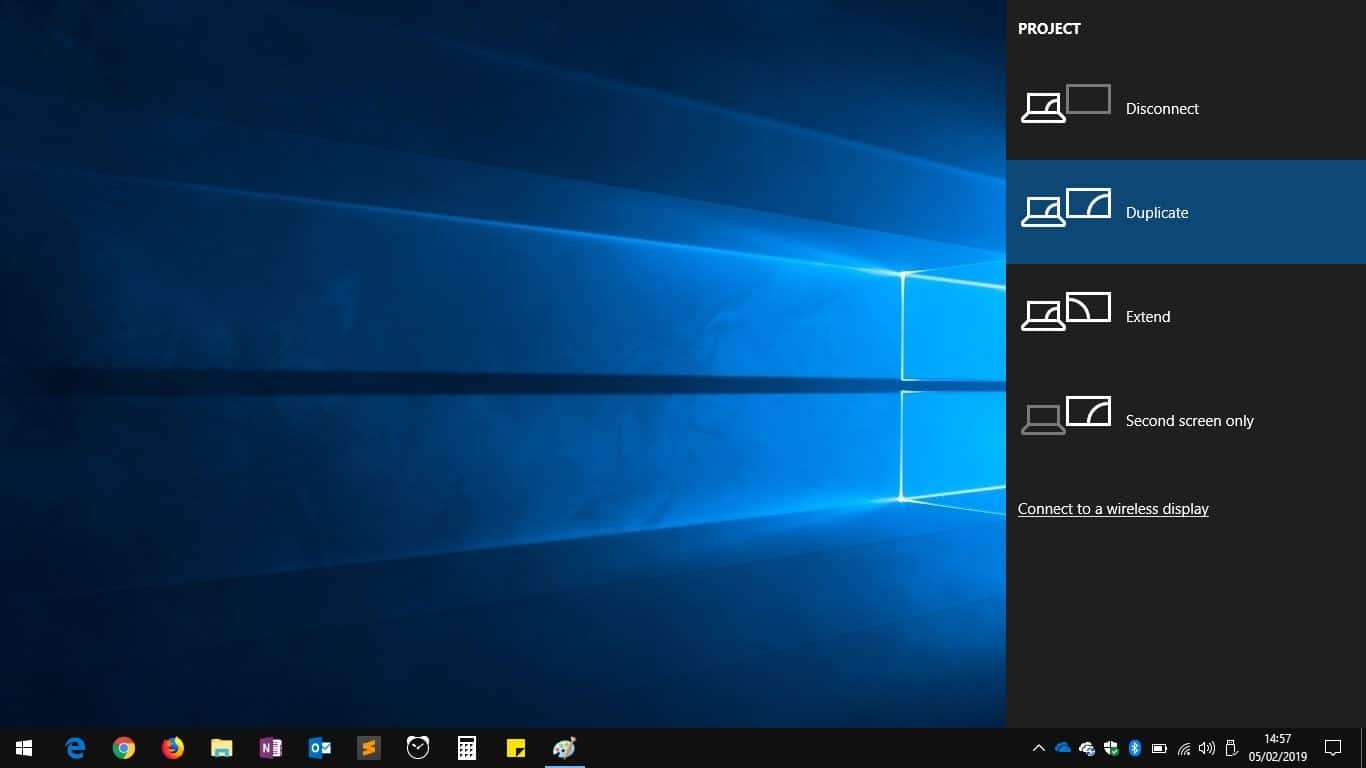
Connecting to a wireless display in Windows 10

\n

You can choose to use the display as a second monitor with the “Extend” option. Alternatively, you can use just your primary or wireless display, with the other one displayed.

\n

When you’re ready to disconnect from the wireless display, you can return to the Connect pane with Win+K. When you tap your connected device’s name, you’ll see a “Disconnect” button. Press it to end the session and revert your desktop to its previous display settings.

\n\nFurther reading: Miracast, Windows 10, Wireless, Wireless Display Adapter

Share this article:
Tags:
Miracast Windows 10 Wireless Wireless Display Adapter
Previous Article Microsoft Translator gets new compliance certifications – OnMSFT.com Next Article OneDrive web app is getting new File Hover Card and updated navigation bar for Office 365 users

Related Articles

How to Fix the Phone Link App Not Working on Windows 11 – OnMSFT.com

December 29, 2022

5 easy ways to make desktop shortcuts on Windows 11 – OnMSFT.com

December 29, 2022

How to customize precision touchpads on Windows – OnMSFT.com

December 22, 2022

Leave a Comment Cancel reply

Your email address will not be published. Required fields are marked *

Recent Posts

  • Microsoft is no longer manufacturing the Windows RT powered Surface 2
  • Microsoft treats Windows Phone owners with extra 20GB of free SkyDrive storage for one year
  • Bing now showcases professional and celebrity Klout scores during search results
  • Bing now lets you search and browse for your friends’ Facebook photos
  • Bing now lets you explore free online courses and helps you find books to read

Recent Comments

No comments to show.

Archives

  • February 2026
  • December 2022
  • November 2022
  • October 2022
  • September 2022
  • August 2022
  • July 2022
  • June 2022
  • May 2022
  • April 2022
  • March 2022
  • February 2022
  • January 2022
  • December 2021
  • November 2021
  • October 2021
  • September 2021
  • August 2021
  • July 2021
  • June 2021
  • May 2021
  • April 2021
  • March 2021
  • February 2021
  • January 2021
  • December 2020
  • November 2020
  • October 2020
  • September 2020
  • August 2020
  • July 2020
  • June 2020
  • May 2020
  • April 2020
  • March 2020
  • February 2020
  • January 2020
  • December 2019
  • November 2019
  • October 2019
  • September 2019
  • August 2019
  • July 2019
  • June 2019
  • May 2019
  • April 2019
  • March 2019
  • February 2019
  • January 2019
  • December 2018
  • November 2018
  • October 2018
  • September 2018
  • August 2018
  • July 2018
  • June 2018
  • May 2018
  • April 2018
  • March 2018
  • February 2018
  • January 2018
  • December 2017
  • November 2017
  • October 2017
  • September 2017
  • August 2017
  • July 2017
  • June 2017
  • May 2017
  • April 2017
  • March 2017
  • February 2017
  • January 2017
  • December 2016
  • November 2016
  • October 2016
  • September 2016
  • August 2016
  • July 2016
  • June 2016
  • May 2016
  • April 2016
  • March 2016
  • February 2016
  • January 2016
  • December 2015
  • November 2015
  • October 2015
  • September 2015
  • August 2015
  • July 2015
  • June 2015
  • May 2015
  • April 2015
  • March 2015
  • February 2015
  • January 2015
  • December 2014
  • November 2014
  • October 2014
  • September 2014
  • August 2014
  • July 2014
  • June 2014
  • May 2014
  • April 2014
  • March 2014
  • February 2014
  • January 2014
  • December 2013
  • November 2013
  • October 2013
  • September 2013
  • August 2013
  • July 2013
  • June 2013
  • May 2013
  • April 2013
  • March 2013
  • February 2013
  • January 2013
  • December 2012
  • November 2012
  • October 2012
  • September 2012
  • August 2012
  • July 2012
  • June 2012
  • May 2012
  • April 2012
  • March 2012
  • February 2012
  • January 2012
  • December 2011
  • November 2011
  • October 2011
  • September 2011
  • August 2011
  • July 2011
  • June 2011
  • May 2011
  • April 2011
  • March 2011
  • February 2011
  • January 2011
  • December 2010
  • November 2010
  • October 2010
  • September 2010

Categories

  • Announcements
  • Deals
  • Developer
  • Editorial
  • Feature
  • Feature stories
  • Hero-post
  • Hotdeals
  • How-to
  • Latest news
  • Microsoft / office 365
  • News
  • Office 365
  • Onpodcast
  • Opinion
  • Our featured post
  • Polls
  • Review
  • Reviews
  • Videos
OnMSFT.com

OnMSFT.com covers Microsoft news, reviews, and how-to guides. Formerly known as WinBeta, we have been your source for Microsoft news since 1998.

Categories

  • Windows
  • Surface
  • Xbox
  • How-To
  • OnPodcast
  • Gaming
  • Edge
  • Teams

Recent Posts

  • Microsoft is no longer manufacturing the Windows RT powered Surface 2
  • Microsoft treats Windows Phone owners with extra 20GB of free SkyDrive storage for one year
  • Bing now showcases professional and celebrity Klout scores during search results
  • Bing now lets you search and browse for your friends’ Facebook photos
  • Bing now lets you explore free online courses and helps you find books to read

Quick Links

  • About OnMSFT.com
  • Contact OnMSFT
  • Join Our Team
© 2010–2026 OnMSFT.com LLC. All rights reserved.
About OnMSFT.comContact OnMSFT

