Skip to content
OnMSFT.com
  • Home
  • About
  • Contact
  • Windows
  • Surface
  • Xbox
  • How-To
  • OnPodcast
  • Edge
  • Teams
  • Gaming
Menu
  • Home
  • About
  • Contact
  • Windows
  • Surface
  • Xbox
  • How-To
  • OnPodcast
  • Edge
  • Teams
  • Gaming
  1. Home
  2. How-to
  3. How to clean up disk space with Windows 10’s built-in tools

How to clean up disk space with Windows 10’s built-in tools

James Walker James Walker
November 9, 2018
4 min read

\n

\n

Clean up Windows 10 disk space

\n

    \n

  1. Open Settings>System>Storage
  2. \n

  3. Choose a drive
  4. \n

  5. Choose a category, and then choose the options to free up space
  6. \n

  7. You can also use Windows 10 Storage sense to automate disk cleanup
  8. \n

\n

\n

Applies to All Windows 10 Versions

\n

\n

Running out of disk space is one of the most common and frustrating issues faced by PC users. Thankfully, you don’t always need to resort to deleting your files in an effort to reclaim a few empty gigabytes. Windows 10 comes with a set of tools which can help you in your quest to clear out the clutter, without having to touch any precious personal  files.

\n

Cleaning up

\n

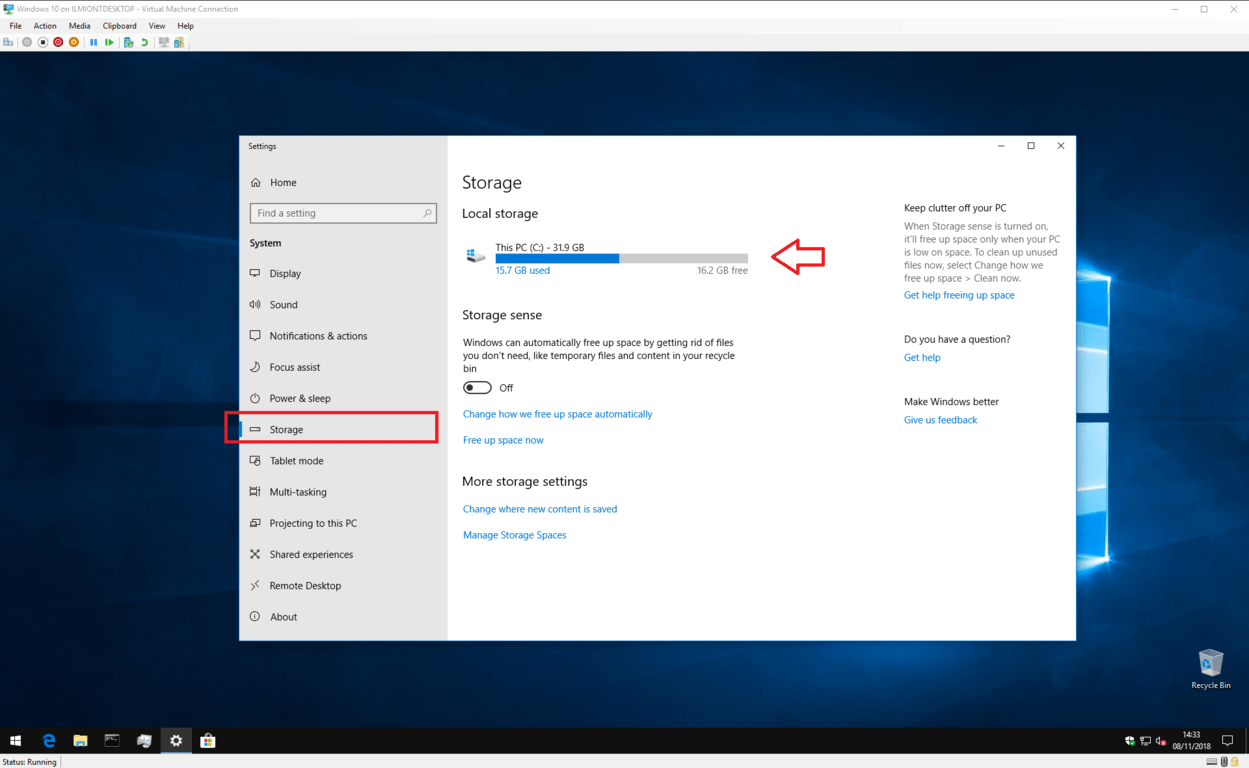
If you are running out of disk space, your first step should be to determine which kinds of files are responsible for the excessive usage. Open the Settings app (cog icon above the power button in the Start menu) and click the “System” category on the main page. From here, click the “Storage” link in the left navigation menu.

\n
Screenshot of Windows 10 Storage Sense settings

\n

On this screen, you’ll see an overview of all the storage drives connected to your device. Click the one you want to declutter. We’ll assume you’ll be using your main system drive for this tutorial – the one where Windows is installed – as it’s the most likely to run out of room. After a few moments, you’ll be shown a breakdown of storage usage by content type.

\n

You can click any of the categories to see a more detailed overview of how they’re using space. Most pages will also give you a set of options to take immediate action and free up space. Some of these might be quick fixes – you may decide to part with some of your never-played music tracks, or delete emails older than a year.

\n

Screenshot of Windows 10 Storage Sense settings

\n

The most important category for our purposes is “Temporary files.” Over time, Windows 10 creates a large number of internal system files which can be removed without any negative consequences. Click the category to be shown an overview of the temporary files stored on your system.

\n

In some cases, you might be able to free up several gigabytes of space, depending on when you last ran this procedure. The largest space savings are usually found in the Windows Update and Delivery Optimisation categories. By default, Windows keeps downloaded updates saved even after they’ve been installed. They can be safely removed though, allowing you to store more of your own content.

\n

Screenshot of Windows 10 Storage Sense settings

\n

The kinds and sizes of temporary file displayed here will vary with your individual system. Review the file types displayed and click the checkbox next to each one to mark it for deletion. Press the “Remove files” button at the top of the list to start the deletion process. If there’s a lot of content, it might take some time to completely clean everything up.

\n

It’s also worth reviewing the Maps category as Windows 10’s optional offline maps can consume several gigabytes of your drive. It might be worthwhile to delete maps you’ve previously downloaded if you no longer use them. Likewise, using the “Apps & games” list to remove infrequently used apps is a simple way to cut down on bloat without touching your own files.

\n

Storage sense

\n

Hopefully, your storage drive is now feeling a little roomier. There’s still more work to do though if you’re to stop it filling up again. Windows 10 includes a feature called Storage Sense which can automate the task of cleaning up your hard drive when the free space starts to run out.

\n
Screenshot of Windows 10 Storage Sense settings

\n

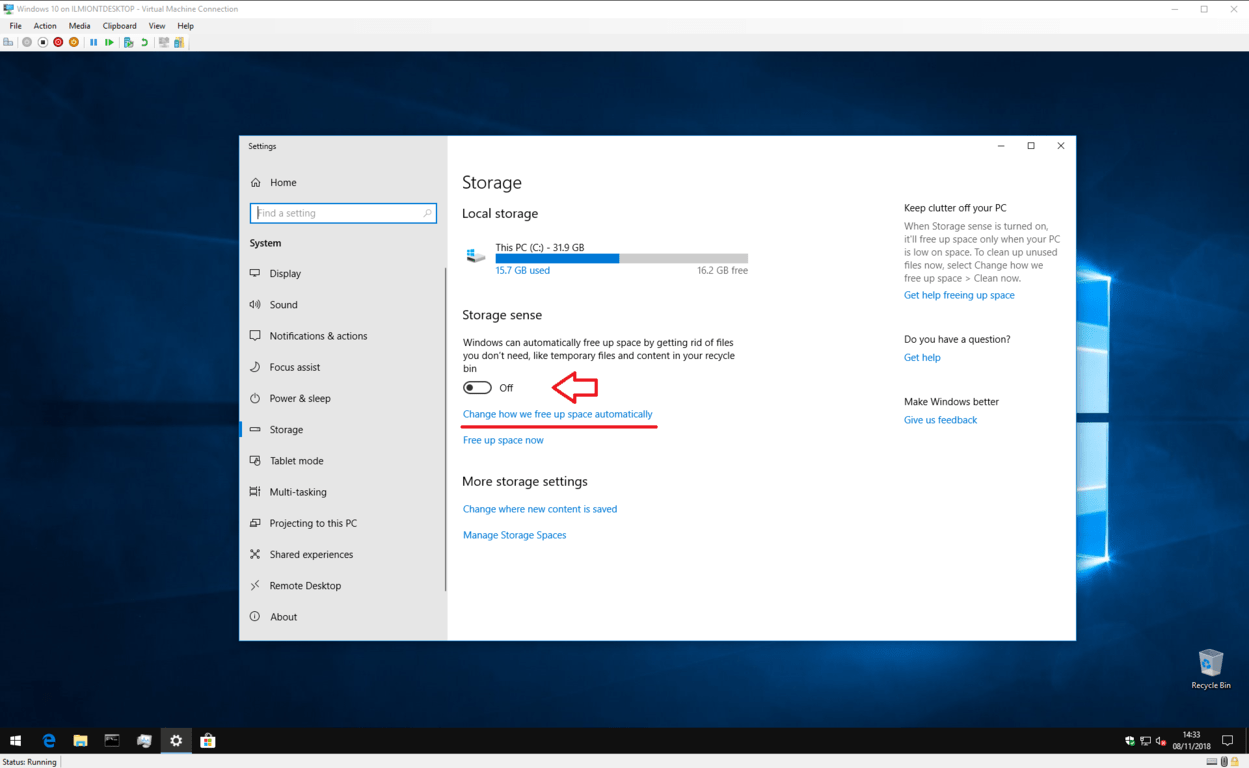
You can find its settings back on the main “Storage” settings page. Just click the toggle button to switch it into the “On” position to enable Storage Sense. When your drive starts to get low on space, Windows will intervene and start deleting unneeded temporary files, without touching your content.

\n

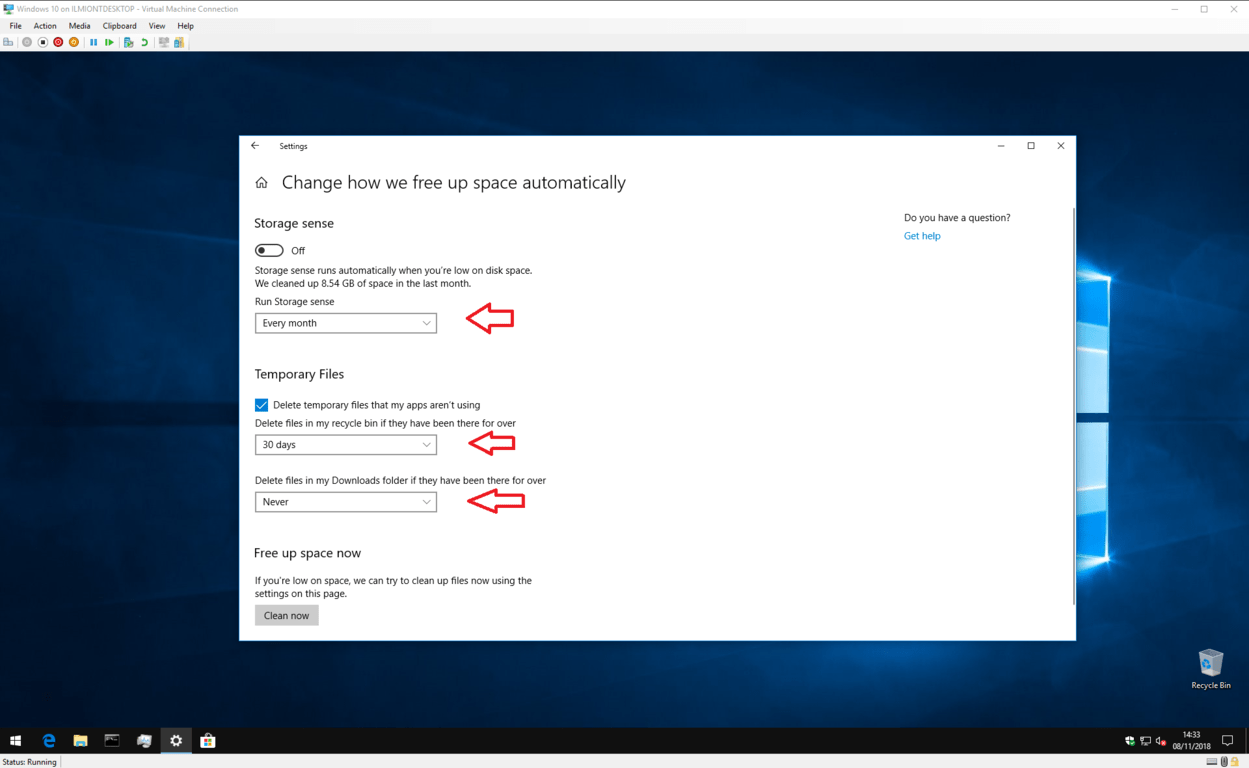
You can customise how Storage Sense operates by clicking the “Change how we free up space automatically” link. Here, you can control how often Storage Sense should run with the “Run Storage sense” dropdown. By default, it’s set to “When Windows decides,” which enables the automatic execution whenever space runs low. You may prefer to run it on a regular schedule though, helping you to keep unnecessary files from piling up.

\n
Screenshot of Windows 10 Storage Sense settings

\n

You also have some control over what Storage Sense deletes. Under the “Temporary Files” heading, you can decide whether or not Storage Sense should remove app temporary files which are no longer in use. There are also options to automatically empty files in your recycle bin and Downloads folder that have been there for a prolonged period of time, keeping these destinations clean.

\n

Once you’ve configured Storage Sense, you should be able to leave it to run without having to think too much about freeing up space. You can also manually invoke Storage Sense by clicking the “Free up space now” link in Settings. Finally, if your PC does get low on space again, you can always return back to the storage overview screen to identity where your drive’s capacity is going.

\n\nFurther reading: Storage Sense, Windows 10

Share this article:
Tags:
Storage Sense Windows 10
Previous Article Beta version of AV1 Video codec released in Windows 10’s Microsoft Store | On MSFT Next Article Microsoft’s Azure gets a big win with Gap cloud services deal

Related Articles

How to Fix the Phone Link App Not Working on Windows 11 – OnMSFT.com

December 29, 2022

5 easy ways to make desktop shortcuts on Windows 11 – OnMSFT.com

December 29, 2022

How to customize precision touchpads on Windows – OnMSFT.com

December 22, 2022

Leave a Comment Cancel reply

Your email address will not be published. Required fields are marked *

Recent Posts

  • Microsoft is no longer manufacturing the Windows RT powered Surface 2
  • Microsoft treats Windows Phone owners with extra 20GB of free SkyDrive storage for one year
  • Bing now showcases professional and celebrity Klout scores during search results
  • Bing now lets you search and browse for your friends’ Facebook photos
  • Bing now lets you explore free online courses and helps you find books to read

Recent Comments

No comments to show.

Archives

  • February 2026
  • December 2022
  • November 2022
  • October 2022
  • September 2022
  • August 2022
  • July 2022
  • June 2022
  • May 2022
  • April 2022
  • March 2022
  • February 2022
  • January 2022
  • December 2021
  • November 2021
  • October 2021
  • September 2021
  • August 2021
  • July 2021
  • June 2021
  • May 2021
  • April 2021
  • March 2021
  • February 2021
  • January 2021
  • December 2020
  • November 2020
  • October 2020
  • September 2020
  • August 2020
  • July 2020
  • June 2020
  • May 2020
  • April 2020
  • March 2020
  • February 2020
  • January 2020
  • December 2019
  • November 2019
  • October 2019
  • September 2019
  • August 2019
  • July 2019
  • June 2019
  • May 2019
  • April 2019
  • March 2019
  • February 2019
  • January 2019
  • December 2018
  • November 2018
  • October 2018
  • September 2018
  • August 2018
  • July 2018
  • June 2018
  • May 2018
  • April 2018
  • March 2018
  • February 2018
  • January 2018
  • December 2017
  • November 2017
  • October 2017
  • September 2017
  • August 2017
  • July 2017
  • June 2017
  • May 2017
  • April 2017
  • March 2017
  • February 2017
  • January 2017
  • December 2016
  • November 2016
  • October 2016
  • September 2016
  • August 2016
  • July 2016
  • June 2016
  • May 2016
  • April 2016
  • March 2016
  • February 2016
  • January 2016
  • December 2015
  • November 2015
  • October 2015
  • September 2015
  • August 2015
  • July 2015
  • June 2015
  • May 2015
  • April 2015
  • March 2015
  • February 2015
  • January 2015
  • December 2014
  • November 2014
  • October 2014
  • September 2014
  • August 2014
  • July 2014
  • June 2014
  • May 2014
  • April 2014
  • March 2014
  • February 2014
  • January 2014
  • December 2013
  • November 2013
  • October 2013
  • September 2013
  • August 2013
  • July 2013
  • June 2013
  • May 2013
  • April 2013
  • March 2013
  • February 2013
  • January 2013
  • December 2012
  • November 2012
  • October 2012
  • September 2012
  • August 2012
  • July 2012
  • June 2012
  • May 2012
  • April 2012
  • March 2012
  • February 2012
  • January 2012
  • December 2011
  • November 2011
  • October 2011
  • September 2011
  • August 2011
  • July 2011
  • June 2011
  • May 2011
  • April 2011
  • March 2011
  • February 2011
  • January 2011
  • December 2010
  • November 2010
  • October 2010
  • September 2010

Categories

  • Announcements
  • Deals
  • Developer
  • Editorial
  • Feature
  • Feature stories
  • Hero-post
  • Hotdeals
  • How-to
  • Latest news
  • Microsoft / office 365
  • News
  • Office 365
  • Onpodcast
  • Opinion
  • Our featured post
  • Polls
  • Review
  • Reviews
  • Videos
OnMSFT.com

OnMSFT.com covers Microsoft news, reviews, and how-to guides. Formerly known as WinBeta, we have been your source for Microsoft news since 1998.

Categories

  • Windows
  • Surface
  • Xbox
  • How-To
  • OnPodcast
  • Gaming
  • Edge
  • Teams

Recent Posts

  • Microsoft is no longer manufacturing the Windows RT powered Surface 2
  • Microsoft treats Windows Phone owners with extra 20GB of free SkyDrive storage for one year
  • Bing now showcases professional and celebrity Klout scores during search results
  • Bing now lets you search and browse for your friends’ Facebook photos
  • Bing now lets you explore free online courses and helps you find books to read

Quick Links

  • About OnMSFT.com
  • Contact OnMSFT
  • Join Our Team
© 2010–2026 OnMSFT.com LLC. All rights reserved.
About OnMSFT.comContact OnMSFT

