
 \n
\n
How to find a job using LinkedIn
\n
LinkedIn has a number of tools to help you find your dream job. Here’s how to get started.
\n
- \n
- Update your career status by filling out your career interests.
- Update your job application settings by providing contact information and your resumé.
- Search for jobs starting at the Jobs icon on the LinkedIn homepage.
\n
\n
\n
\n
\n
Applies to All Windows 10 Versions
\n
\n
Are you on the hunt for a job? If you are, then Monster, ZipRecruiter, and Indeed might be some places you’ve already visited to search through your local job listings. But did you know the Microsoft-owned professional social media network, LinkedIn, is also a great resource to leverage to find employment?
\n
In this guide, we’ll take a look at how you can search through jobs on LinkedIn, and hopefully score that employment opportunity you’ve always wanted.
\n
Step 1: Update your career interests
\n
Along with updating your profile, you’ll need to change your career interests by visiting this webpage before you begin searching for jobs. Be sure to choose where you are in your search, and any job titles you may be considering. Both these settings will impact the results you see when you search for jobs. It’s also best to choose where you want your job to be located, and what type of jobs you want. There is even a privacy option for letting recruiters know you’re open, but this may share your personal details.
\n
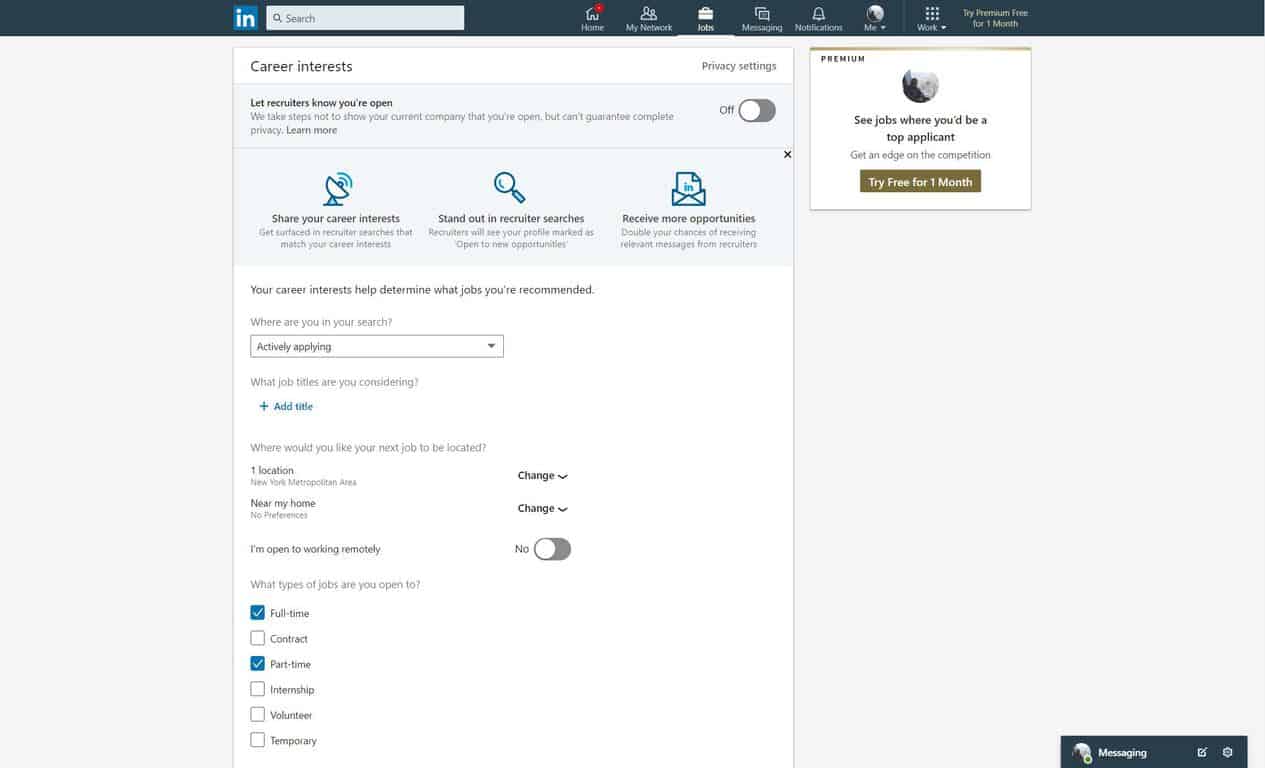
LinkedIn Career Interests
\n
Step 2: Update your job application settings
\n
A second prerequisite before searching for jobs on LinkedIn is to change your job application settings via this webpage. Make sure your email and phone number are correct, and then upload a copy of your resume so employers can see it. This is what will be used once you click “Apply” or “Easy Apply” when you see a job listing that fits your needs.
\n
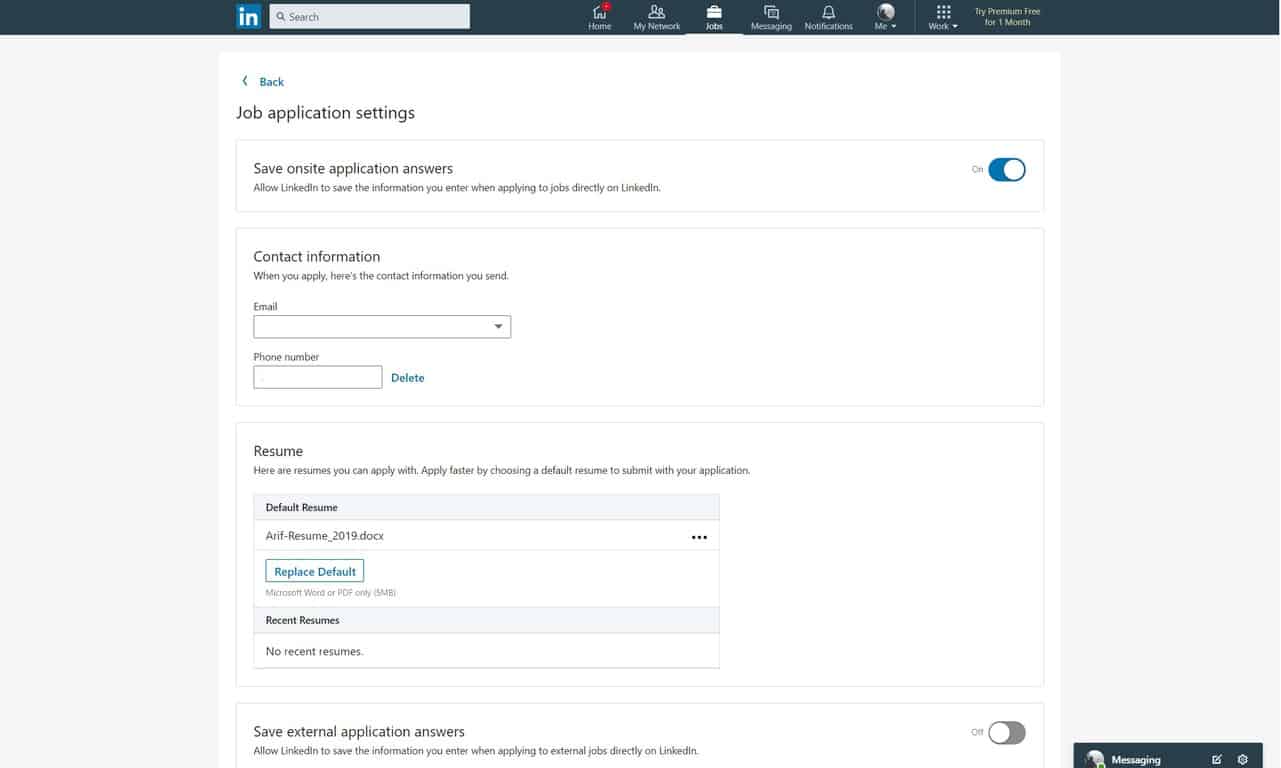
Linkedin Job Application Settings
\n
Step 3: Click the Jobs icon on the LinkedIn homepage
\n
To get started with your hunt on LinkedIn, you’ll need to click the “jobs” icon at the top of the LinkedIn homepage. This icon appropriately looks like a briefcase, and it appears right in between the “Messaging” icon and the “My Network” icon. Once clicked, this will take you to the main jobs hub on LinkedIn. You’ll see the search bar, suggested job searches, recommended searches, and more. We’ll dive a bit deeper into those later, but for now, feel free to explore at will.
\n
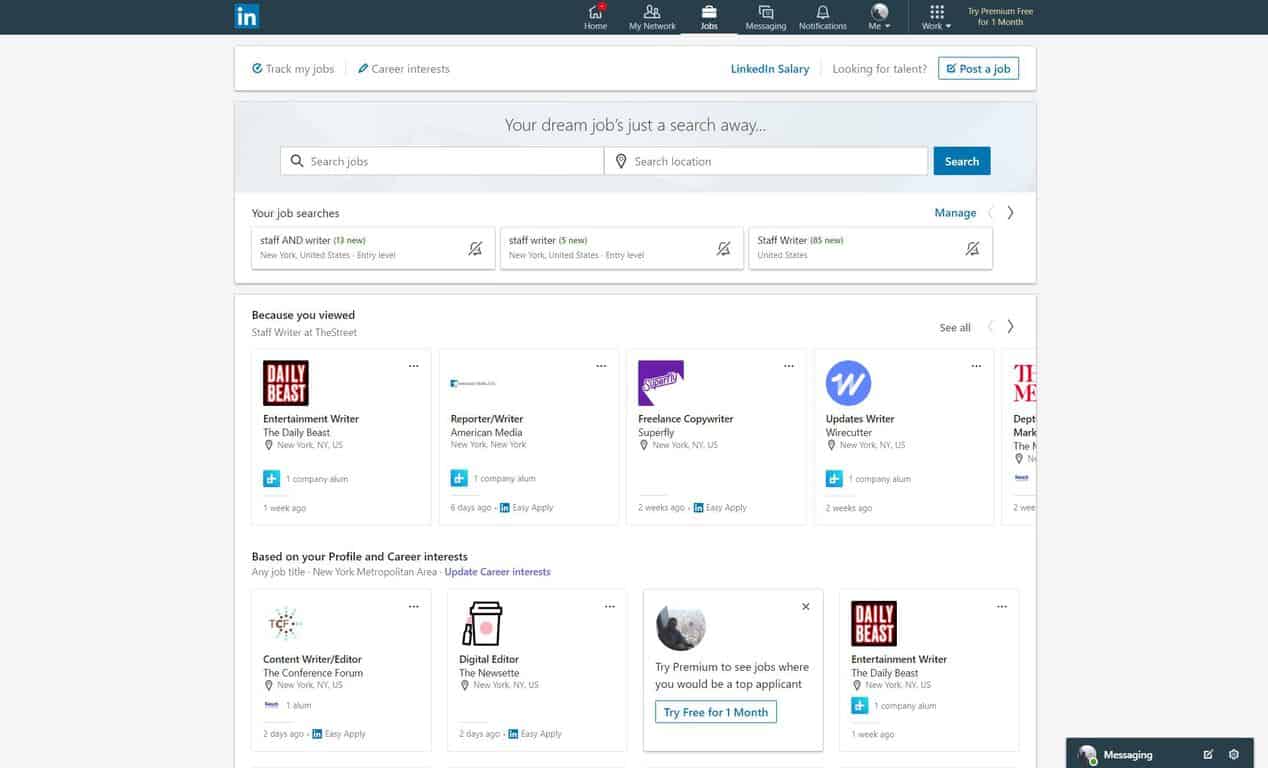
LinkedIn jobs main page
\n
Step 4: Enter your search in the search jobs field
\n
The next step in finding a job through LinkedIn is to click on the Search jobs field. Here, you can search the job title you’re looking for. In our case, we’re looking for “Staff Writer.” This will give you a list of ALL the job openings with that title, but you can also use filters to modify the search. You can find filters running along the top of the page to find something that’s right for you.
\n
For instance, you can filter jobs by date posted to remove old job listings, or “by company” if you’re looking to work for a certain company. You also can choose to filter by “experience Level” to remove jobs that are above your skillset. Other filters available include “job type,” “industry,” “function,” “title,” and “commute.” You can find these extra filters by clicking on “all filters.”
\n
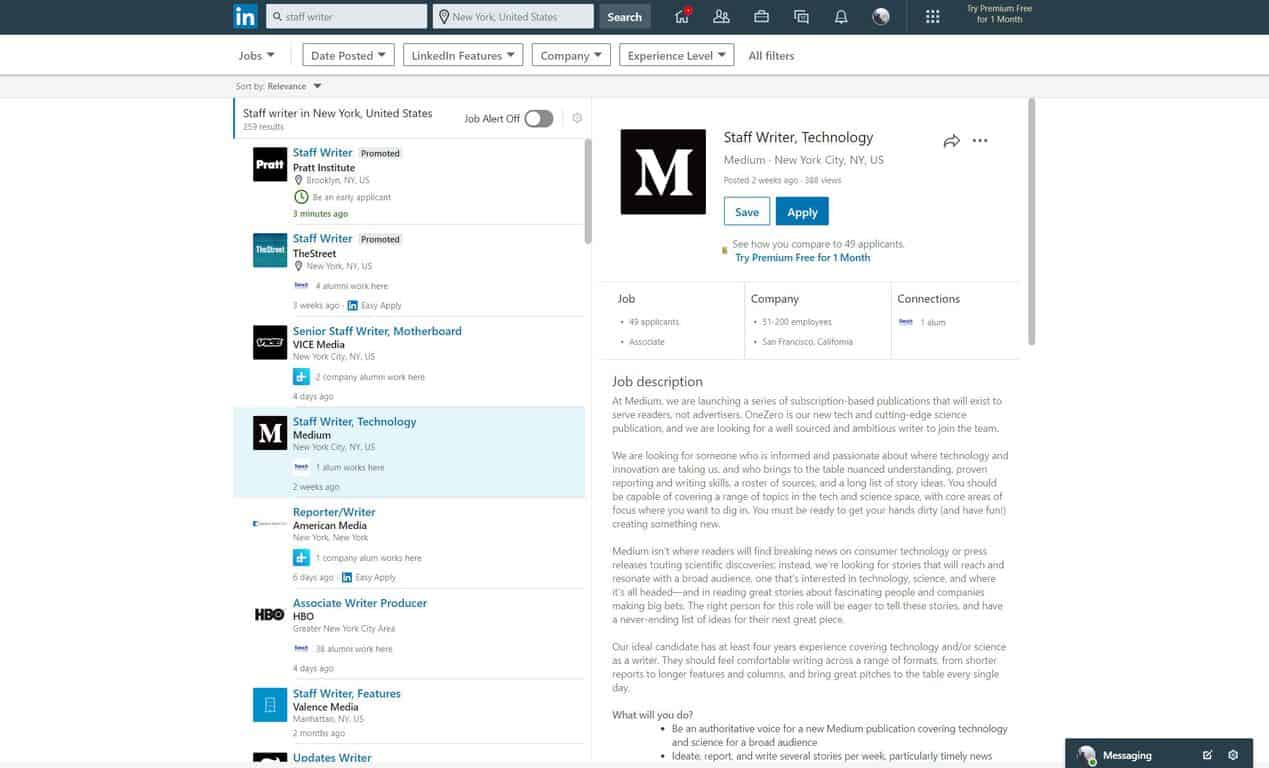
Searching Jobs on LinkedIn
\n
Step 5: (Optional) Use Boolean search modifiers
\n
If the built-in LinkedIn filters are not working for you, Boolean search modifiers can help refine searches based on the job description. An old trick used by scholars looking through databases, Boolean searching uses tools called “operators” and “modifiers” to limit, widen, and refine search results. There are a few terms which can be used on LinkedIn to more efficiently find positions that are for your skills. In our case, we typed in “Staff AND Writer” in our search. Keep in mind, there’s no limit for the number of modifiers you can use. LinkedIn suggests using the following modifiers:
\n
\n
\n
- Type the word NOT (capital letters) immediately before a search term to exclude it from your search results
\n
- Type the word OR (capital letters) to see results that include one or more items in a list.
\n
- Type the word AND (capital letters) to see results that include all items in a list
\n
- or can use parentheses to refine your search with multiple terms.
\n
\n
\n
Another trick is to use quotation marks when searching for jobs. This will search for exact phrases only. Keep in mind, though, that LinkedIn does not support wildcard searches.
\n
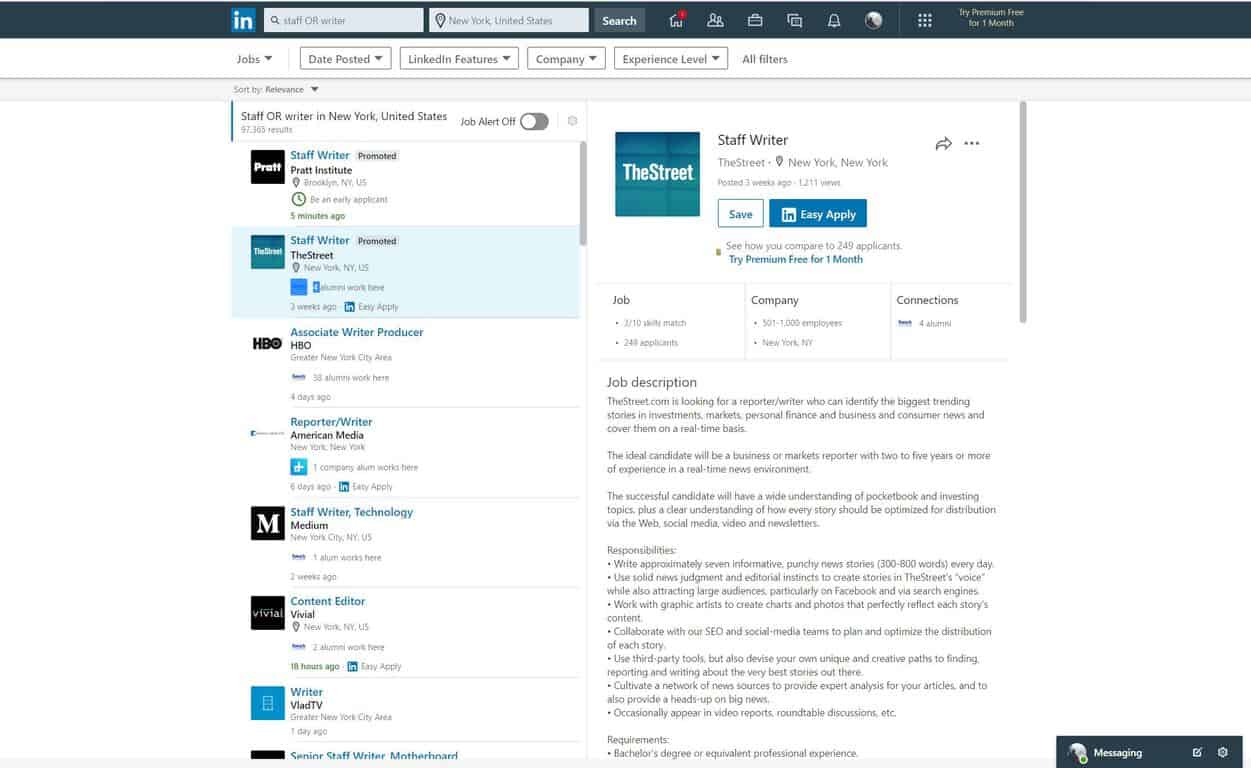
Boolean Searches
\n
Step 6: Keep on searching
\n
As with all online services (that’s you Facebook!) the more you use LinkedIn, the more it will learn about you. As you continue to search for jobs, you’ll end up seeing the “because you viewed” section on LinkedIn. These are the recommended jobs that LinkedIn believes matches your skills based on your previous searches. If your LinkedIn profile is complete, you’ll also notice that LinkedIn will suggest your jobs based on your Profile and Career interests.
\n
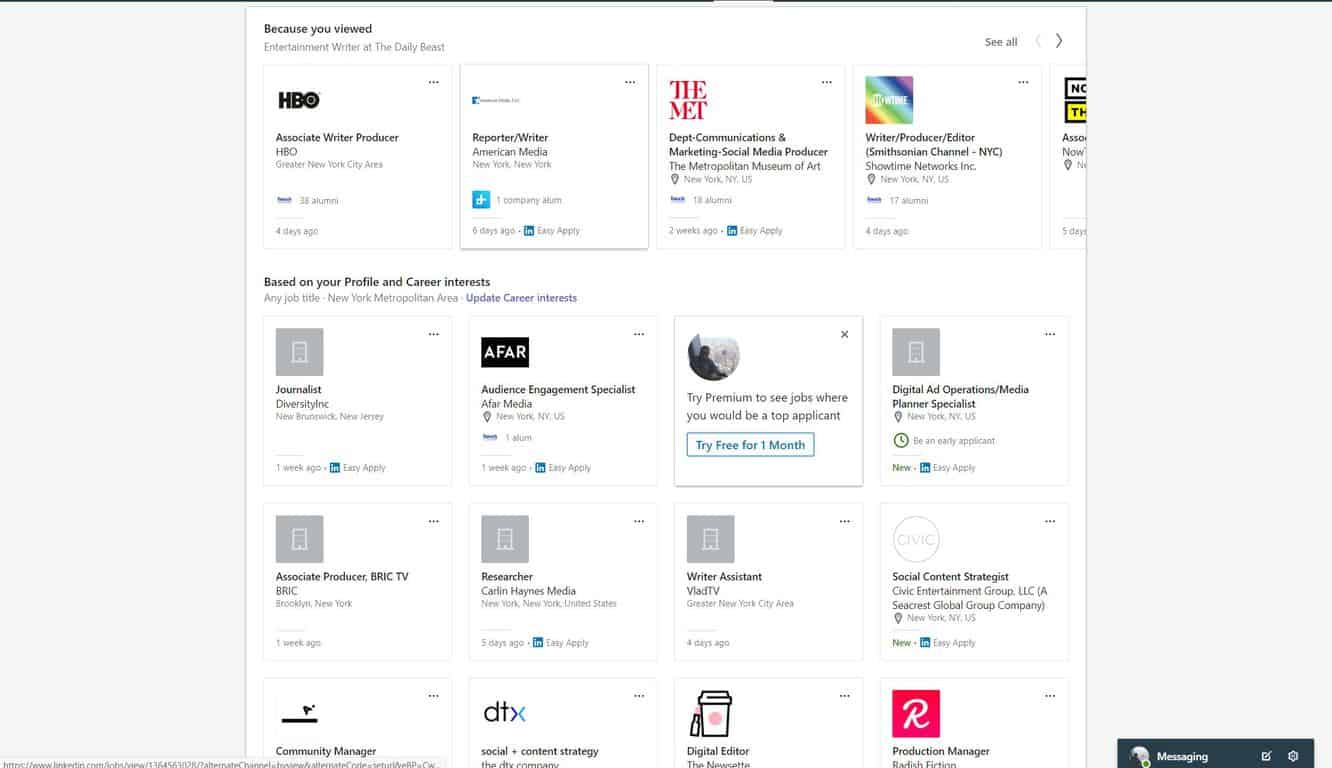
Suggested Searches on LinkedIn
\n
Good luck and hang in there!
\n
As with all job hunts, patience is required. No job is ever guaranteed, but if you keep searching, you will find your dream job. Once you do, it’ll feel amazing, and you’ll be able to update your LinkedIn profile to let everyone know you’re on your way to success.


