Skip to content
OnMSFT.com
  • Home
  • About
  • Contact
  • Windows
  • Surface
  • Xbox
  • How-To
  • OnPodcast
  • Edge
  • Teams
  • Gaming
Menu
  • Home
  • About
  • Contact
  • Windows
  • Surface
  • Xbox
  • How-To
  • OnPodcast
  • Edge
  • Teams
  • Gaming
  1. Home
  2. Feature
  3. Our Guide to the Office 365 Dashboard

Our Guide to the Office 365 Dashboard

Arif Bacchus Arif Bacchus
September 3, 2019
4 min read
\n\n

\n

Once you’re up and running with a Microsoft Office 365 subscription, the central hub for all your activities will be the Office 365 Dashboard. Accessible by visiting Office.com and logging in with your account, the dashboard is home to all the apps, activities, and services that you need to be successful. In this guide, we’ll take a look at some of the features of the Office 365 dashboard, and help you get the most out of it.

\n

App Launcher

\n

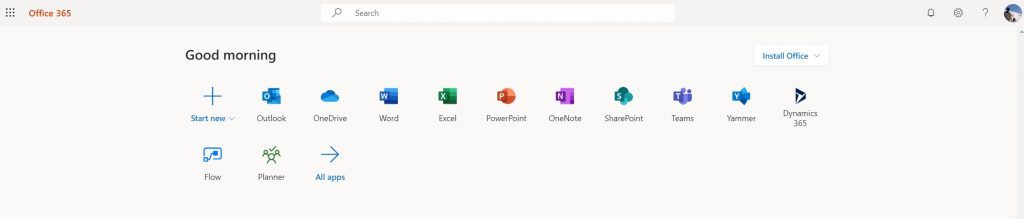
One of the first noticeable areas when visiting the Office 365 dashboard is the App Launcher. Available right on the top of the page, you’ll find that this will link to the web versions of any apps or services that are covered under your subscription. In our case, some of those include Outlook, OneDrive, Word, Excel, PowerPoint, OneNote, SharePoint, Teams, Yammer, Dynamics 365, Flow, and Planner.

\n

You also can access all your apps by clicking the All Apps link on the side. As a shortcut, there’s also the Start New button, which lets you start a new Office document, or upload one to get started. Finally, if your subscription allows it, you should also be an Install Office button, which will let you manage and install physical versions of the Office apps.

\n
Our Guide to the Office 365 Dashboard

\n

Search Bar

\n

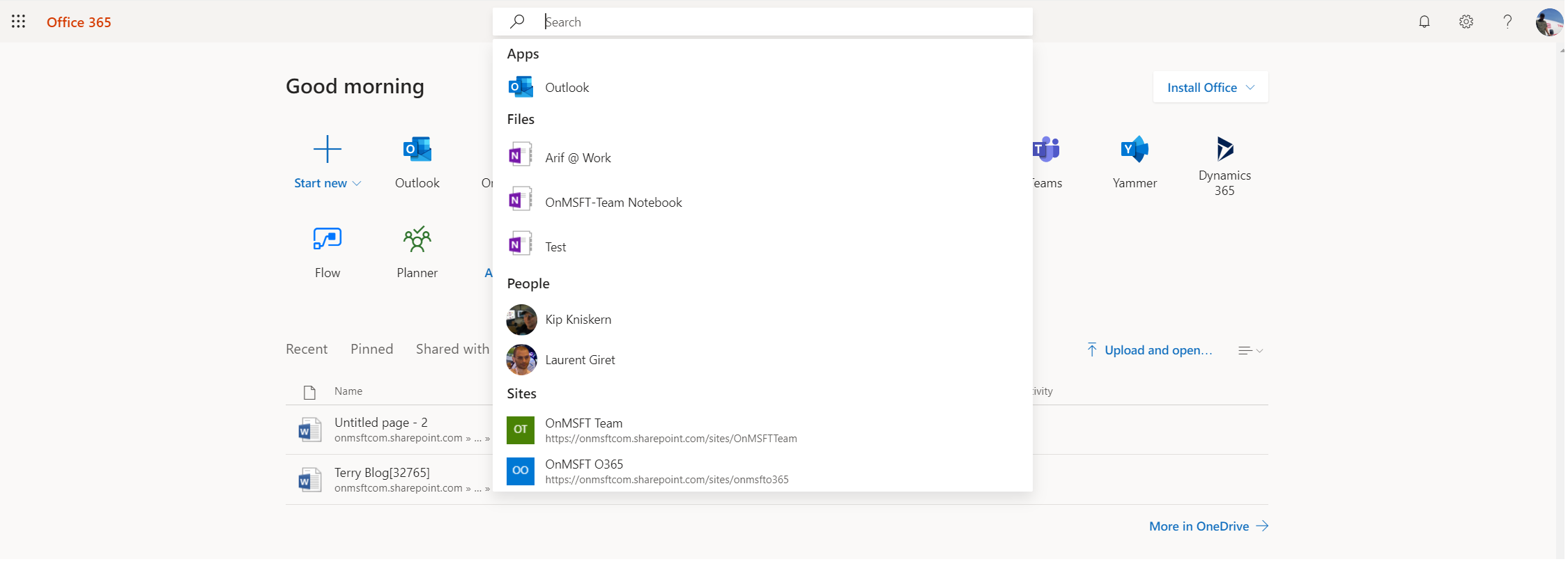
At the very top of the Office 365 Dashboard, you’ll notice a search bar. As the name suggests, this lets you find any content across all of Office 365. That can be a specific document or file you were working on, a specific contact, or even a specific app. It is designed to make your life easy, skipping out on visiting links manually.

\n
Our Guide to the Office 365 Dashboard

\n

Pop-out Menu

\n

At the top left side of the Office 365 Dashboard, you’ll notice that there is an icon that looks like 9 tiny squares. If you click this icon, it will summon a pop-out menu. This menu is typically accessible across any of the Office 365 online apps and is a mini version of the dashboard. On the top, you’ll see a list of apps. Then, in the middle, you’ll see a list of documents. You can create a new document from this pop-out menu by clicking on New.

\n

Our Guide to the Office 365 Dashboard

\n

Documents Section

\n

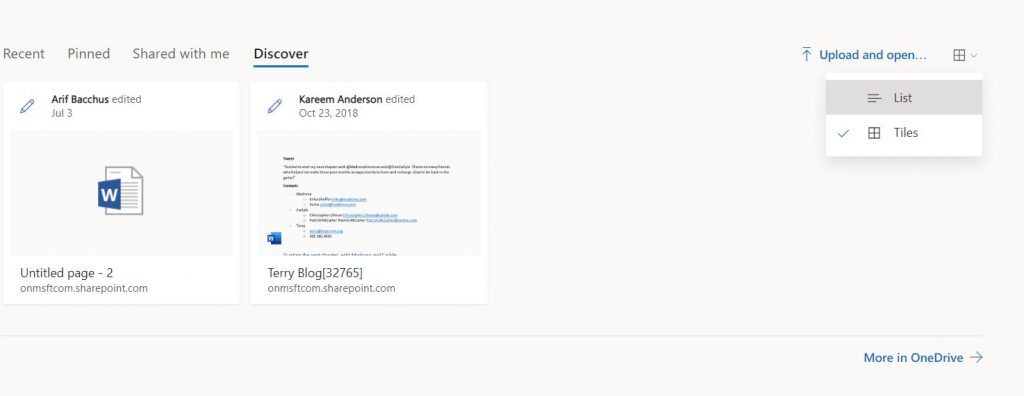
Next up, in the middle section of the Office 365 Dashboard is the documents section. Here, there will be a few tabs for certain Office content. These include Recent, Pinned, Shared with me and Discover. 

\n

Recent is a great way to access some of the files you’ve most commonly accessed across Office 365. Pinned, meanwhile, allows you to pin Office documents for quick access. You can do this by right clicking anything on the Recent list, and choosing Add to pinned. Third up, with Shared with me, you’ll be able to see some of the Office files shared with you via email, without having to go into Outlook or OneDrive. Finally, with Discover, you’ll be able to access some of the files on your SharePoint.

\n

If some of the files that you’d like to see aren’t showing up in this section, then you can always click the More in OneDrive link at the bottom of the screen to navigate to OneDrive and download or view files.

\n

You also can choose an alternate view for these files, by clicking the icon in the top right corner. This will let you see it as tiles, or as a list.

\n
Our Guide to the Office 365 Dashboard

\n

OneDrive and SharePoint Sections

\n

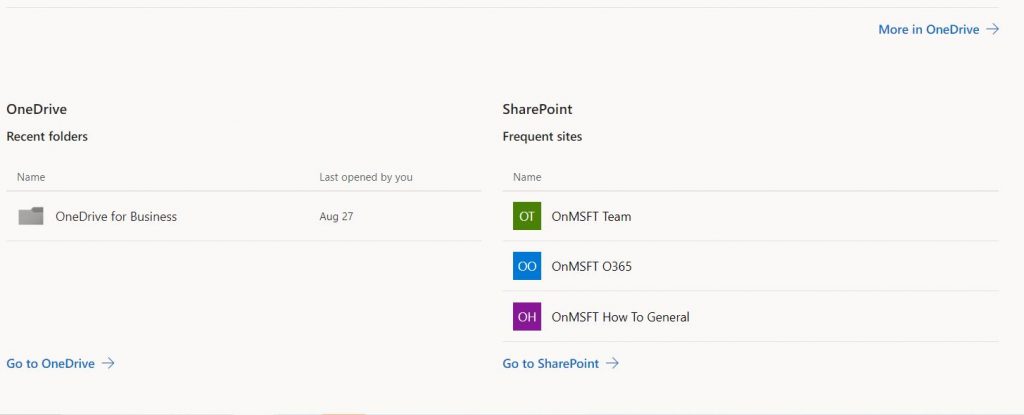
The third area of the Office 365 Dashboard is the OneDrive section. This area is home to your most recently used OneDrive folders. It gives you quick access, without having to manually visit OneDrive.com to access. Of course, you can always head to OneDrive from the dashboard too, simply click on the Go to OneDrive link in this section.

\n

Finally, all the way on the bottom of the Office 365 Dashboard is the SharePoint section. This section will give you a look at some of your most recently visited SharePoint websites. It’s a quick way to get the SharePoint content you need, without having to manually launch the app from the web. But, if you do need to launch SharePoint, the Go to SharePoint link on the bottom will make it easy.

\n
Our Guide to the Office 365 Dashboard

\n

Feedback

\n

Microsoft is always tweaking on Office 365, and the Office 365 Dashboard just so happens to be an area that is always seeing improvements. If you feel lost in the dashboard, or if you have an idea for something new, you can always click on the Feedback link at the bottom of the dashboard. This will give you a pop-up with a list of options. You can either choose from liking something, not liking something, or a suggestion. Your input is valuable and will help shape the future of Office 365.

\n

At the end of the day, the Office 365 dashboard is particularly useful. It’s home to many quick shortcuts and can give you a quick look at all your important information at a brief glance. Fell free to explore, and let us know how useful you’re finding the Office 365 Dashboard in the comments section below.

\n\nFurther reading: Microsoft, Office, Office 365

Share this article:
Tags:
Microsoft Office
Previous Article Ninja to stream first ever Gears 5 campaign playthrough on his Mixer channel today Next Article Former professional wrestler Dave Bautista is coming to Gears 5 as a playable character

Related Articles

Here is our Xbox 2022 wrap up – OnMSFT.com

December 27, 2022

Xbox classics revisited vol.8: classic racing games – OnMSFT.com

December 20, 2022

Here are some Xbox Christmas gifts for that gamer on your list – OnMSFT.com

December 20, 2022

Leave a Comment Cancel reply

Your email address will not be published. Required fields are marked *

Recent Posts

  • Microsoft is no longer manufacturing the Windows RT powered Surface 2
  • Microsoft treats Windows Phone owners with extra 20GB of free SkyDrive storage for one year
  • Bing now showcases professional and celebrity Klout scores during search results
  • Bing now lets you search and browse for your friends’ Facebook photos
  • Bing now lets you explore free online courses and helps you find books to read

Recent Comments

No comments to show.

Archives

  • February 2026
  • December 2022
  • November 2022
  • October 2022
  • September 2022
  • August 2022
  • July 2022
  • June 2022
  • May 2022
  • April 2022
  • March 2022
  • February 2022
  • January 2022
  • December 2021
  • November 2021
  • October 2021
  • September 2021
  • August 2021
  • July 2021
  • June 2021
  • May 2021
  • April 2021
  • March 2021
  • February 2021
  • January 2021
  • December 2020
  • November 2020
  • October 2020
  • September 2020
  • August 2020
  • July 2020
  • June 2020
  • May 2020
  • April 2020
  • March 2020
  • February 2020
  • January 2020
  • December 2019
  • November 2019
  • October 2019
  • September 2019
  • August 2019
  • July 2019
  • June 2019
  • May 2019
  • April 2019
  • March 2019
  • February 2019
  • January 2019
  • December 2018
  • November 2018
  • October 2018
  • September 2018
  • August 2018
  • July 2018
  • June 2018
  • May 2018
  • April 2018
  • March 2018
  • February 2018
  • January 2018
  • December 2017
  • November 2017
  • October 2017
  • September 2017
  • August 2017
  • July 2017
  • June 2017
  • May 2017
  • April 2017
  • March 2017
  • February 2017
  • January 2017
  • December 2016
  • November 2016
  • October 2016
  • September 2016
  • August 2016
  • July 2016
  • June 2016
  • May 2016
  • April 2016
  • March 2016
  • February 2016
  • January 2016
  • December 2015
  • November 2015
  • October 2015
  • September 2015
  • August 2015
  • July 2015
  • June 2015
  • May 2015
  • April 2015
  • March 2015
  • February 2015
  • January 2015
  • December 2014
  • November 2014
  • October 2014
  • September 2014
  • August 2014
  • July 2014
  • June 2014
  • May 2014
  • April 2014
  • March 2014
  • February 2014
  • January 2014
  • December 2013
  • November 2013
  • October 2013
  • September 2013
  • August 2013
  • July 2013
  • June 2013
  • May 2013
  • April 2013
  • March 2013
  • February 2013
  • January 2013
  • December 2012
  • November 2012
  • October 2012
  • September 2012
  • August 2012
  • July 2012
  • June 2012
  • May 2012
  • April 2012
  • March 2012
  • February 2012
  • January 2012
  • December 2011
  • November 2011
  • October 2011
  • September 2011
  • August 2011
  • July 2011
  • June 2011
  • May 2011
  • April 2011
  • March 2011
  • February 2011
  • January 2011
  • December 2010
  • November 2010
  • October 2010
  • September 2010

Categories

  • Announcements
  • Deals
  • Developer
  • Editorial
  • Feature
  • Feature stories
  • Hero-post
  • Hotdeals
  • How-to
  • Latest news
  • Microsoft / office 365
  • News
  • Office 365
  • Onpodcast
  • Opinion
  • Our featured post
  • Polls
  • Review
  • Reviews
  • Videos
OnMSFT.com

OnMSFT.com covers Microsoft news, reviews, and how-to guides. Formerly known as WinBeta, we have been your source for Microsoft news since 1998.

Categories

  • Windows
  • Surface
  • Xbox
  • How-To
  • OnPodcast
  • Gaming
  • Edge
  • Teams

Recent Posts

  • Microsoft is no longer manufacturing the Windows RT powered Surface 2
  • Microsoft treats Windows Phone owners with extra 20GB of free SkyDrive storage for one year
  • Bing now showcases professional and celebrity Klout scores during search results
  • Bing now lets you search and browse for your friends’ Facebook photos
  • Bing now lets you explore free online courses and helps you find books to read

Quick Links

  • About OnMSFT.com
  • Contact OnMSFT
  • Join Our Team
© 2010–2026 OnMSFT.com LLC. All rights reserved.
About OnMSFT.comContact OnMSFT