Skip to content
OnMSFT.com
  • Home
  • About
  • Contact
  • Windows
  • Surface
  • Xbox
  • How-To
  • OnPodcast
  • Edge
  • Teams
  • Gaming
Menu
  • Home
  • About
  • Contact
  • Windows
  • Surface
  • Xbox
  • How-To
  • OnPodcast
  • Edge
  • Teams
  • Gaming
  1. Home
  2. Feature
  3. Hands-on with the Phone Calls feature in the Windows 10 Your Phone App: It’s quite surprising

Hands-on with the Phone Calls feature in the Windows 10 Your Phone App: It’s quite surprising

Arif Bacchus Arif Bacchus
October 28, 2019
4 min read

\n

As Microsoft continues to evolve the Your Phone experience on Windows 10, there have been many fruits of their hard labor for Windows Insiders to enjoy. We’ve seen the ability to mirror Android apps over to Windows 10, as well as the ability to see Android phone notifications on the Your Phone app.

\n

In the latest effort to make Your Phone more feature complete, Microsoft is introducing a new ability to place and make phone calls from the Your Phone app. We recently tried out the feature on our Windows Insider machine and the results were quite surprising.

\n

The overall user experience: Dialpad, list of calls

\n

Granted that you’re running Windows 10 19H1 build 18362.356 or higher — and you’ve paired your Android smartphone to Windows 10 via Bluetooth — you’ll be able to enjoy the new phone calling experience. As the name suggests, it’s available by clicking from Calls on the right side of the latest version of the Your Phone app.

\n

Interestingly, however, the Calls experience in Your Phone works in cases where your main Android device is connected to the internet either a WiFi network or also a standard 4G LTE network. Unlike with the App Mirroring feature, this means that your phone doesn’t need to be on the same WiFi network as your PC for the feature to work. You can keep your Android phone on its independent 4G network, and have the Calls on your PC happen without your Android device being on WiFi if you’ve configured the Your Phone app to sync with 4G.

\n
\n

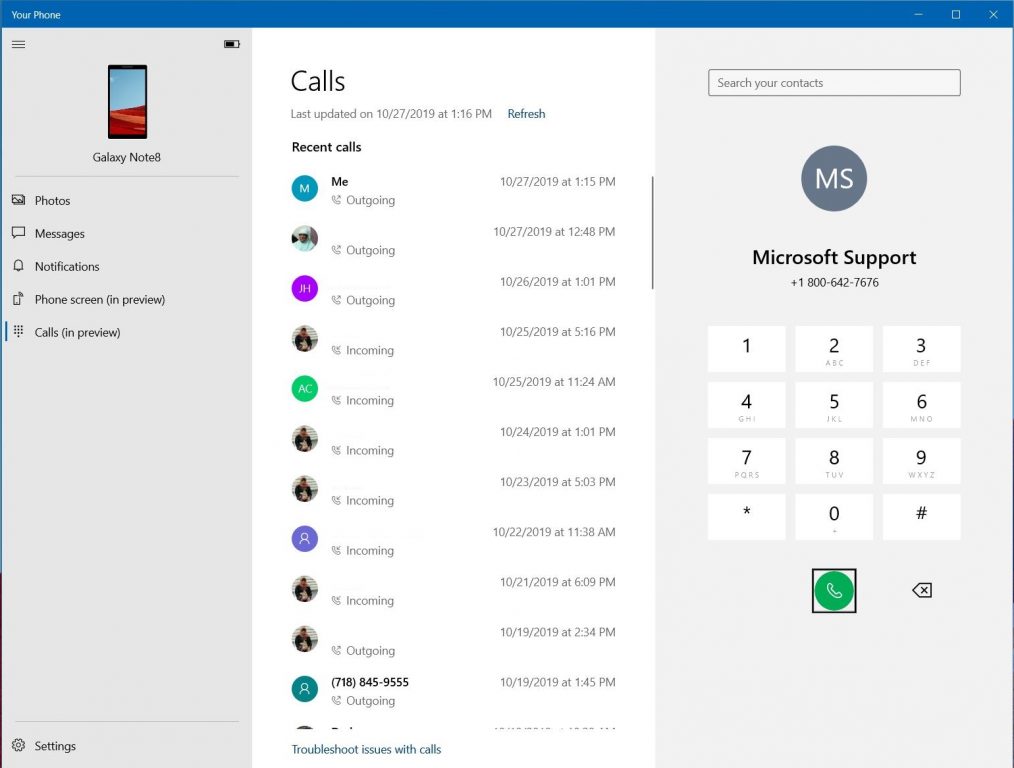
Anyway, there are two core areas of the Calls experience in the Your Phone app. You’ll be able to see a list of all your recent calls in the middle portion of the screen. On the right side, meanwhile, is a dial pad to place calls. Above that will be a search box, where you can search for your contacts. The search box works as functions and brings up a list of contacts from your Android Phone almost instantly. You also can manually refresh the list of calls by pressing on the Refresh button at the top of the screen.

\n

Overall, this user experience is quite clean. Sadly, at the moment there is no way to filter the list of calls. All calls are listed in order by time, including missed calls, incoming and outgoing calls. If you’re a person like me that’s constantly making phone calls, the list can be quite messy. However, that’s nothing that scrolling up and down the list can fix.

\n

\n

Making calls: A nifty pop-out box to control audio

\n

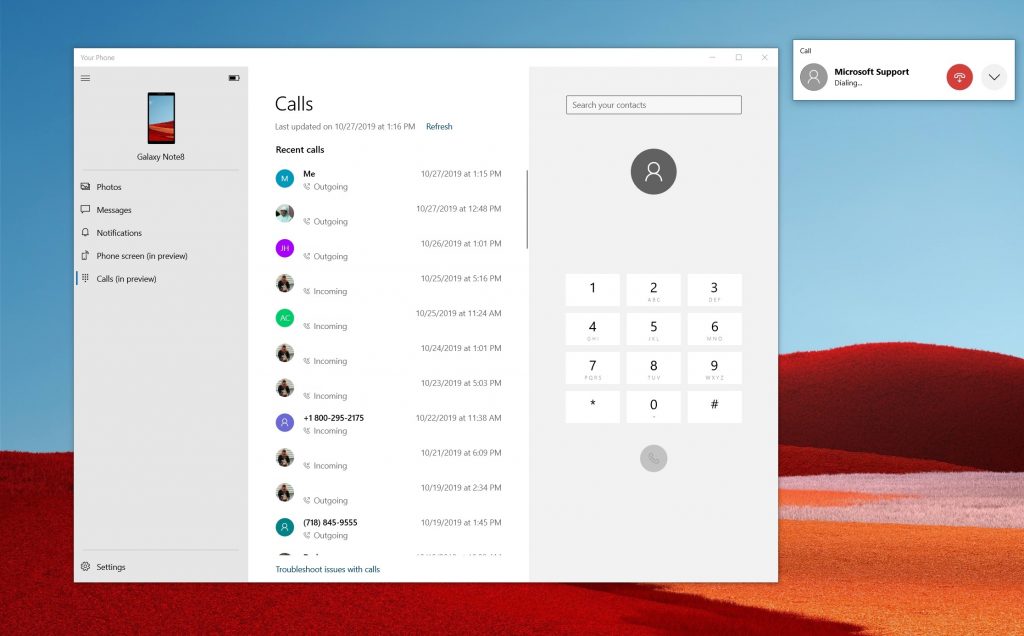
Moving on, placing phone calls from the Calls section of the Your Phone app is quite cool. As long as your Android Phone and PC are paired via Bluetooth, it will work regardless if your phone is locked, or not. Simply find your contact name from the list and call it, or manually use the dial pad to dial a number. Windows 10 will instantly send the call out to your Android phone, with no lag or questions asked. A pop-out box will also instantly appear at the side of the Your Phone app, showing you that a call is occurring.

\n

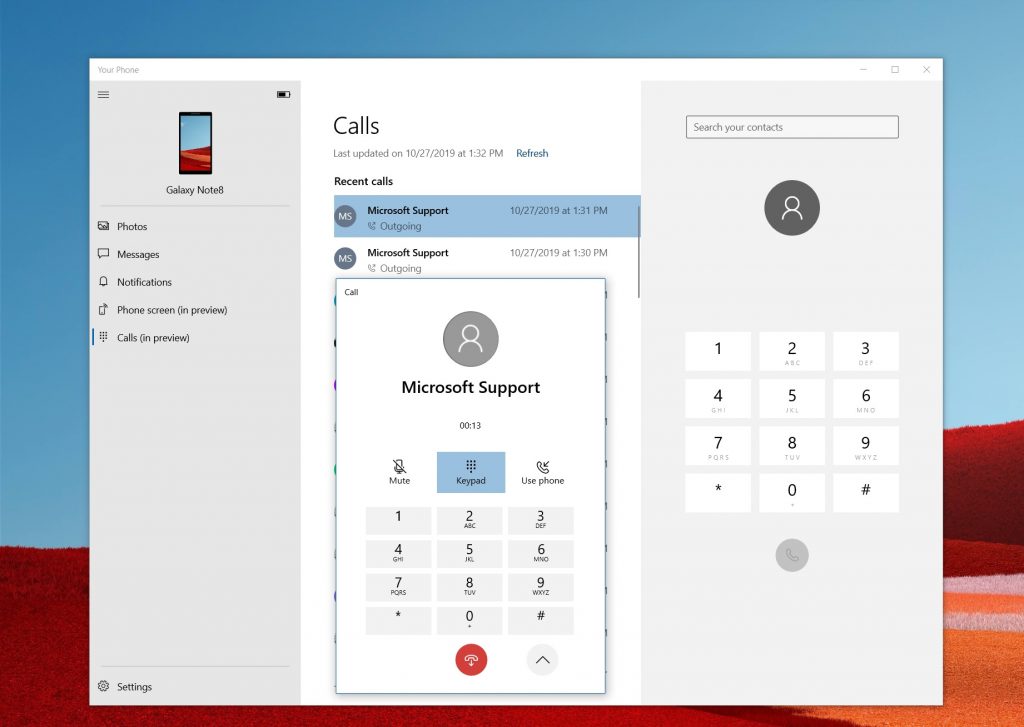
Interestingly, if you’ve summoned the phone call from your Windows 10 PC, everything the call will automatically happen on your PC (as a Bluetooth speaker.) You can use your PC’s mic or speakers to listen to the call. If you’re uncomfortable with this, there is an option to transfer the call back to your Android phone. Simply press the down-arrow in the mini-pop up box next to Your Phone, to expand it out. You can then press on the Use Phone button to use the phone for calls.  There’s even a Mute button to silence the microphones during the call.

\n
\n

For further interaction, say in a situation where you’re dealing with customer service, you can also click the Keypad button. This will bring up the full number pad, similar to the one on the right side of the screen. The pop-out box containing these buttons and phone call controls can be dragged out anywhere. We dragged it out to the list of calls to hide our personal information, but it can be pulled anywhere and will stay on top of anything you’re doing.

\n
\n

A nice little feature that makes Your Phone feature complete

\n

At the end of the day, the Calls feature in Your Phone is quite cool. It does what most people will need it for quite right. You don’t need to touch your phone or pull it out of your pocket anymore. You can make phone calls and enjoy everything from your Android Phone right from the comfort of your Windows 10 PC. With a dual-screen Surface Duo and Surface Neo coming, this experience might turn out to be quite important.

\n


\n\nFurther reading: Microsoft, Windows 10, Windows Insider, Your Phone

Share this article:
Tags:
Microsoft Windows 10 Windows Insider Your Phone
Previous Article Windows 10 20H1 update will reportedly go RTM in December to follow Azure’s development cycle Next Article Xbox All Access is back – Get an Xbox One X, Game Pass for $31/mo and upgrade to Scarlett when it launches

Related Articles

Microsoft is no longer manufacturing the Windows RT powered Surface 2

February 23, 2026

Microsoft treats Windows Phone owners with extra 20GB of free SkyDrive storage for one year

February 23, 2026

Bing now lets you search and browse for your friends’ Facebook photos

February 23, 2026

Leave a Comment Cancel reply

Your email address will not be published. Required fields are marked *

Recent Posts

  • Microsoft is no longer manufacturing the Windows RT powered Surface 2
  • Microsoft treats Windows Phone owners with extra 20GB of free SkyDrive storage for one year
  • Bing now showcases professional and celebrity Klout scores during search results
  • Bing now lets you search and browse for your friends’ Facebook photos
  • Bing now lets you explore free online courses and helps you find books to read

Recent Comments

No comments to show.

Archives

  • February 2026
  • December 2022
  • November 2022
  • October 2022
  • September 2022
  • August 2022
  • July 2022
  • June 2022
  • May 2022
  • April 2022
  • March 2022
  • February 2022
  • January 2022
  • December 2021
  • November 2021
  • October 2021
  • September 2021
  • August 2021
  • July 2021
  • June 2021
  • May 2021
  • April 2021
  • March 2021
  • February 2021
  • January 2021
  • December 2020
  • November 2020
  • October 2020
  • September 2020
  • August 2020
  • July 2020
  • June 2020
  • May 2020
  • April 2020
  • March 2020
  • February 2020
  • January 2020
  • December 2019
  • November 2019
  • October 2019
  • September 2019
  • August 2019
  • July 2019
  • June 2019
  • May 2019
  • April 2019
  • March 2019
  • February 2019
  • January 2019
  • December 2018
  • November 2018
  • October 2018
  • September 2018
  • August 2018
  • July 2018
  • June 2018
  • May 2018
  • April 2018
  • March 2018
  • February 2018
  • January 2018
  • December 2017
  • November 2017
  • October 2017
  • September 2017
  • August 2017
  • July 2017
  • June 2017
  • May 2017
  • April 2017
  • March 2017
  • February 2017
  • January 2017
  • December 2016
  • November 2016
  • October 2016
  • September 2016
  • August 2016
  • July 2016
  • June 2016
  • May 2016
  • April 2016
  • March 2016
  • February 2016
  • January 2016
  • December 2015
  • November 2015
  • October 2015
  • September 2015
  • August 2015
  • July 2015
  • June 2015
  • May 2015
  • April 2015
  • March 2015
  • February 2015
  • January 2015
  • December 2014
  • November 2014
  • October 2014
  • September 2014
  • August 2014
  • July 2014
  • June 2014
  • May 2014
  • April 2014
  • March 2014
  • February 2014
  • January 2014
  • December 2013
  • November 2013
  • October 2013
  • September 2013
  • August 2013
  • July 2013
  • June 2013
  • May 2013
  • April 2013
  • March 2013
  • February 2013
  • January 2013
  • December 2012
  • November 2012
  • October 2012
  • September 2012
  • August 2012
  • July 2012
  • June 2012
  • May 2012
  • April 2012
  • March 2012
  • February 2012
  • January 2012
  • December 2011
  • November 2011
  • October 2011
  • September 2011
  • August 2011
  • July 2011
  • June 2011
  • May 2011
  • April 2011
  • March 2011
  • February 2011
  • January 2011
  • December 2010
  • November 2010
  • October 2010
  • September 2010

Categories

  • Announcements
  • Deals
  • Developer
  • Editorial
  • Feature
  • Feature stories
  • Hero-post
  • Hotdeals
  • How-to
  • Latest news
  • Microsoft / office 365
  • News
  • Office 365
  • Onpodcast
  • Opinion
  • Our featured post
  • Polls
  • Review
  • Reviews
  • Videos
OnMSFT.com

OnMSFT.com covers Microsoft news, reviews, and how-to guides. Formerly known as WinBeta, we have been your source for Microsoft news since 1998.

Categories

  • Windows
  • Surface
  • Xbox
  • How-To
  • OnPodcast
  • Gaming
  • Edge
  • Teams

Recent Posts

  • Microsoft is no longer manufacturing the Windows RT powered Surface 2
  • Microsoft treats Windows Phone owners with extra 20GB of free SkyDrive storage for one year
  • Bing now showcases professional and celebrity Klout scores during search results
  • Bing now lets you search and browse for your friends’ Facebook photos
  • Bing now lets you explore free online courses and helps you find books to read

Quick Links

  • About OnMSFT.com
  • Contact OnMSFT
  • Join Our Team
© 2010–2026 OnMSFT.com LLC. All rights reserved.
About OnMSFT.comContact OnMSFT