Skip to content
OnMSFT.com
  • Home
  • About
  • Contact
  • Windows
  • Surface
  • Xbox
  • How-To
  • OnPodcast
  • Edge
  • Teams
  • Gaming
Menu
  • Home
  • About
  • Contact
  • Windows
  • Surface
  • Xbox
  • How-To
  • OnPodcast
  • Edge
  • Teams
  • Gaming
  1. Home
  2. Feature
  3. Hands-on with the new Gmail and Google Drive integration in Outlook.com

Hands-on with the new Gmail and Google Drive integration in Outlook.com

Arif Bacchus Arif Bacchus
January 4, 2020
4 min read

\n

After developing a new web browser based on Google’s open-source Chromium engine, Microsoft is now also playing nicer with Google’s own emailing and storage services. In the months following limited testing of new Gmail and Google Drive integration on Outlook.com, Microsoft is now rolling out the feature in beta to a larger group of Outlook.com users.

\n

Along with Tom Warren from The Verge, we’re now seeing the new Google integrations on our end. However, it is noteworthy that this feature isn’t standard: It will only show up of you’re an Outlook.com Premium member, either paid or as included free as part of Office 365.

\n

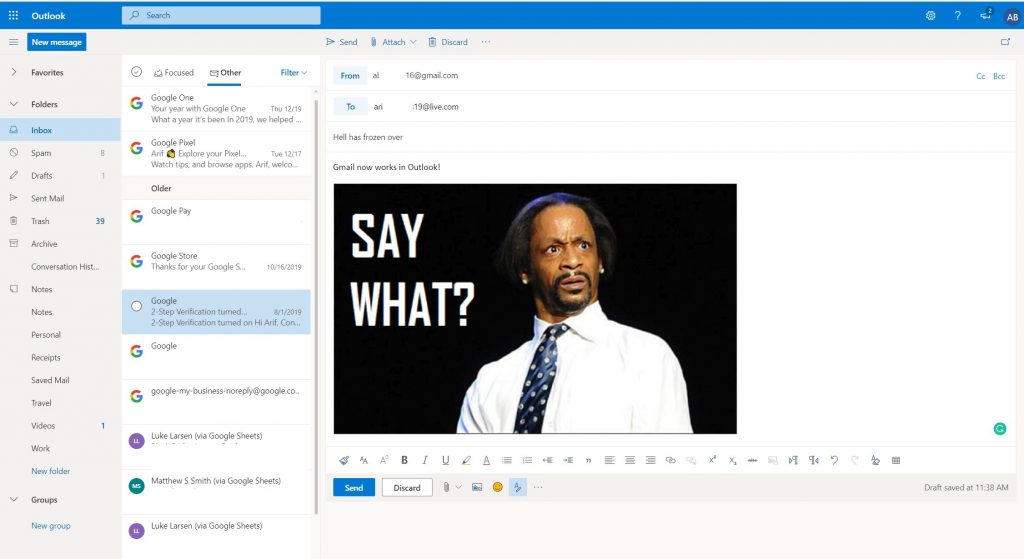
Once the Gmail and Google Drive integration is available for you, you’ll notice a pop-up message in your Outlook.com inbox, which looks like the one in the featured image above. You’ll also see a new Add Account icon in the sidebar, similar to the one in the Outlook app on mobile. Alternatively, you can check to see if you have the feature by clicking the bullhorn-shaped Announcements icon and then Try it on the top left corner of the screen, which is right next to your profile icon.

\n

\n

If you choose to add your Gmail inbox to Outlook.com, you’ll be prompted to grant Microsoft permissions to access your Google Account. That includes reading mail, seeing and editing Google Drive files, seeing your contacts and calendars, and your other personal information. Once you proceed, all your Gmail messages will now appear in your Outlook.com inbox.

\n

As this is still a beta, the experience is still a bit messy. We weren’t easily able to sort between our Outlook.com inbox or the Gmail inbox. We actually needed to head back to the announcements icon and click Try it to see Gmail in the Outlook experience. Despite the sidebar and account toggle appearing in the original set-up and notification prompt, it doesn’t seem to persist in the Outlook.com UI once Gmail integration is actually enabled — at least on our end.

\n
\n

Google Calendar in Outlook is really convenient

\n

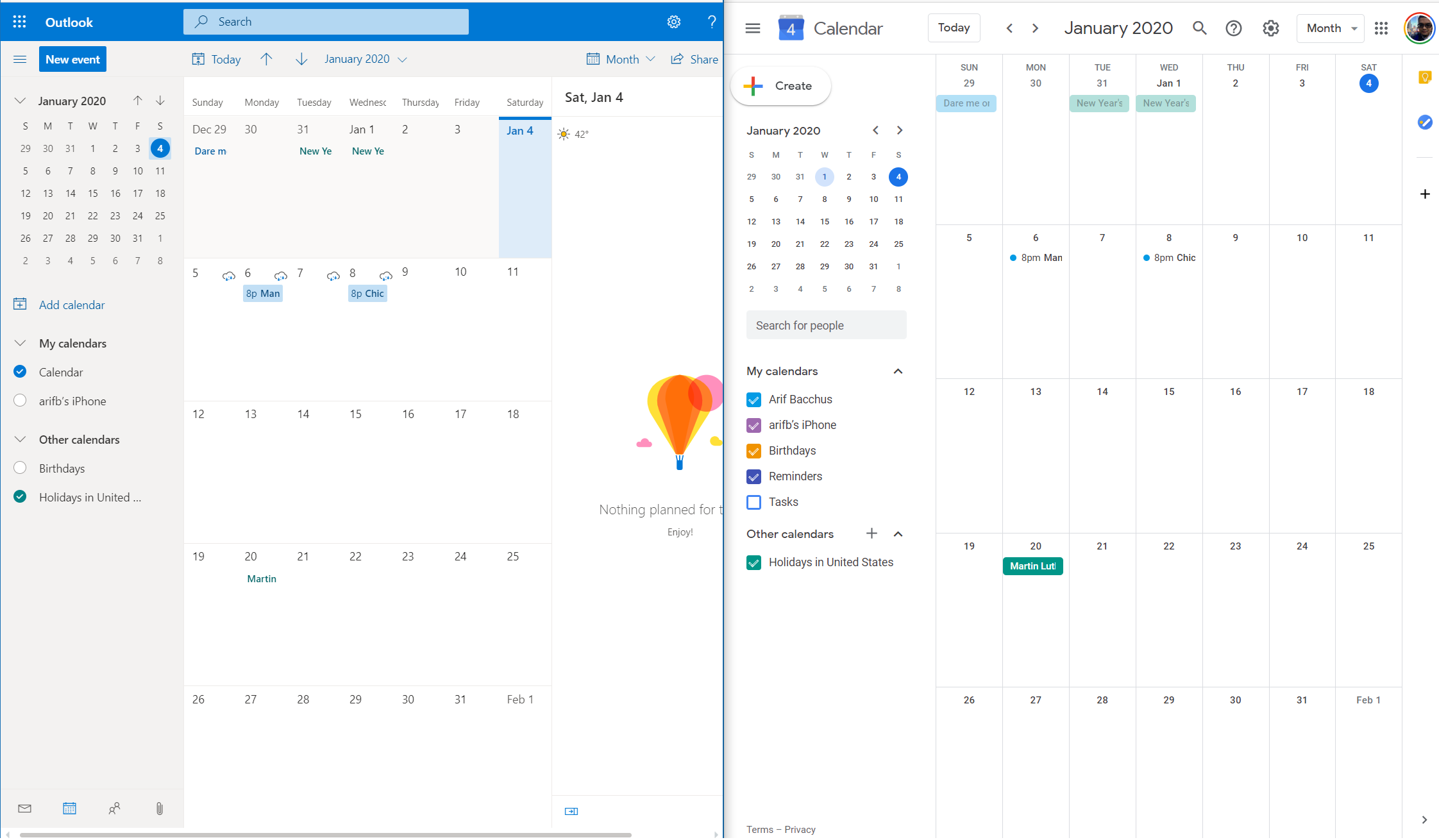
One of the best parts of this new experience is the Google Calendar integration. As I am sporting an Android phone, it is great to see the same calendar meetings and appointments that I made on the Google Calendar app from my Pixel 3XL Android Phone, right on Outlook.com.

\n

Now, when I create a calendar meeting on my phone, I don’t need to go back into Gmail.com to check on it, get reminders, or add more details.  Rather, I can just open Outook.com, toggle my Google account with Try it from the top bar, click the Calendar icon, and all the information I need is there. I often add reminders to watch my TV shows on my phone through Google Calendar, and it is great seeing these on my desktop now too.

\n

This also can be useful for folks who have multiple calendars too, as there are the same toggle options from Google Calendar in the left bar to create more calendars, and switch between them. I prefer the more flat-looking and business look of Outlook.com when compared to the rounded and colorful Google Calendar, so there is that, too.

\n
\n

Google Drive Integration is great for sharing files

\n

It’s also nice to see Google Drive integration, which lets you easily share files in Outlook.com that are stored in Google’s online cloud storage service. It’s a nice option if you’re emailing someone who doesn’t want to deal with OneDrive or prefers Google’s cloud storage service instead.

\n

This is available by toggling over to Gmail in Outlook.com via the Try it at the top bar. Once you do that, you can access Google Drive by choosing the Browse cloud locations option. You’ll then see a pop-up option to choose Google Drive. A list of your recent files show up, and you can click the one you want to share. You also can use the search box to pick a file not listed. A recent attachment option is also available. And, if you want to use OneDrive in Gmail, you can do that too, by clicking add an account. 

\n

Once you choose your file, you can choose an option to either share as a Google Drive link or Attach as a copy. You also can remember your choice and choose it as a default option. This is quite nifty, as the process of picking files is exactly the same as it is when choosing files via OneDrive with a Outlook.com or Microsoft email account.

\n

\n

\n

\n

\n

\n

\n\n

A useful addition for those invested in both Google’s and Microsoft’s ecosystem

\n

At the end of the day, it is indeed quite convenient to have access to Gmail directly from within Outlook.com, as it moves the experience closer to what you get with the dedicated Outlook app. You’re able to access your emails, calendar, and even send Google Drive files without having to open Google’s own websites, and it is great for those who prefer the user experience out Outlook.com. The experience still has quite a ways to go, but I am glad to see the new Microsoft in action and playing nice with Google services. That will be especially important with the Android-powered Surface Duo coming up later this year.

\n\nFurther reading: Gmail, Microsoft, Office 365, Outlook.com

Share this article:
Tags:
Gmail Microsoft Outlook.com
Previous Article Microsoft is building a $1.1 billion data center in Iowa Next Article CES 2020: Lenovo unveils new gaming laptops, eGPUs, monitors & accessories for 2020

Related Articles

Here is our Xbox 2022 wrap up – OnMSFT.com

December 27, 2022

Xbox classics revisited vol.8: classic racing games – OnMSFT.com

December 20, 2022

Here are some Xbox Christmas gifts for that gamer on your list – OnMSFT.com

December 20, 2022

Leave a Comment Cancel reply

Your email address will not be published. Required fields are marked *

Recent Posts

  • Microsoft is no longer manufacturing the Windows RT powered Surface 2
  • Microsoft treats Windows Phone owners with extra 20GB of free SkyDrive storage for one year
  • Bing now showcases professional and celebrity Klout scores during search results
  • Bing now lets you search and browse for your friends’ Facebook photos
  • Bing now lets you explore free online courses and helps you find books to read

Recent Comments

No comments to show.

Archives

  • February 2026
  • December 2022
  • November 2022
  • October 2022
  • September 2022
  • August 2022
  • July 2022
  • June 2022
  • May 2022
  • April 2022
  • March 2022
  • February 2022
  • January 2022
  • December 2021
  • November 2021
  • October 2021
  • September 2021
  • August 2021
  • July 2021
  • June 2021
  • May 2021
  • April 2021
  • March 2021
  • February 2021
  • January 2021
  • December 2020
  • November 2020
  • October 2020
  • September 2020
  • August 2020
  • July 2020
  • June 2020
  • May 2020
  • April 2020
  • March 2020
  • February 2020
  • January 2020
  • December 2019
  • November 2019
  • October 2019
  • September 2019
  • August 2019
  • July 2019
  • June 2019
  • May 2019
  • April 2019
  • March 2019
  • February 2019
  • January 2019
  • December 2018
  • November 2018
  • October 2018
  • September 2018
  • August 2018
  • July 2018
  • June 2018
  • May 2018
  • April 2018
  • March 2018
  • February 2018
  • January 2018
  • December 2017
  • November 2017
  • October 2017
  • September 2017
  • August 2017
  • July 2017
  • June 2017
  • May 2017
  • April 2017
  • March 2017
  • February 2017
  • January 2017
  • December 2016
  • November 2016
  • October 2016
  • September 2016
  • August 2016
  • July 2016
  • June 2016
  • May 2016
  • April 2016
  • March 2016
  • February 2016
  • January 2016
  • December 2015
  • November 2015
  • October 2015
  • September 2015
  • August 2015
  • July 2015
  • June 2015
  • May 2015
  • April 2015
  • March 2015
  • February 2015
  • January 2015
  • December 2014
  • November 2014
  • October 2014
  • September 2014
  • August 2014
  • July 2014
  • June 2014
  • May 2014
  • April 2014
  • March 2014
  • February 2014
  • January 2014
  • December 2013
  • November 2013
  • October 2013
  • September 2013
  • August 2013
  • July 2013
  • June 2013
  • May 2013
  • April 2013
  • March 2013
  • February 2013
  • January 2013
  • December 2012
  • November 2012
  • October 2012
  • September 2012
  • August 2012
  • July 2012
  • June 2012
  • May 2012
  • April 2012
  • March 2012
  • February 2012
  • January 2012
  • December 2011
  • November 2011
  • October 2011
  • September 2011
  • August 2011
  • July 2011
  • June 2011
  • May 2011
  • April 2011
  • March 2011
  • February 2011
  • January 2011
  • December 2010
  • November 2010
  • October 2010
  • September 2010

Categories

  • Announcements
  • Deals
  • Developer
  • Editorial
  • Feature
  • Feature stories
  • Hero-post
  • Hotdeals
  • How-to
  • Latest news
  • Microsoft / office 365
  • News
  • Office 365
  • Onpodcast
  • Opinion
  • Our featured post
  • Polls
  • Review
  • Reviews
  • Videos
OnMSFT.com

OnMSFT.com covers Microsoft news, reviews, and how-to guides. Formerly known as WinBeta, we have been your source for Microsoft news since 1998.

Categories

  • Windows
  • Surface
  • Xbox
  • How-To
  • OnPodcast
  • Gaming
  • Edge
  • Teams

Recent Posts

  • Microsoft is no longer manufacturing the Windows RT powered Surface 2
  • Microsoft treats Windows Phone owners with extra 20GB of free SkyDrive storage for one year
  • Bing now showcases professional and celebrity Klout scores during search results
  • Bing now lets you search and browse for your friends’ Facebook photos
  • Bing now lets you explore free online courses and helps you find books to read

Quick Links

  • About OnMSFT.com
  • Contact OnMSFT
  • Join Our Team
© 2010–2026 OnMSFT.com LLC. All rights reserved.
About OnMSFT.comContact OnMSFT