\n
\n
Visit any airport in the world and you’ll see them: USB-seeking power port zombies shuffling halls and waiting areas aimlessly looking for the next battery charge to bring them and their handheld devices to life.
\n
While it’s a sad state of affairs, it’s the reality that accompanies owning an electronic mobile device these days, be it an e-reader, tablet, Ultrabook, 2-in-1 or smartphone, An electronic charging cable-like leash is never far from reach.
\n
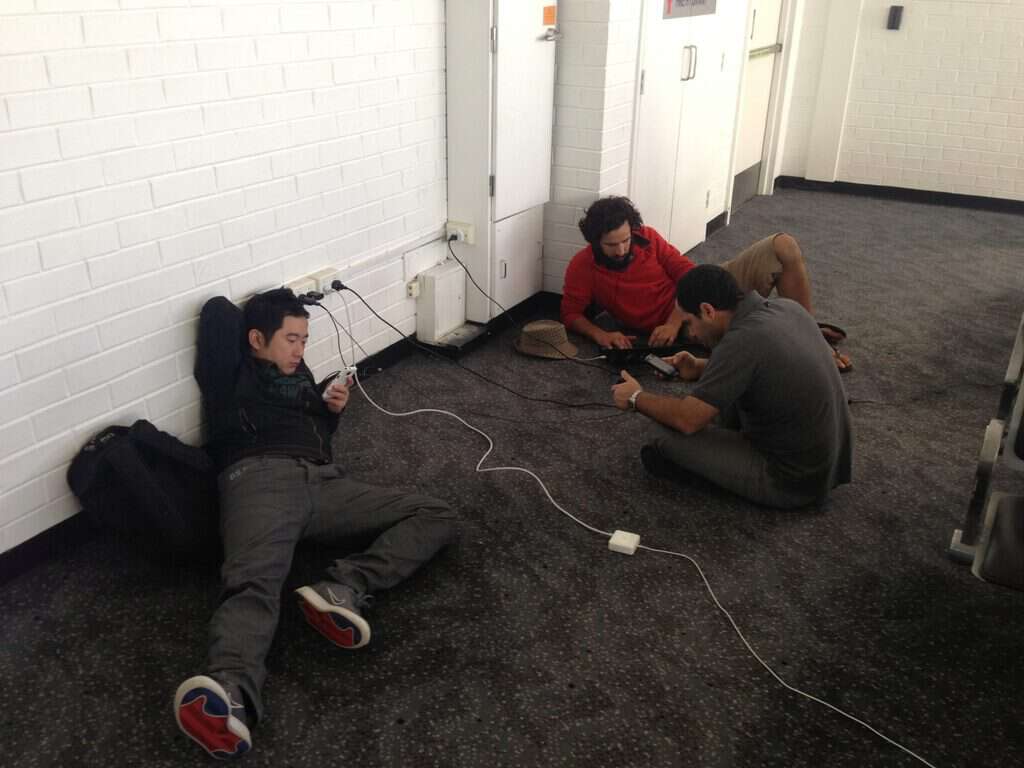
Airport charging station
\n
However, the smartphone has been a particularly troublesome offender due to its hub-like influence in our lives. While a laptop might be ideal for long-form work or communication and tablets typically serve a more specialized workload, it’s the smartphone’s ability to house a data connection continuously (be it WiFi hopping or paid data plans) combined with its easily ingestible form factor that has most people draining its battery more often.
\n
Until battery tech catches up to the demands that are being imposed on smartphones, users will just have to creatively circumvent the limitations with some handy do-it-yourself (DIY) tips and tricks. Fortunately for Windows 10 Mobile users, All About Windows Phone has just those battery saving tips and tricks at the ready.
\n
With ten seemingly simple user tips, Windows 10 Mobile owners can manually adjust sections of their devices battery output to save as much of that sweet battery-gold for everyday consumption.
\n
Tip 1: Glance is a big battery killer
\n
In a worst case scenario, over the course of a full 16-hour dawn-to-dusk day, that’s over 43% of your Windows 10 Mobile device’s battery gone – JUST FROM USING GLANCE SCREEN. That’s not counting all the other stuff that the OS needs to do. No wonder people are having battery issues with their Lumia 950 and 950 XL devices.
\n
And it shouldn’t be, given that the screens are AMOLED, and only lit pixels need power. So there’s clearly more going on here than meets the eye. In the meantime, head for Settings/Extras/Glance screen and set this to (for example) ’30 seconds’.
\n
Tip 2: If your SMS sync usage is in double digits, turn it off
\n
Back when the Windows team attempted the mess that was Skype and Messaging integration, Windows 10 Mobile users were being attacked by large swaths of battery sucking processes. Something about how the combination of the two services in conjunction with a constant syncing engine to PCs seemed to be analogous to a vampire at a blood bank when it came to battery drain for many users. Fortunately, Microsoft is pulling back on combining standard SMS with Skype functionality (for now), but the constant syncing Windows 10 Mobile attempts for both PCs and other mobile devices may still have some users paying the battery toll.
\n
Fortunately, Microsoft is pulling back on combining standard SMS with Skype functionality (for now), but the constant syncing Windows 10 Mobile attempts for both PCs and other mobile devices may still have some users paying the battery toll.
\n
I’m not saying turn this off immediately, but consider living without SMS sync if you start experiencing battery issues. You can check if Messaging is a culprit in ‘Settings/System/Batter Saver’ and tapping on ‘Battery use’ – Messaging should be a few percent at most. If it’s in double digits, then the sync is probably the issue. You can turn it off in Messaging by tapping on ‘…’ and then ‘Settings’ and turning off ‘Sync messages between devices’.
\n
(While you’re in that dialog, you might want to turn off the auto-retrieval of MMS too – this has been a vector for malware on Android, since the sender can effectively get your phone to show/interpret any binary faux-image they like. So turn this off in case Windows 10 ever becomes a target?)
\n

Sync Skype messaging
\n
Tip 3: Use the back button to put out fires
\n
Steven Litchfield, author of the Top 10 ways to increase battery life under Windows 10 Mobile, notes that typically when a phone feels hot to the touch, a rogue application is running amok in the processing department of the operating system. The original Windows Phone team planned for incidents such these, by implementing its famous tombstoning of apps in the background approach. However, when tombstoning fails to catch all background processes:
\n
Press and hold the ‘back’ control to get the multitasking carousel and swipe up (or use the ‘x’ control) on any likely candidates. If you’re really paranoid, close everything in the background, and if you’re real, really paranoid (like me) then reset the running OS by restarting the phone. Just in case, you know?
\n
Tip 4: Spring clean app usage
\n
With a Windows 10 Mobile upgrade comes a more refined app settings menu. The new menu enables users to adjust toggles for individually running apps. Taking the time to go into this menu and assign what apps do and when they are potentially running in the background is a necessity.
\n
Head into ‘Settings/System/Battery saver/Battery use/Change background app settings’ and, essentially swipe through the page, toggling off background permissions for every application which has (in your opinion) no right to be chugging away doing anything when it’s not on the screen. You’ll be amazed how many apps and games are provisioned for background operation – just set them to ‘off’ here.
\n
Tip 5: Battery Saver is your friend
\n
While iOS has recently been touting its new low power battery mode, Windows phone users have been able to damn up battery usage with Battery Saver (BS) for some time now. Adjusting this setting slams the brakes on apps running in the background and services that are syncing in intervals automatically. Services such as email, OneDrive, Facebook, and Instagram are constantly fetching packets of info, but when BS is set a particular limit, almost all services are switched to manual updates while conserving battery life.
\n
Head into ‘Settings/System/Battery saver/Battery saver settings’ and tick ‘turn battery saver on automatically if battery falls below:’ and set the slider to at least 20%.
\n
You won’t notice any difference most of the time, but if you ever do run low, it’ll then kick in automatically, cutting screen brightness down, cellular connectivity right down and turning automatic data syncs and background activity off. It’s a really clever system, and well worth activating – that last 20% (or so) of battery life will get you through the last 30% (or more) of your day.
\n

Battery Saver Settings
\n
Tip 6: Windows 10 Mobile Dark Theme is the best (duh)
\n
Not only does it stand to help identify the operating system out a crowd of colorful Skittles-like operating systems, but the Windows 10 Mobile Dark Theme serves as a built-in battery saver on AMOLED devices. Sure, the option for choosing between Light and Dark Themes is ideal for the end user, but placing the operating system under an AMOLED screen for devices such as the Lumia 1520, 950, or 950 XL makes the default Dark Theme the only choice for battery sippers. Due to the technology behind lit pixels in AMOLED screens, using the Dark Theme not only saves battery but reduces the potential for burn-in.
\n
Quite often applications take their theme cue from the overall Windows 10 Mobile Theme. Look in ‘Settings/Personalisation/Colours’ – set your ‘mode’ to ‘Dark’. You might even want to pick applications based on their theme, or at least their adherence to picking up the system theme – if there are multiple apps that claim to do the same thing (e.g. a social network client) then go with the one that’s not lit up like a Christmas tree!
\n
A nice side effect of choosing a power-efficient dark theme (and apps) is that your Windows Phone becomes much more usable at night time, without blinding you when you turn the screen on!
\n
Tip 7: Wrangle all of those default settings in
\n
Ever wonder when you’ll be able to use ‘Tap to Pay’ o your Windows 10 Mobile device? Well, until Microsoft adds a fully functional wallet or mobile payment option it’s probably best to switch that off, and that goes for all of the other settings on by default that users rarely or infrequently, if ever, use.
\n
It sounds obvious, but you’d be amazed at the number of people who leave NFC turned on when they only use it once a year. Likewise Bluetooth, which often gets left turned on after trying something and then never turned off. Ditto – horror of horrors – Internet sharing, which has caught me out a few times when I noticed my phone was quite hot and almost out of battery, after running a hotspot for hours after my lunchtime tethering.
\n
Happily, most things are quick to spot and toggle on Windows 10 Mobile. Swipe down Action Center from the top of the screen and then swipe down again (or tap ‘Expand’) to see the full panel of toggles. Pay particular attention to ‘Mobile hotspot’, ‘VPN’ and ‘Bluetooth’. Plus you’ll find NFC under ‘All Settings/Devices/NFC.’
\n
Tip 8: Edge hasn’t mastered multi-tab conservation
\n
Microsoft’s new Edge browser development is like a cute baby deer being born…in a Fine China shop. The Edge browser on PC, for many, is beautiful to look at for short periods of time but eventually crashes and breaks things more often than some are willing to forgive it for. On the mobile side of things, the story is similar but to a lesser degree.
\n
Even with its limited feature set, though, the Edge browser on mobile can still cause havoc on a user’s battery life due to some weird tabbing bugs lurking in the app.
\n
Quite apart from the privacy aspects, although these tabs aren’t strictly all active, it’s not unknown for some of these to misbehave, with active content forcing reloads and other behavior which can be detrimental to your battery. So, whenever you remember, consider bringing up that list of tabs and closing many of them down.
\n

Mobile Microsoft Edge browser
\n
Tip 9: Automatic Brightness is your friend
\n
Whenever I’m getting low on battery, Paul Simon and Art Garfunkel’s The Sound of Silence whispers in my ear “Hello darkness my old friend…” However, the Windows team’s implementation of Automatic Brightness settings can help keep those words at bay for a bit longer.
\n
Having tested hundreds of smartphones across five different mobile OS, I can state that one thing Microsoft and its partners got absolutely right is the level of auto-brightness. Not once, on any Windows Phone, have I felt the need to change the defaults. However, with Windows 10 Mobile you can tweak the baseline for the automatic adjustment if you like. Head into ‘Settings/System/Display’ and adjust the top slider to your preference. Bear in mind that higher brightness equals greater battery drain, so go with something you can live with yet which is kind to your eyes and battery. You can always fiddle with it in the future if you find you’ve gone too far.
\n
\n
Tip 10: Email can still be a mess
\n
Beyond text messages and social media notifications, email ranks highly among apps and services constantly pinging and searching and eventually draining the battery on smartphones. As a last tip, Litchfield recommends turning down the frequency in which email accounts are searching for and syncing information.
\n
Reduce your Outlook email sync settings to ‘every 15 minutes’ – with Gmail and some other legacy IMAP email providers, setting these to, effectively, ‘as emails arrive’, is a recipe for disaster. See the link for the full story.
\n
Litchfield also offers some other last resort tips for saving battery that we recommend Windows 10 Mobile users head over to All About Windows Phone to read about. With the latest Windows 10 Mobile Insider build, the Windows team has begun truly addressing the battery disparity within the operating system but until then hopefully these tips and tricks will suffice.
\n\nFurther reading: Battery, Battery Saver, Microsoft, Microsoft Edge, smartphone, Windows 10 Mobile