\n
\n
It wasn’t too long ago that Microsoft CEO Satya Nadella jokingly told a journalist with an iPad to “get a real computer.” The timing might have been just right, but Apple then followed up with the much talked about “What’s a computer” ad for the iPad Pro, where we could see a young girl rocking the new device ask her suspicious neighbor “What’s a Computer?”
\n
For a Microsoft fan like me, this commercial definitely ruffled some feathers. I was mad. How dare Apple make fun of the dominant Windows market.
\n
Just two years later, I’m in somewhat of a similar situation, but my opinion has changed. I am a big Surface fan, and I really love all of Microsoft’s products. However, with Apple offering a trade-in deal on iPads, and a sweet educational discount afloat, I decided to buy a new iPad Air 3 and say goodbye to my aging iPad 4.
\n
But why? With Apple redesigning iOS 13 to make the iPad a bit more like a laptop replacement, I was generally curious with what an iPad Air 3 running Apple’s new iPadOS, to be released this month (maybe as soon as today following Apple’s event) could do for me as a tech blogger.
\n
On my mind before I headed to the Apple Store were a few questions. First off, how can a modern iPad compare to a Surface? Can it really replace a laptop with Windows 10 (or in this case my Surface) for my workflows?
\n
Well, after using my iPad Air for a few days, I came home looking at my Surface and asking myself “What’s a computer.” I also realized that the iPad is much more than an oversized iPhone or iPod touch. Here’s more on my experience.
\n
With iPadOS, An iPad can actually handle my workflow
\n
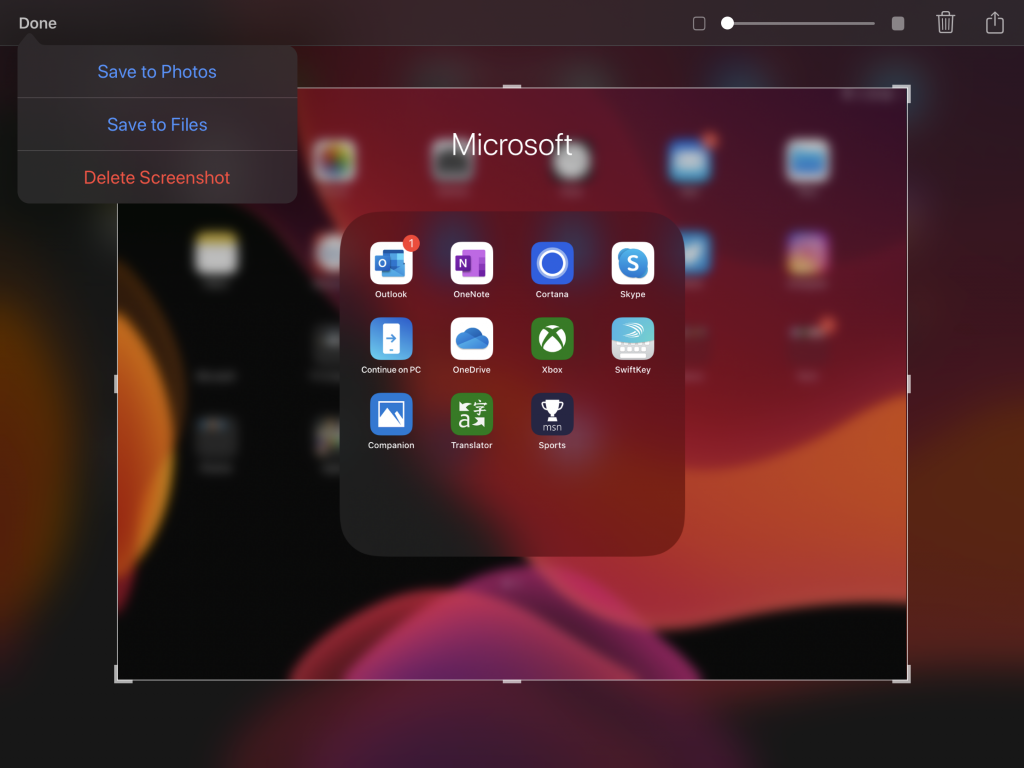
For my daily workflow as a freelance writer, I use quite the number of apps. These include any available web browser, Asana, Microsoft Teams, Slack, and Planner. On any given day, I typically access these via the web, but all are available as stand-alone apps on the iPad.
\n
I already had these apps on my old iPad 4, too, but with iOS 10 being so dated it never had the multi-tasking capabilities and productivity potential that the new iPadOS provides. Websites would load in a horrible mobile mode, and everything was slow to load. For that reason, I never bothered using my iPad for work. It gathered dust as a Netflix and streaming machine.
\n
That was unexpected for me, but iPadOS on the iPad Air 3 completely changed my views on iPads. Apple finally has an OS optimized for tablets, though I still had some reservations about iPad apps and the web browsing experience. Was it going to be like working on a phone?
\n
Let’s stop there: It wasn’t bad, quite the contrary.
\n
I quickly found that Safari on iPadOS is able to auto-render the desktop version of webpages. And, with the text zoom feature in the address bar, zooming out meant I got full versions of most webpages when I needed. Sure, text sometimes looked small on the tiny 10.5-inch screen of my iPad, but I was able to read text and write without any issues.
\n

\n
Also, I found out that I could use multiple tabs in Safari side by side and not use different browsers, Just as I would with Edge in Windows 10, I opened two Safari tabs. One with my WordPress dashboard, and another with the main OnMSFT website. I then dragged the OnMSFT tab out and pulled it to the right side of my screen. iPadOS picked up that I was ready to multitask, and placed my two browsing sessions side by side, with a slider in the middle to resize. Very reminiscent of Windows 8!
\n
But that wasn’t all. Next, I opened Microsoft Teams and then opened up Planner. With both running in the background, I went back to the home screen and re-opened Teams. The dock in iPad realized I needed a Planner, and suggested it to me. I dragged it to the top of the screen, and boom! Side by side multitasking with the two apps I needed most!
\n
iPadOS was so concise, that it remembered all the multitasking sessions I had open. Particularly, this was useful for me when I went back home to check on and open other apps. I didn’t need to go back and repeat the process to get back to my Safari tabs or Planner/ Teams combo.
\n
I even received notifications for Slack and Teams in the background, just as I would on Windows 10. It really is reminiscent of the stacking feature in Windows, which auto-suggests open apps to “stack” when you press Windows Key and Left or Right. Sure, you’re only limited to two open and side-by-side multitasking apps with iPadOS (and can add one in flyover mode,) but did I even need Windows 10 anymore? Well, maybe not.
\n

Some of the apps I used
\n
With keyboard and mouse, iPadOS is just as good as Windows 10
\n
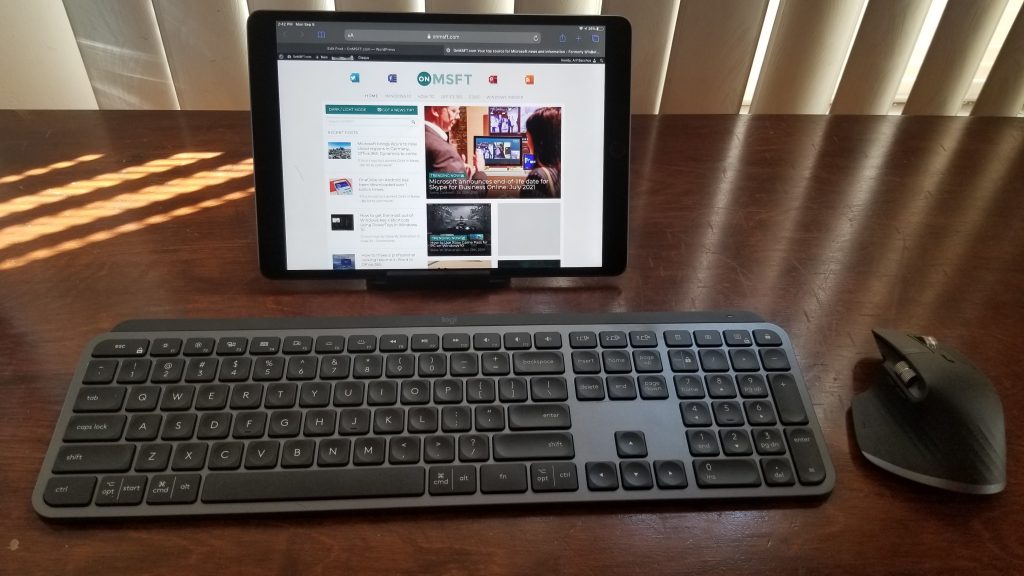
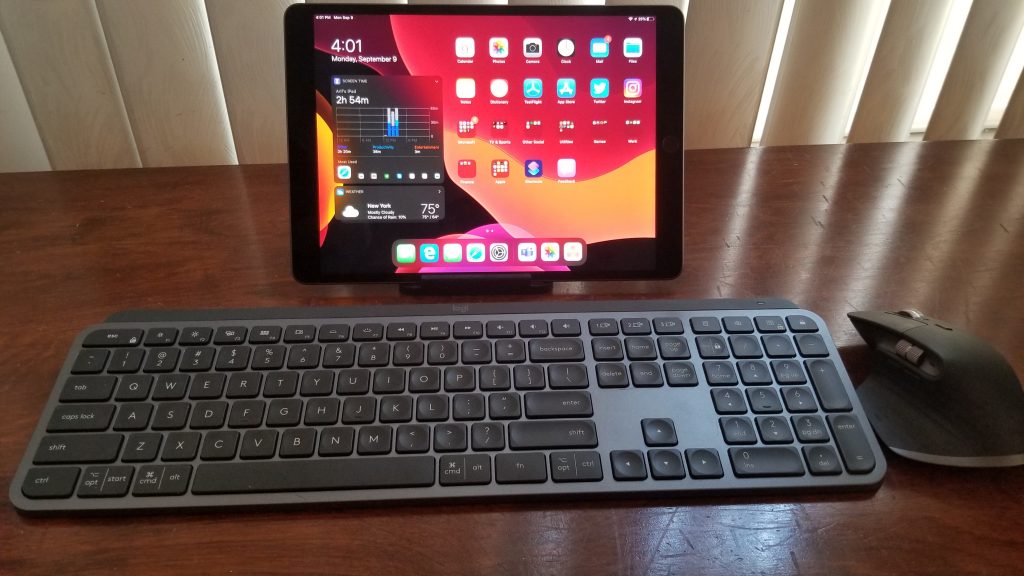
Although I mentioned my steps for multi-tasking above, I’ll specifically left out two points —- keyboard and mouse. I had actually used both with my iPad. In fact, I wrote this entire post on my iPad Air, without any issues for the most part. I used the Logitech MX Keys as a keyboard and the Logitech MX Master 3 as a mouse.
\n
Keyboard support in iOS is not new, but with the new iPadOS, mouse support is. Hidden away in the Assistive Touch and accessibility options, the iPadOS beta features a circular round cursor, that can emulate the touch of a finger.
\n
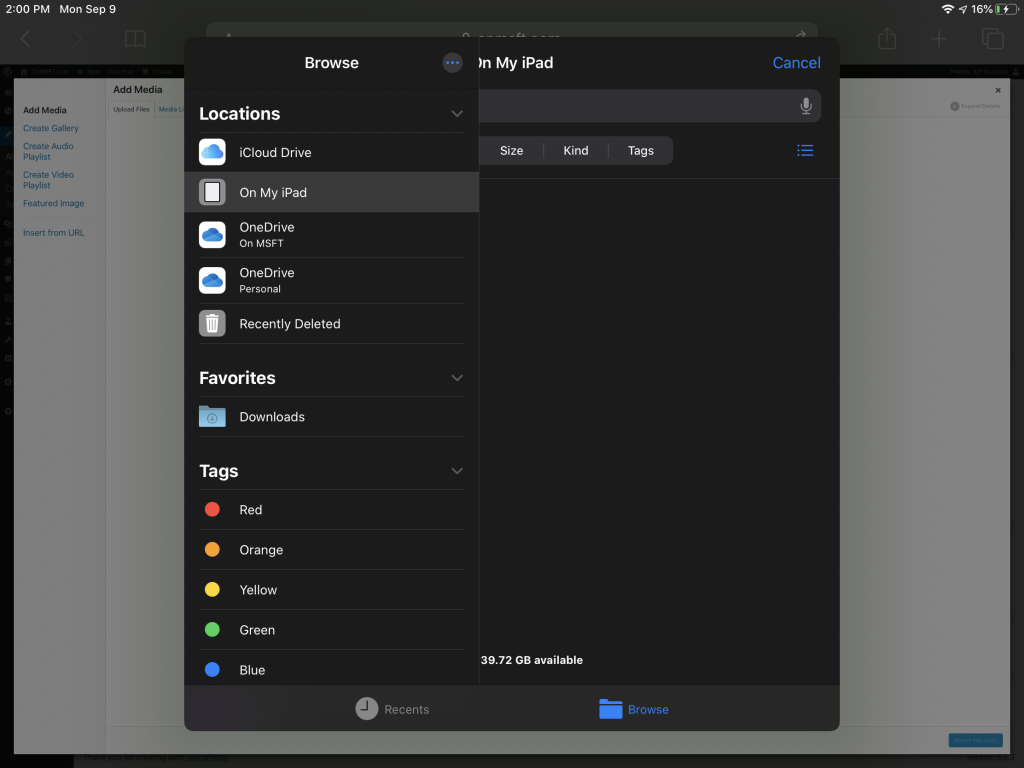
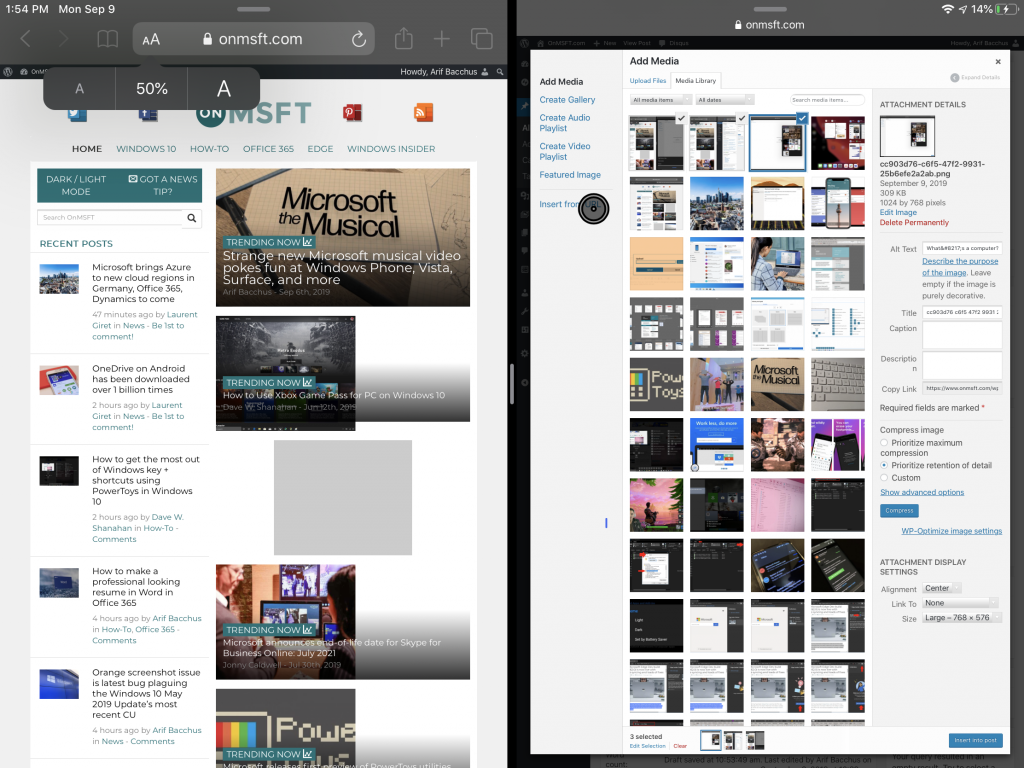
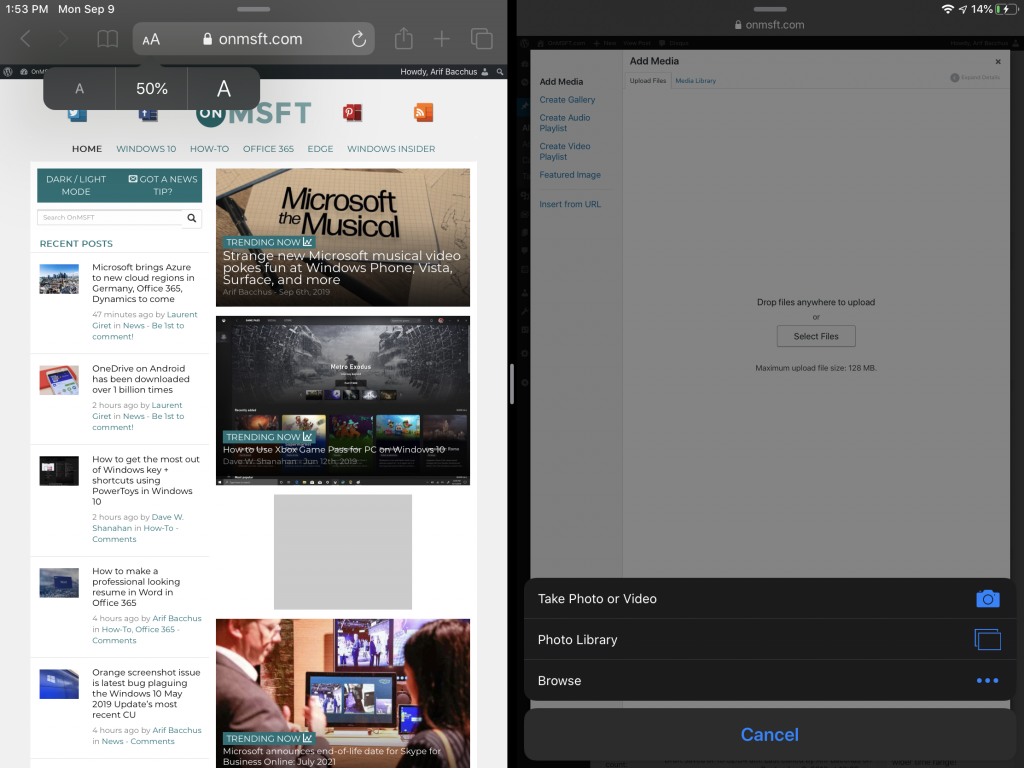
Similar to what I get with the mouse my Surface Pro, it means I didn’t need to constantly reach up to the iPad Screen to accomplish common tasks like scrolling or selecting text and opening apps. I also could use the mouse to click and insert images into this post. Combined with the improved iPadOS Files app, mouse support easily let me choose different locations for the files —- be it local storage, OneDrive, and more.
\n
\n
\n
\n
\n
\n\n
As a bonus, the scroll button on my Logitech MX Master 3 doubled as a home button, removing the need to reach up to the screen, It really is the killer feature that iPads really needed from the start. With its support for a mouse, the iPad moved one step closer to the Surface.
\n
For writing, that mouse support proved to be a lifesaver. I was able to highlight text with the keyboard, then click to insert links. I regularly right-clicked on misspellings, expecting for a spelling suggestion like in Windows 10. In iPadOS, I needed to highlight the misspelling first, and then click with the mouse. There’s no right-click support, as right-click would just bring up the Assistive Touch menu. I also missed out on the Grammarly extension, which would have otherwise corrected my misspellings.
\n
Still, at the end of the day, for my web-based work, the iPad was just as good as Windows 10 and my Surface. I didn’t see anything in Safari, or with the multitasking that Windows 10 wasn’t already doing for me.
\n
\n
Clean, concise, streamlined UI
\n
Moving on, I must mention how clean and concise iPadOS is when put side by side Windows. In iPadOS, Apple slimmed down the iPad home screen and added a ”More” option for the home screen in Display Settings which could make the grid of icons smaller. Addressing other complaints, Apple also introduced a new ability to keep widgets on the home screen. Personally, I didn’t like this and turned the feature off, but for long-time iOS users, it gives iPads a fresh and useful look.
\n
Similar to the icons on the desktop, or the taskbar on Windows 10, the redesign makes the iPadOS dock much more prevalent. In hindsight, that makes accessing apps easier. Everything you need is right there. No bulky live tiles, no-nonsense menus: Click the app you want, and it’s right there.
\n
\n
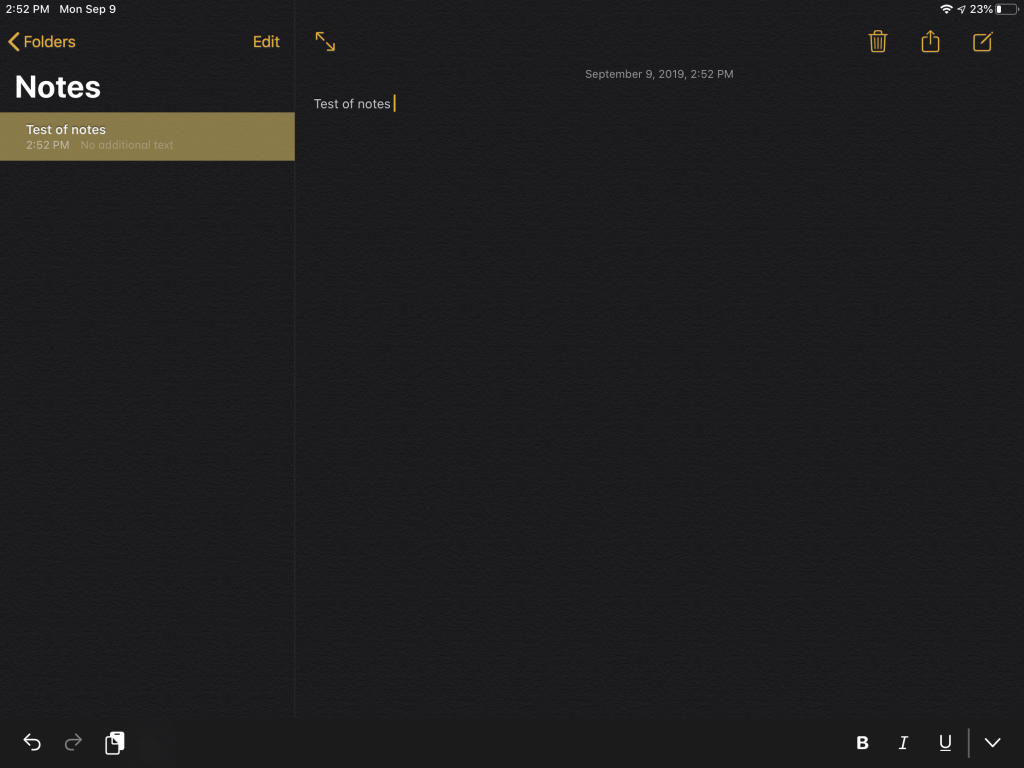
Then there’s dark mode. Microsoft made efforts at dark mode in Windows 10, and so has Google with Android 10, but I’ve never quite seen dark mode as efficient as iPadOS. All the apps are consistent with dark mode, and it just looks beautiful. Folder icons on the home screen turn dark, as do most of the stock apps. The notifications are also dark, with no hint of white across the OS. Compared to the dark mode file explorer in Windows 10 (which still has “light elements” to it), this puts Microsoft to shame. Just look at the Notes app for example: It’s like I’m writing on a sheet of dark leather.
\n
\n

\n

\n
\n
\n
\n
\n\n
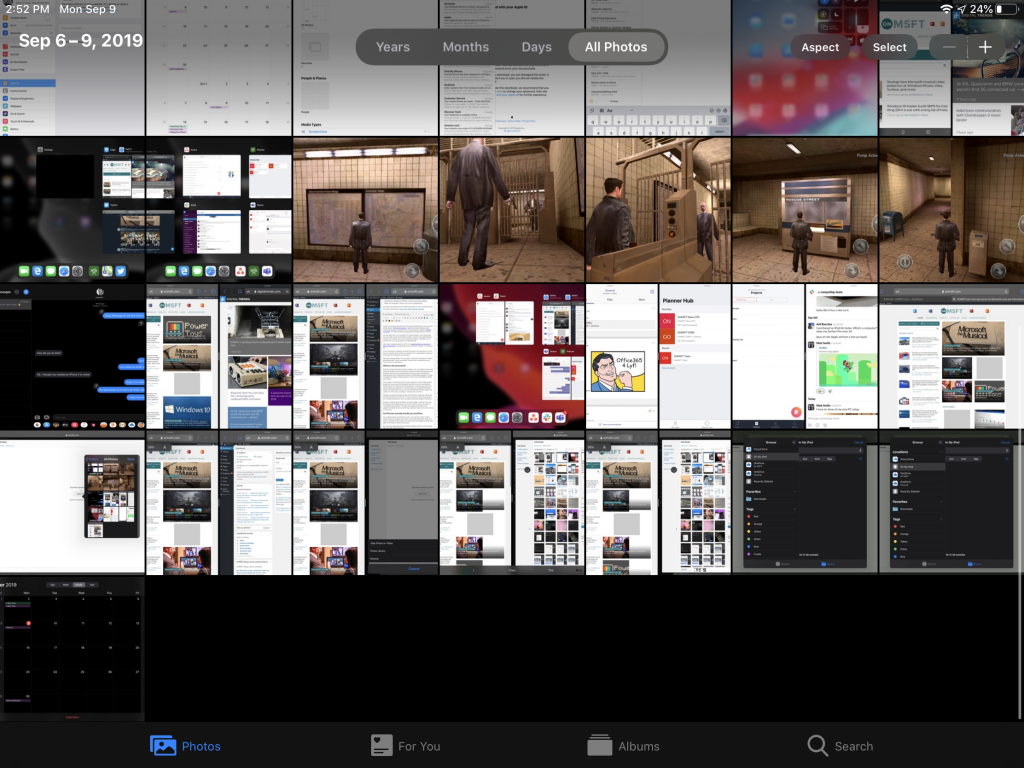
Finally, there is the simplicity of the new Files app. It now sports a column view, which lets you view more about your files at quick glance. There’s also sorting options, and icons. All of these functions are familiar to me from Windows 10. I’m right at home where I want to be.
\n
Where’s the kickstand?
\n
Both iPad and Surface feature premium designs, but I can’t write an article that compares the iPad to Surface experience without mentioning the keyboard and kickstand. Microsoft truly revolutionized the industry when it designed the Surface tablet with an integrated kickstand and detachable keyboard. It’s really convenient and makes using the Surface so much more comfortable in almost any situation.
\n
Now to Apple. The Microsoft rival has since picked up on what makes Surface so great by introducing a $160 keyboard case that connects via proprietary POGO connector on the iPad Air and the iPad Pro. It can fold back and let you use the iPad at two angles, but it’s not the same as an integrated kickstand. I tried it at an Apple Store, and you still need to fiddle with the case to get it set upright. The keyboard itself is also horribly uncomfortable, and setting it up for comfort is not as easy as pulling out a kickstand on a Surface.
\n
\n
Although a separate purchase just like with the Surface Keyboard, I didn’t buy the keyboard case for the iPad Air 3. There are plenty of cases which will give you a kickstand experience, but it just adds unnecessary weight to the device. I’m sure these cases would give the iPad a more laptop-like feel, but for me, it wasn’t needed.
\n
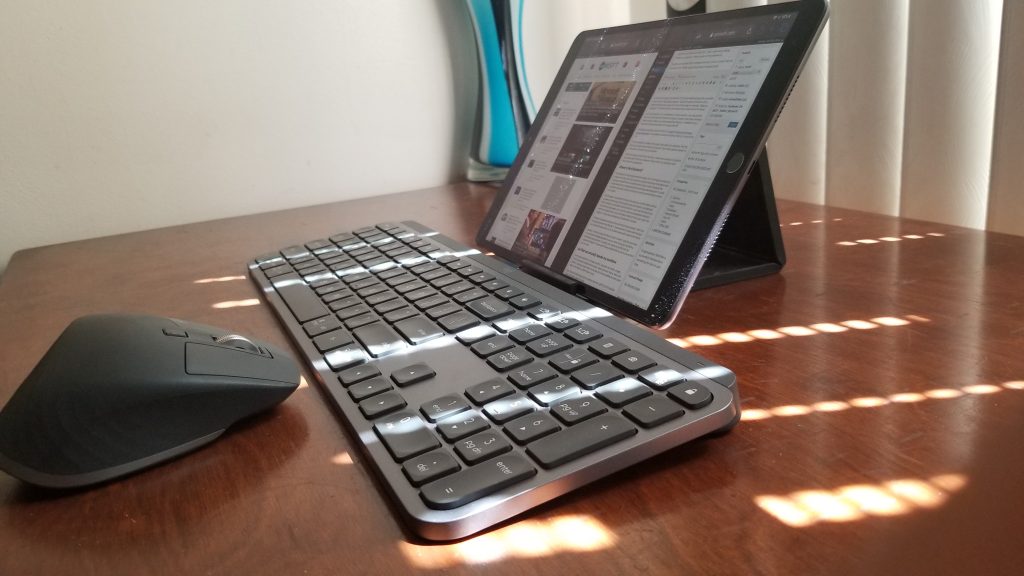
I would be using the iPad on my desk. Instead, I used the cover case for my Microsoft Wedge keyboard to use as a stand to prop up my iPad in a comfortable position. It worked, and I paired up the tablet with my Logitech MX Master 3 mouse and MX Keys keyboard and set out to use my iPad Air 3 for work.
\n
What’s a computer? But, I still need my Surface
\n
At the end of the day, my iPad Air 3 almost ended up replacing my Surface. The multitasking abilities are excellent and just as good as what I’m familiar with in Windows 10. All the apps and services I need for work are there, and iPadOS is much more clean, efficient and concise when compared to Windows 10. I just wish the screen was bigger, and that I’d went for the almost bezel-less iPad Pro. I also wish Apple would work on support for external monitors, so I could extend my iPad screen the same way I do with my Surface in Windows 10.
\n
Either way, iPadOS is also a huge step forward for a tablet-based operating system. We know that Microsoft is hoping to adapt Windows for foldable tablets with its modular Windows Core OS, and is even working to improve the tablet experiences in Windows 10. Google has also shown with ChromeOS how it can create an operating system for tablets.
\n
For now, Apple has realized the potential of consumers using tablets as productivity devices. Maybe Microsoft and Google should be worried. With iPadOS being this competent for me, a longtime Windows user, it only can get better in the future.
\n
However, in terms of pure computing power and versatility, I still went back to my Surface Pro, as I often write about full-on desktop apps and services like Microsoft Office 365. I can’t properly cover this on my iPad as iPad apps are still mobile software. Additionally, there’s nothing more powerful than a Windows computer for video editing, or other tasks that move beyond my web-based work.
\n
Still, I think Apple really killed it with iPadOS, and for some, it really does turn iPads into the potential Surface killer. If you’re still not a fan of the polarizing tablet mode on Windows 10, I’d definitely recommend giving iPadOS a look as it’s probably the best touch-centric OS for tablets as of today.
\n\nFurther reading: iPad, iPadOS, Surface, Tablets, Windows 10