
Microsoft added the Ultimate Performance power mode to its list of Windows power schemes starting with the April 2018 Update. Microsoft allows Windows 11 users to create their own custom power plans, but there is not much guidance available, until now.
\n
The Ultimate Performance power mode is not enabled by default on Windows 11, you have to perform an extra step to turn it on. On enterprise-level servers and workstations where performance is a priority, this power plan is preferred. Microsoft took out all the power-saving and battery-life extending power options out of this plan to focus specifically on pushing your PC hardware and resources to get the highest performance possible out of your rig.
\n
Ultimate Performance power mode features
\n
Starting with Windows 10 version 1803, Ultimate Performance power mode is a preset power policy designed for high-power PC hardware to get the highest performance possible.
\n
Main features of Ultimate Performance power mode include:
\n
- \n
- Hard Disk is never turned off; the default setting is 0 minute.
- Java timer frequency is set to Maximum performance.
- Power saving mode under Wireless Adapter Settings is set to Maximum Performance.
- Hard disk never goes to sleep.
- Hibernation is set to Never.
- CPU Processor power management is set to 100%
- Display is turned off after 15 minutes.
- When playing video, the quality of video playing is optimized.
\n
\n
\n
\n
\n
\n
\n
\n
\n
The Ultimate Performance power plan works to eliminate micro-latency on your PC by valuing performance above efficiency, but also using more power and PC resources to operate in the process.
\n
Enable Ultimate Performance power mode
\n
Follow these steps to enable the Ultimate Performance power plan on Windows. As a reminder, this power plan will make applications and games run faster but will also consume more power and more battery life.
\n
Keep that in mind if you are using this power plan on a laptop or other mobile device, you may want to make sure you keep it plugged in because it will deplete the battery much faster than normal to scrape together every available resource on your PC to get the highest performance possible.
\n
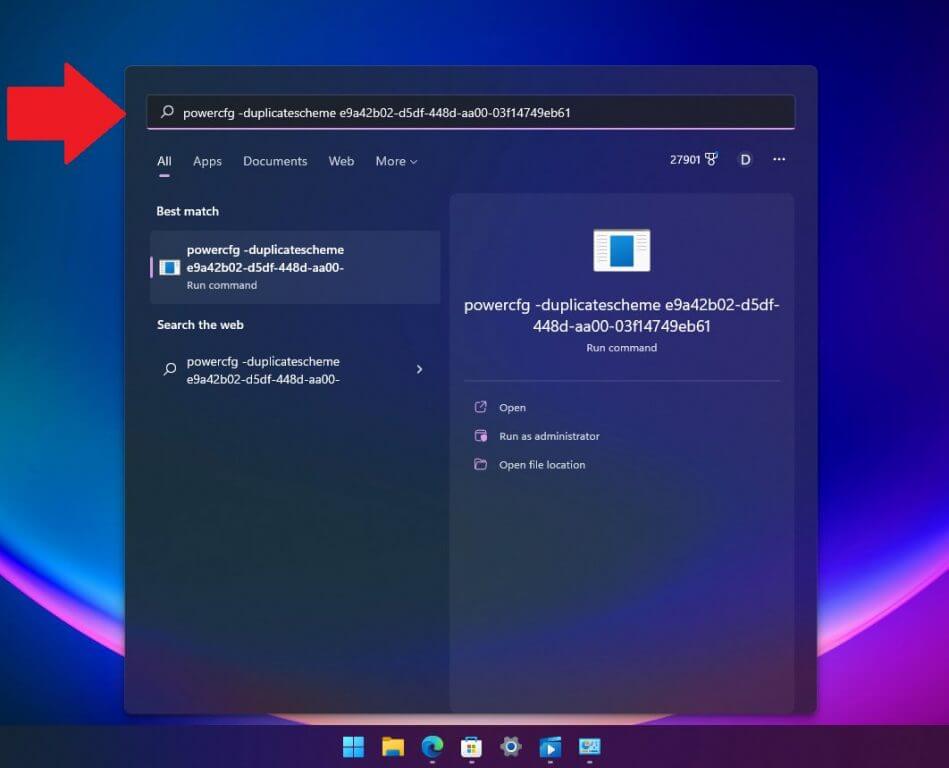
1. In the Windows 11 Start menu or Search, copy-paste the following command and press the Enter to run it:
\n
powercfg -duplicatescheme e9a42b02-d5df-448d-aa00-03f14749eb61\n

\n2. Open Control Panel on your PC and in Control Panel, go to System and Security > Power Options.
\n
\n3. Here, you should see a new “Ultimate Performance” power mode from the list of available options. Click Ultimate Performance to enable and use the power mode on your PC.
\n
\n
Disable Ultimate Performance power mode
\n
If you used the Ultimate Performance power mode and found it doesn’t work well on your PC or is causing you other issues, you can disable it as fast as you enabled it. Here’s what to do.
\n
1. On your PC, open Control Panel and go to System and Security > Power Options and choose a different power plan to use.
\n
\n2. Once you choose a different power mode, click Change plan settings under Ultimate Performance.
\n
\n3. Click Delete this plan and click OKto delete the Ultimate Performance power mode on your PC.
\n
\n


