 \n
\n
Other than Excel spreadsheets and Microsoft Word documents, another core part of any business and the Office 365 experience is PowerPoint. When you’re going to have to sit through meetings with bosses, colleagues, and cohorts, having a visual cue to keep them awake will help — and PowerPoint is usually the best way to go.
\n
But, not all PowerPoint presentations are created equally. In our latest installment to our Office 365 tips and tricks series, we will now showcase our top 5 tips and tricks for PowerPoint — hopefully helping you come away a master at presentations.
\n
Use the Zoom feature for long presentations
\n
One of the worst things that can happen when going through PowerPoint slides during a presentation is losing your place. Even worse, is when someone asked you to go back to a slide, or if you forgot to mention something from a slide all the way at the start of your presentation. Well, worry no more.
\n
With the Zoom feature in PowerPoint, you can get through slides with seamless transitions, focus on the details that matter most. Here’s how you can get started with it.
\n
\n
\n
- Click the Insert Tab, and then choose Zoom
\n
- Click Slide Zoom
\n
- Choose your options. Summary, Section, or Zoom.
\n
\n
\n
Summary will insert a summary of the selected slides. So, when you present, you can click or use the summary slide to zoom to the content. Section will help you and your audience with slide context and can go back to a specific slide or portion of a PowerPoint presentation, if needed. Slide Zoom will help out by including a link to a slide that you can click to navigate to, without exiting your current show.
\n
\n
Use Designer to brighten up your presentations
\n
Not everyone is creative enough to manually create beautiful and fluent PowerPoint presentations that will capture the attention of an audience. Well, the Designer tool in PowerPoint can help out by suggesting themes, colors, fonts, photos, and more. It’s easy to get started with, too. Here’s how.
\n
\n
\n
- Create a new PowerPoint presentation
\n
- Head to the Design Tab
\n
- Click the Design Ideas icon in the far right hand corner
\n
- Sort through a suggested design
\n
\n
\n
Designer is a nice alternative to the built-in Templates feature, which can get pretty generic.
\n
\n
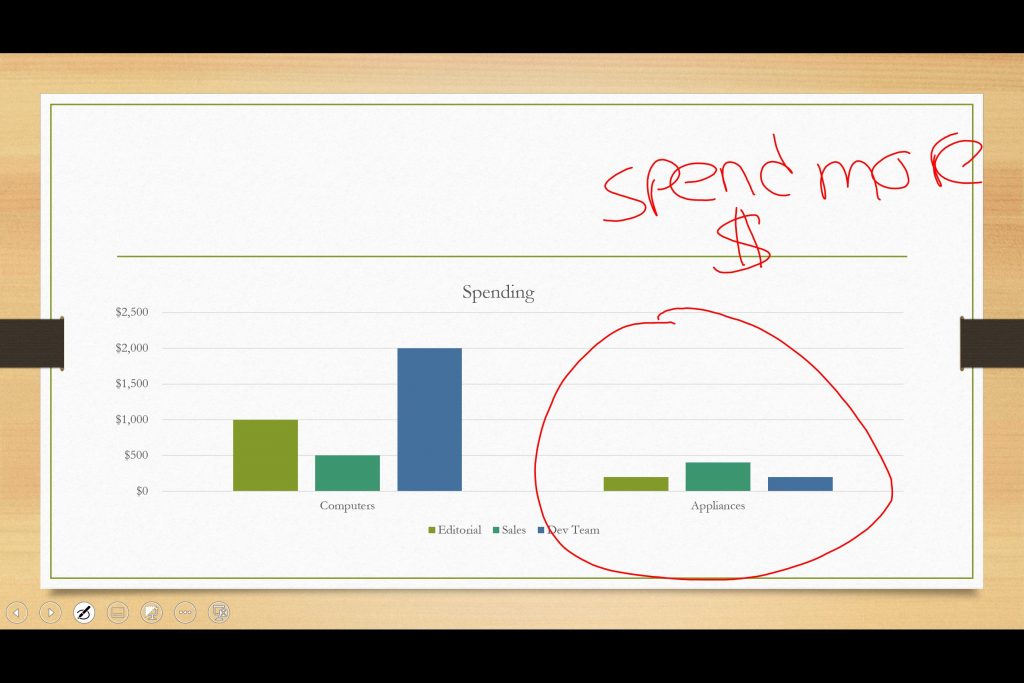
Use ink to draw on slides for more natural presentations
\n
During a presentation, perhaps with numbers and charts, having a touchscreen-enabled PC like a Surface will be one of your biggest advantages. You can ink up your presentations and point out important figures, quotes, charts, and more. This will make your presentation much more natural. Here’s how you can get started.
\n
\n
\n
- Click the Slide Show tab and make sure Presenter View is turned on
\n
- From the Slide Show tab click to begin the Slide Show
\n
- In Presenter View, you’ll notice that there are some icons on the bottom left side of the screen. Click the one that looks like a pen.
\n
- Choose the Pen from the pop out menu
\n
- Drag your Pen over the screen to ink on the slide.
\n
\n
\n
For further customization, you can choose the ink color of the pen. Once your slide show is finished, you can even choose to Keep or Discard your inking.
\n
\n
Collaborate on PowerPoint presentations with OneDrive, or convert to PDF
\n
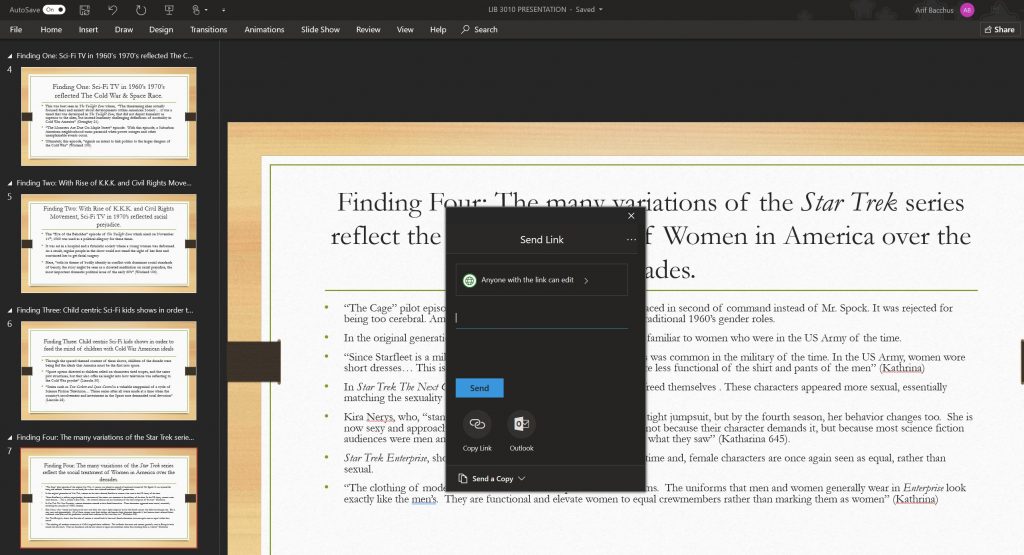
During a presentation, most in the room might be on their laptop or smartphone. That’s why it’s best to send along a copy of the presentation so your audience can follow along with you if needed. To do this, you can either use the power of OneDrive to send a link to your presentation so everyone can view it. Here’s how you can share and invite others to collaborate on your PowerPoint via OneDrive.
\n
\n
\n
- Head to the File tab and click Save As
\n
- Choose the OneDrive option
\n
- Once saved to your OneDrive, head back to your PowerPoint, and click the Share icon on the upper right corner of the screen
\n
- Type out the email addresses to share to, and change the permissions to either Can edit or Can View.
\n
- Click Share
\n
\n
\n
Most people might have Office 365 installed on their PC already, but in some cases, they might not. That’s why, you can convert a PowerPoint to a PDF file. You can easily do this by heading to the File tab and clicking Save As. Then, from the drop-down menu, you’ll want to choose PDF (*.pdf)
\n
\n
Use the Slide Master to create a consistent presentation
\n
Nothing is more annoying than sitting through a PowerPoint, only to have the theme change every other slide. It’s visually distracting and can ruin the look and feel of a presentation. To ensure that never happens, you can use the Slide Master in PowerPoint. Here’s how.
\n
\n
\n
- Click View and then choose Slide Master.
\n
- A bunch of new slides will then open up, and you can edit these slides. Once you apply a change to the slide master, all PowerPoint sldes of the same format will use the same master.
\n
- You can then insert the elements that you want to stay the same across the slideshow.
\n
\n
\n
This feature is especially useful for inserting company logos, and photos, as it will retain a consistent look as the presentation progresses. No more visual distractions for your viewers!
\n

\n
How will you put the Power in PowerPoint?
\n
Be it the Zoom feature, designer, inking, or collaboration, these top 5 tips and tricks for PowerPoint are just the beginning. There’s so much more you can do with PowerPoint. We’ve only scratched the surface, and there’s a lot you can learn.
\n
Let us know in the comments below if you’ve got any tips or tricks you’d like to share. And, be sure to keep tuned to our Office 365 hub for all your Microsoft Office news and information.
\n\nFurther reading: Microsoft, Office 365, PowerPoint