
Microsoft’s expansion of its beta programs into Insider previews have arguably been a success for the company. Going from a few hundred testers to millions of real-world participants finding bugs and issuing feedback has been the bread and butter of several Microsoft experiences that have ranged from Windows to the Xbox One console.
As the teams from several divisions within Microsoft feed on the feedback lifeblood from Insider participants, the company has been tooling and retooling the ways to encourage even more participation. Beyond power users or IT professionals, Microsoft is looking to deputize any and everyone interested in working backstage to help build its services and software.
Perhaps the most highlighted, if not the poster child for Microsoft’s Insider preview programs, is Windows 10. Becoming a Windows Insider is as easy as ever these days.
Step 1. Determine your level of involvement
Before the rush to Twitter or Windows Blogs for the latest information or news about new builds and release Ring downloads, every Windows Insider should ask themselves if they are ready to become and Insider.
Being a Windows Insider on any of Microsoft’s platforms is a marathon, not a sprint. While the company has made it somewhat easier to backtrack from messy builds, most Insider programs are fraught with long waits and broken functionality. Those who participate must be ready with either a secondary machine or seemingly unlimited patience.
Step 2. Make it official
- Visit the official Microsoft Windows Insider site. The site can be found with a simple Bing, Google (Yahoo or any other search provider) using the keywords Windows-10-Insider.
- Once on the page, click the Get Started button to begin the process.

Windows 10 Download page
Step 3. Choose your platform
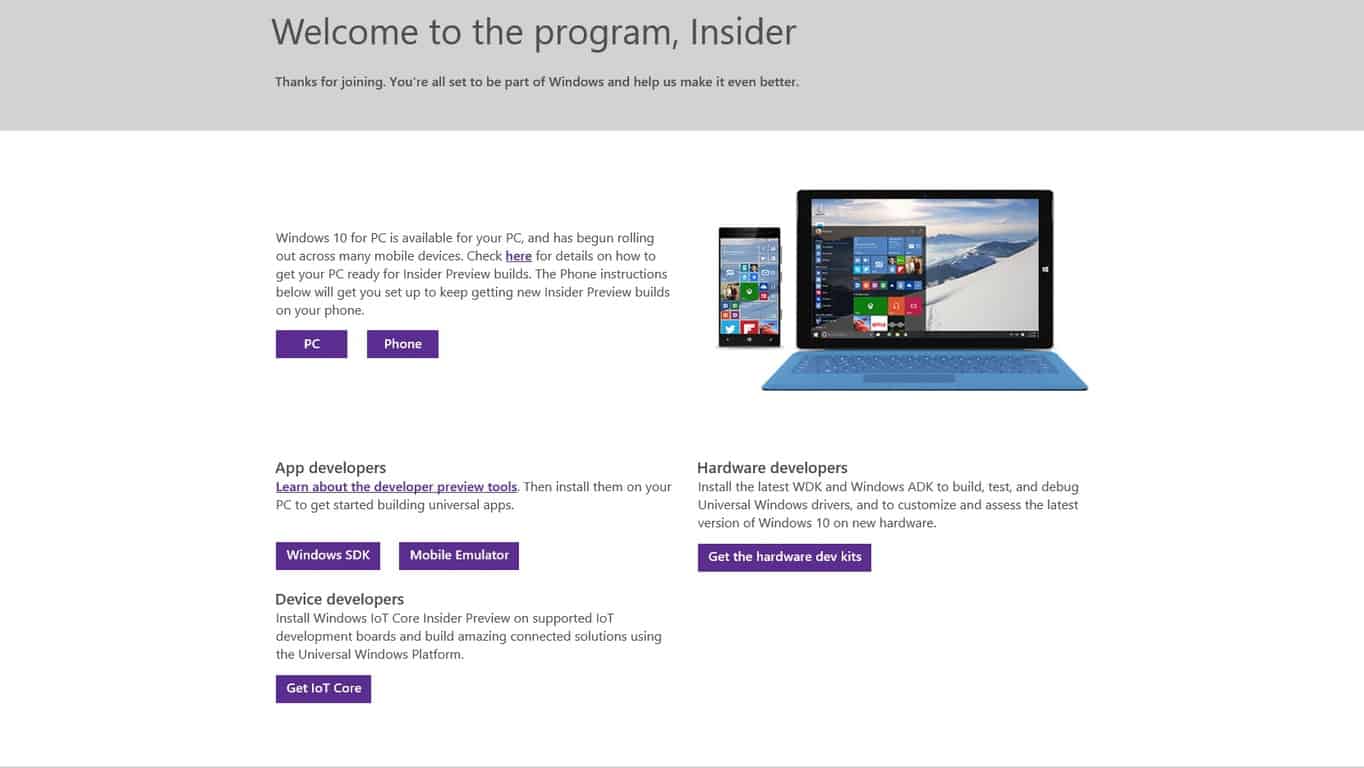
While there is only one Windows, there are still several Windows platforms Insiders can opt to be a part and choosing the Insider program through the official Windows 10 Insider site will offer participants several options.
For most consumers
- PC
- Phone
For developers
- Windows SDK
- Mobile Emulator
- IoT Core
Hardware developers
- Hardware Dev Kits
Several Windows Insider Previews
Step 4. Select your download method
Avoid the rush to click the big blue Upgrade Now button as participating in the Windows 10 Insider preview already gets you an upgraded copy of Windows 10 and will only delay your Insider participation as you wait through an official upgrade cycle.
There are several ways to get a copy of the Windows 10 Insider preview onto your system. For most, choosing Download Tool Now should suffice.
Warning: Make sure to read the before you begin section listed above the Download Tool Now. Hell, here it is to save you time:
Make sure you have:
An internet connection (internet service provider fees may apply).
Sufficient data storage available on a computer, USB or external drive for the download.
A blank USB or DVD (and DVD burner) with at least 4 GB of space if you want to create media. We recommend using a blank USB or blank DVD because any content on it will be deleted.
Check these things on the PC where you want to install Windows 10:
64-bit or 32-bit processor (CPU). You’ll create either the 64-bit or 32-bit version of Windows 10 that’s appropriate for your CPU. To check this on your PC, go to PC info in PC Settings or System in Control Panel, and look for System type.
System requirements. See the system requirements before installing Windows 10. We also recommend that you visit your PC manufacturer’s website for info about updated drivers and hardware compatibility.
Language in Windows. You’ll need to choose the same language when you install Windows 10. To see what language you’re currently using, go to Time and language in PC settings or Region in Control Panel.
Edition of Windows. You should also choose the same edition of Windows. To check what edition you’re currently running, go to PC info in PC Settings or System in Control Panel, and look for Windows edition. Windows 10 Enterprise isn’t available here. Please see the Volume Licensing Service Center for more information.
Microsoft Office products. If you just purchased a new device that includes Office 365, we recommend redeeming (installing) Office before upgrading to Windows 10. To redeem your copy of Office, please see Download and install Office 365 Home, Personal, or University on your PC. For more information, check How to upgrade to Windows 10 on new devices that include Office 365.
If you have Office 2010 or earlier and choose to perform a clean install of Windows 10, you will need to locate your Office product key. For tips on locating your product key, check Find your Office 2010 product key or Enter the product key for your Office 2007 program.
Step 5 Congratulate yourself
- As mentioned before, the Windows team has tweaked and evolved the entry into the Insider preview enabling average joes to participate at the click of a button. Hitting the Download Tool now button is the last thing to do.
- A few seconds for the tool to install on your device or (Virtual Machine – check older WinBeta post for that info) and once installed, a series of prompts walk most Insiders into the fray. There is the topic of which Insider Ring to participate in. As mentioned, Fast Ring participation indicates a speedy release of testable builds equipped with bugs, glitches, and breaking points. Slow Ring Participation is for users who want to still be ahead of the curve but would prefer a more stable experience at the expense of getting new features and fixes as quickly as the Fast Ring.

Windows 10 Insider update (old) update screen
Whatever your selection, you’ve already joined the seven million and counting, individuals who are helping to shape Windows 10, welcome.


