
 \n
\n
How to use Microsoft Planner
\n
A project management tool, Microsoft Planner is similar to free or paid services like Trello or Asana. Built right into Office 365, Planner can help you reduce the chaos at work and improve your workflow. Here’s how.
\n
- \n
- Create categories for different tasks in Planner with “buckets”
- Track tasks in Planner by setting progress, dates, adding details on cards, and more
- Use filters or group by feature to help you pick out tasks that matter
- Try out charts to get an analytical look at your progress
\n
\n
\n
\n
\n
\n
Applies to All Windows 10 Versions
\n
\n
If your workplace or business is subscribed to Microsoft Office 365, there are many great tools that you can leverage to improve your efficiency. We’ve already touched on some of these, including Teams, Outlook, OneDrive, as well as OneNote. Now, however, it’s time to turn our attention towards Microsoft Planner.
\n
A project management tool, Planner is similar to free or paid services Trello or Asana. It comes at no extra cost and is built right into Office 365, and can help your organization keep track of important tasks and improve workflows. Here’s more on how we use it at OnMSFT, and a guide for how you can also use it in your own workplace.
\n
Create categories for different tasks with “buckets”
\n
At the heart of the Planner experience are some things known as the “plan,” “buckets” and “boards.” First off, a board is what is home to your plan, or list of tasks. Once you create a plan under Planner with the (+) button on the sidebar, you’ll have a new board. You can then create different “buckets,” within the board for organizing various types of tasks.
\n
You can do this by pressing on the “Add new bucket” link at the top of the board. Here at OnMSFT, we use Planner for tracking our news coverage. We also have different boards for our other types of coverage, including Office 365, and How-Tos. Typically, we also have buckets for Story Ideas, News Stories, DIBS, as well as a special bucket for editors to mark off completed stories.
\n
Once you’ve added a bucket, there’s a separate (+) button underneath the name of the bucket. This will allow you to create a new task card and set a due date, or assign it to a team member. We have more on that below.
\n

A look at a sample board in Microsoft Planner
\n
Track tasks by setting progress, dates, adding details on cards, and more
\n
There are many ways you can leverage task cards in Planner to your productivity advantage. You can use the drop-down menu to move it to various buckets, change its progress, and set the start date and due date. You also can type a description to let your colleagues know what you’re working. on. For simplicity’s sake, there’s even a checklist, which can help track the progress of whatever has been assigned.
\n
Even better, there’s also an “Add attachment” button which you can use to insert files or links that will be visible on the card itself. We often use this feature here at OnMSFT to share links to sources for any articles we’re writing about.
\n
In addition, there are different colored “labels” which run along the side of each task cards. A total of six are available, and you can customize the name for each one. This will make stick a color label to the side of the card, and help make for a visual cue on what the card signifies. For us here at OnMSFT, we use “high priority” and “low priority” labels.
\n
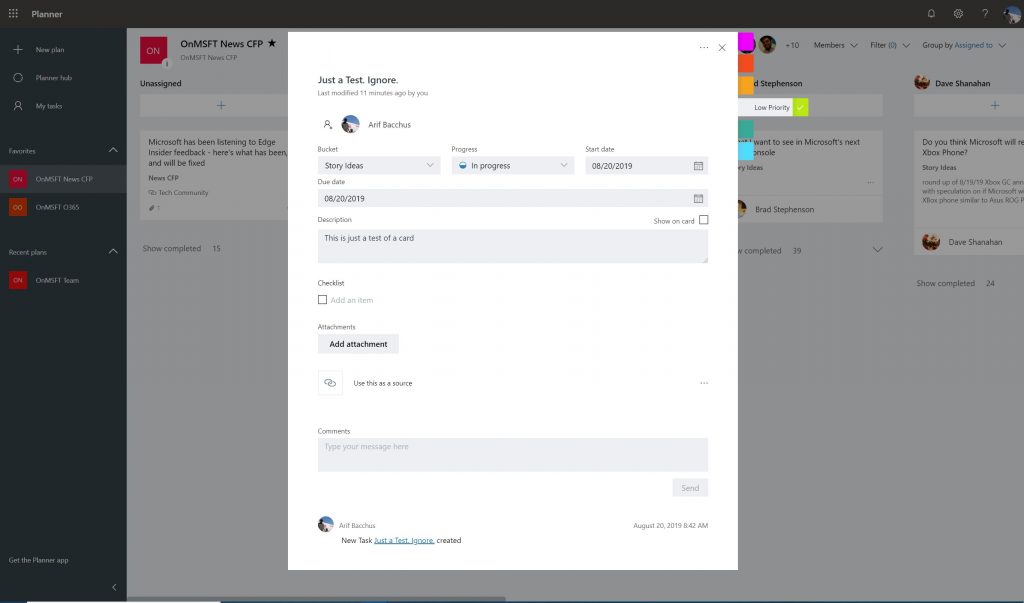
A sample card in Microsoft Planner
\n
Use filters or group by feature to help you pick out what matters
\n
As you add more and more tasks and bucket lists to planner, it might become hard to track what’s going on. Luckily, there is a filter feature that can help. Available on the top right-hand side of the window, this will let you filter out assignments based on your name only — or the name of your coworker.
\n
As an alternative, you also can use the “Group by” feature to switch up the look of the bucket lists. This will allow you to group by the person the task is assigned to, by the progress, or by due dates and labels.
\n
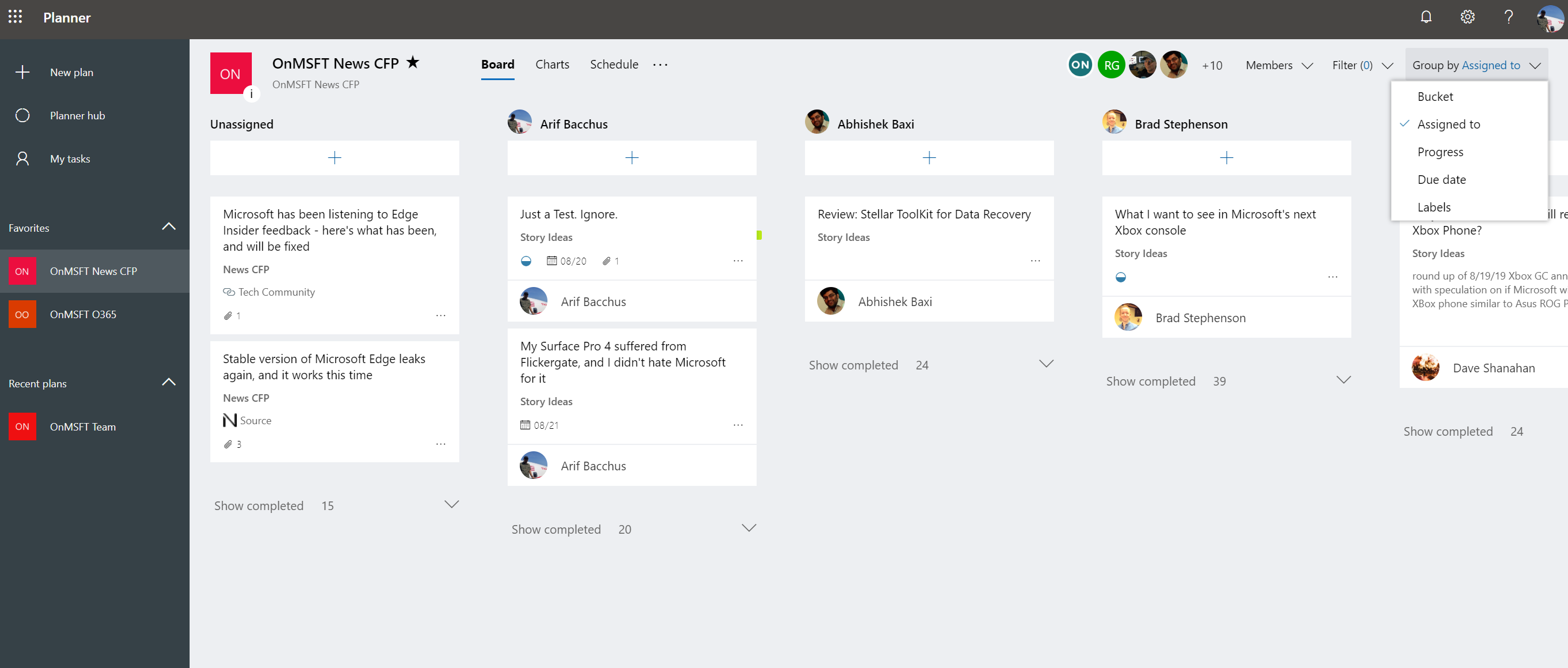
The “Assigned To” option under Group by
\n
Try out charts to get an analytical look at your progress
\n
The planner can get messy at times, and (as a boss or manager) you might not always get to see what’s being worked on, and who is on what specific task. Luckily, Microsoft has a neat little feature built into Planner that can help.
\n
From the top menu bar, next to the name of the Plan, you’ll see an icon that looks like a graph. If you click this, it will switch you into a chart mode. You can see the total status of plans, and more details on what tasks have been started, in progress, late, or completed. You also can see the number of tasks per bucket, and the number of tasks per members. A list is also viewable on the side, with all available bucket items.
\n
A similar feature is also available for anyone in the team to visually see their tasks across all plans and buckets. Just click on the circle icon on the left sidebar to trigger an overview page. You’ll get a visual view of how many tasks you have left, and more.
\n
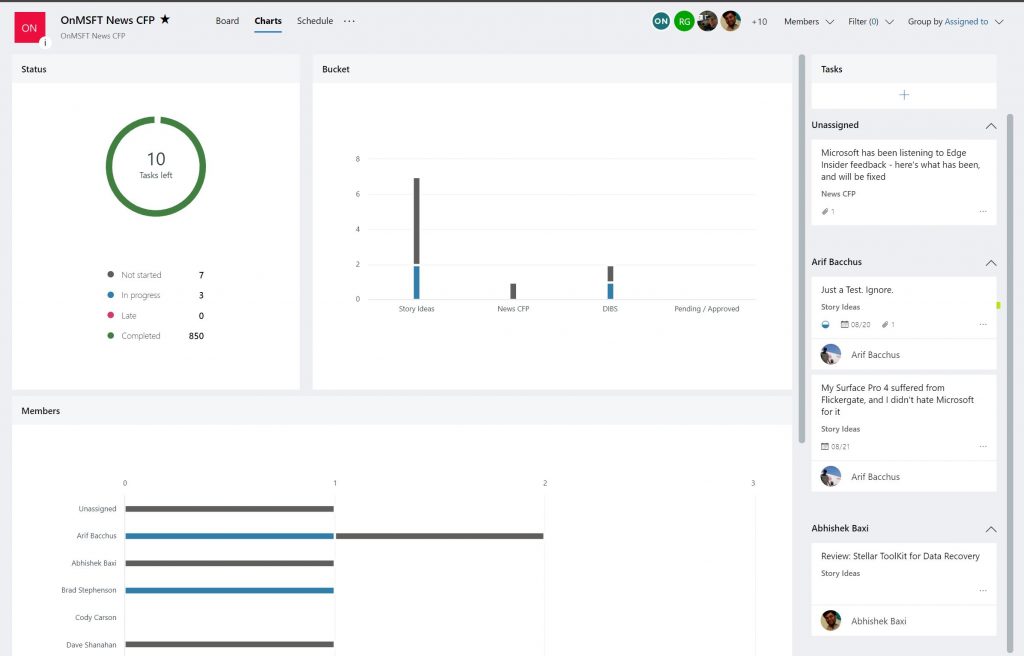
Charts in Planner
\n
How will you use Planner?
\n
As you can see, Planner is a very powerful tool. There’s more than one way you can use it to eliminate the chaos and better manage the tasks in your workplace environment. It’s built right into Office 365, and you can get everything you need to manage your team without having to worry about having to switch between different services or apps. Do you think you’ll use Planner in your company? Let us know in the comments below.
\n\nFurther reading: Microsoft, Office, Office 365, Office 365 Planner, planner


