Skip to content
OnMSFT.com
  • Home
  • About
  • Contact
  • Windows
  • Surface
  • Xbox
  • How-To
  • OnPodcast
  • Edge
  • Teams
  • Gaming
Menu
  • Home
  • About
  • Contact
  • Windows
  • Surface
  • Xbox
  • How-To
  • OnPodcast
  • Edge
  • Teams
  • Gaming
  1. Home
  2. How-to
  3. Here’s how IT admins can delete Office 365 accounts and users

Here’s how IT admins can delete Office 365 accounts and users

Arif Bacchus Arif Bacchus
March 18, 2020
4 min read
\n

How IT admins can delete Office 365 accounts

\n

Here’s how IT admins can delete old Office 365 accounts and also remove licenses to avoid paying for unused/deleted users accounts.

\n

    \n

  1. Visit the Microsoft 365 Admin Center
  2. \n

  3. Make sure the Try the new admin center switch is toggled on the top
  4. \n

  5. Click Users in the sidebar, select the user to be deleted and choose Delete User
  6. \n

  7. Go to the Billing page of the Microsoft 365 Admin Center
  8. \n

  9. Click the Products & Services page
  10. \n

  11. Select the subscription and then select Add/Remove licenses to delete the license.
  12. \n

\n

\n

Applies to All Windows 10 Versions

\n

\n

Whenever someone leaves a job or is no longer with an organization it makes sense to delete their data and remove them from Office 365. This not only frees up a spot for future employees but it prevents the user from going back and accessing their data. It also eliminates paying an extra Office 365 subscription fee for the user. In this guide, we’ll take a look at how IT admins can delete old Office 365 accounts.

\n

Some information

\n

Before getting into anything, we’ll mention that this is a guide for IT admins only. Only people who have Office 365 global admin or user management permissions for a business or school can delete user accounts. It’s also worth noting that an IT admin will only have 30 days to restore the account before the user’s data is permanently deleted.

\n

We’ll also mention that even if you delete an Office 365 user, you’ll still be paying for their license. You’ll need to take the extra step of stop paying for the license or move it to another user, to avoid paying extra.

\n

If losing critical company information is a concern, there are ways to back up a former user’s data, if need be. Finally, it is still possible to keep the user’s email, before you delete the account by moving the email to a different location. IT Admins with enterprise-level Office 365 subscriptions can also preserve the mailbox data of a deleted Office 365 user account by turning it into an inactive mailbox.

\n

Step 1: Delete a user

\n

\n

If you’re deleting a user’s account that you’ve converted to a shared mailbox, there is a special consideration before deleting a user. There’s also special consideration if you have set up email forwarding on the account.

\n

The reason why? When a person replies to a message sent to the shared mailbox, the email will appear to be from the shared mailbox and not from the individual user. Additionally, email forwarding also depends on having the actual account still active and if you delete the account the mailbox will become inactive. In these situations, Microsoft recommends for you to stop paying for the license instead of deleting the account (which we describe in the next section.)

\n

Anyway, to get started with deleting an Office 365 account or user, you’ll need to visit the Microsoft 365 Admin Center. From here, you’ll want to make sure the Try the new admin center switch is toggled on the top. You can then click Users in the sidebar, select the user you want to delete and choose Delete User.

\n

IT Admins with more in-depth experience can also remove many users at the same time with the Remove-MsolUser PowerShell cmdlet. We won’t get into the technical aspects of that, but you can read about it here if wanted.

\n

Step 2: Stop paying for their license

\n
\n

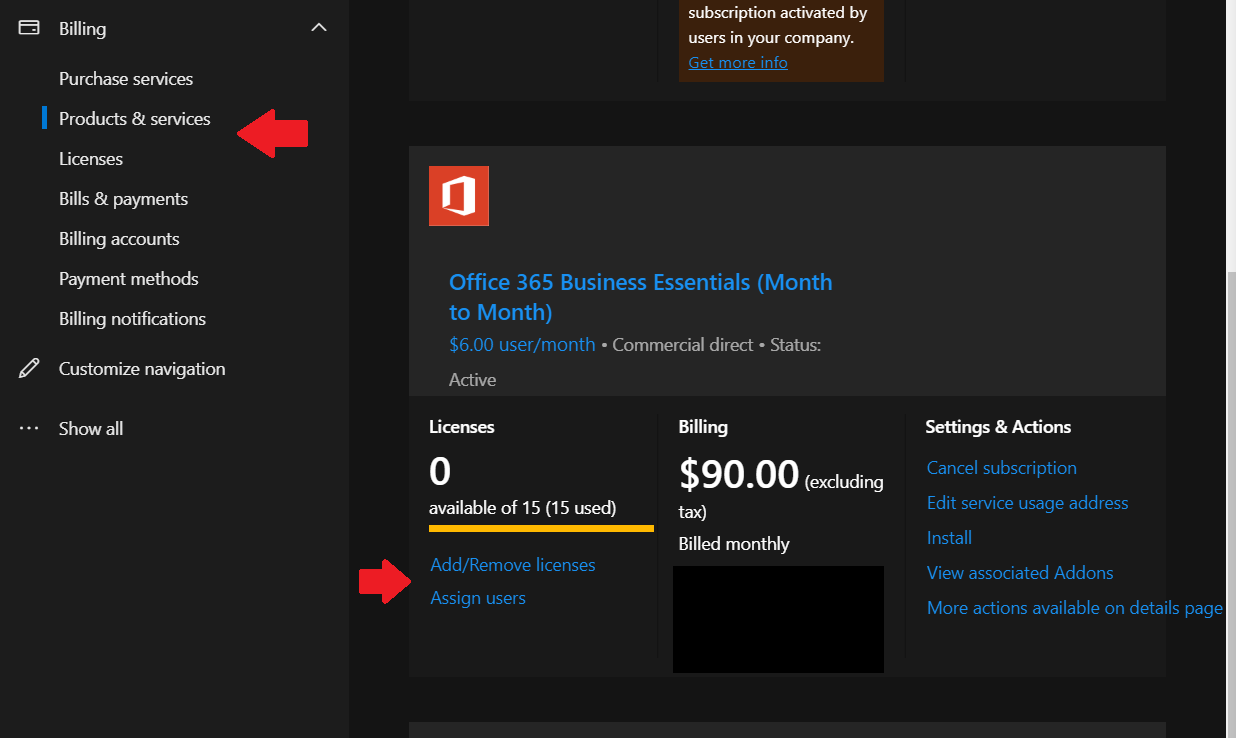
Again, deleting an Office 365 account still means that you’ll be paying for the license. You can stop paying for the license by doing the following. You’ll first want to go to the Billing page of the Microsoft 365 Admin Center. Then, you’ll want to click the Products & Services page. You can then select the subscription and then select Add/Remove licenses to delete the license. You also can reassign the license to someone else from the same page, if need be. Just be aware it won’t be won’t be assigned to someone automatically.

\n

Other Notes

\n

Depending on your situation, you might not be able to remove the corresponding license once you’ve removed an Office 365 user (in this case, you could still re-assign the now freed-up license to a new user). This will happen if you’ve purchased licenses through a Partner or volume licensing. You also might not be able to remove licenses if If you are paying for an annual plan or if you are in the middle of a billing cycle. In this case, you won’t be able to remove the license from your subscription until your commitment is completed. You can learn more about deleting Office 365 accounts from Microsoft here.

\n

Share This Post:

Tags: Microsoft | Office 365
Share this article:
Tags:
Microsoft Office 365
Previous Article Minecraft hints at possible Dungeons delay Next Article Windows 10 Insider build 19587 is now out on the Fast Ring, here’s everything you need to know

Related Articles

How to Fix the Phone Link App Not Working on Windows 11 – OnMSFT.com

December 29, 2022

5 easy ways to make desktop shortcuts on Windows 11 – OnMSFT.com

December 29, 2022

How to customize precision touchpads on Windows – OnMSFT.com

December 22, 2022

Leave a Comment Cancel reply

Your email address will not be published. Required fields are marked *

Recent Posts

  • Microsoft is no longer manufacturing the Windows RT powered Surface 2
  • Microsoft treats Windows Phone owners with extra 20GB of free SkyDrive storage for one year
  • Bing now showcases professional and celebrity Klout scores during search results
  • Bing now lets you search and browse for your friends’ Facebook photos
  • Bing now lets you explore free online courses and helps you find books to read

Recent Comments

No comments to show.

Archives

  • February 2026
  • December 2022
  • November 2022
  • October 2022
  • September 2022
  • August 2022
  • July 2022
  • June 2022
  • May 2022
  • April 2022
  • March 2022
  • February 2022
  • January 2022
  • December 2021
  • November 2021
  • October 2021
  • September 2021
  • August 2021
  • July 2021
  • June 2021
  • May 2021
  • April 2021
  • March 2021
  • February 2021
  • January 2021
  • December 2020
  • November 2020
  • October 2020
  • September 2020
  • August 2020
  • July 2020
  • June 2020
  • May 2020
  • April 2020
  • March 2020
  • February 2020
  • January 2020
  • December 2019
  • November 2019
  • October 2019
  • September 2019
  • August 2019
  • July 2019
  • June 2019
  • May 2019
  • April 2019
  • March 2019
  • February 2019
  • January 2019
  • December 2018
  • November 2018
  • October 2018
  • September 2018
  • August 2018
  • July 2018
  • June 2018
  • May 2018
  • April 2018
  • March 2018
  • February 2018
  • January 2018
  • December 2017
  • November 2017
  • October 2017
  • September 2017
  • August 2017
  • July 2017
  • June 2017
  • May 2017
  • April 2017
  • March 2017
  • February 2017
  • January 2017
  • December 2016
  • November 2016
  • October 2016
  • September 2016
  • August 2016
  • July 2016
  • June 2016
  • May 2016
  • April 2016
  • March 2016
  • February 2016
  • January 2016
  • December 2015
  • November 2015
  • October 2015
  • September 2015
  • August 2015
  • July 2015
  • June 2015
  • May 2015
  • April 2015
  • March 2015
  • February 2015
  • January 2015
  • December 2014
  • November 2014
  • October 2014
  • September 2014
  • August 2014
  • July 2014
  • June 2014
  • May 2014
  • April 2014
  • March 2014
  • February 2014
  • January 2014
  • December 2013
  • November 2013
  • October 2013
  • September 2013
  • August 2013
  • July 2013
  • June 2013
  • May 2013
  • April 2013
  • March 2013
  • February 2013
  • January 2013
  • December 2012
  • November 2012
  • October 2012
  • September 2012
  • August 2012
  • July 2012
  • June 2012
  • May 2012
  • April 2012
  • March 2012
  • February 2012
  • January 2012
  • December 2011
  • November 2011
  • October 2011
  • September 2011
  • August 2011
  • July 2011
  • June 2011
  • May 2011
  • April 2011
  • March 2011
  • February 2011
  • January 2011
  • December 2010
  • November 2010
  • October 2010
  • September 2010

Categories

  • Announcements
  • Deals
  • Developer
  • Editorial
  • Feature
  • Feature stories
  • Hero-post
  • Hotdeals
  • How-to
  • Latest news
  • Microsoft / office 365
  • News
  • Office 365
  • Onpodcast
  • Opinion
  • Our featured post
  • Polls
  • Review
  • Reviews
  • Videos
OnMSFT.com

OnMSFT.com covers Microsoft news, reviews, and how-to guides. Formerly known as WinBeta, we have been your source for Microsoft news since 1998.

Categories

  • Windows
  • Surface
  • Xbox
  • How-To
  • OnPodcast
  • Gaming
  • Edge
  • Teams

Recent Posts

  • Microsoft is no longer manufacturing the Windows RT powered Surface 2
  • Microsoft treats Windows Phone owners with extra 20GB of free SkyDrive storage for one year
  • Bing now showcases professional and celebrity Klout scores during search results
  • Bing now lets you search and browse for your friends’ Facebook photos
  • Bing now lets you explore free online courses and helps you find books to read

Quick Links

  • About OnMSFT.com
  • Contact OnMSFT
  • Join Our Team
© 2010–2026 OnMSFT.com LLC. All rights reserved.
About OnMSFT.comContact OnMSFT

